
Key takeaways
- With Beav running and briefs turned on, a daily brief starts generating at 09:00 local time by default. Read it in the Daily brief tab under Start with a topic on Home.
- Today's findings groups news, trends and hits picked from your account plan and the brief's Focus. When evidence is thin, it says so instead of padding. Every item has Add to Topics and Create.
- Yesterday's review reads the like history saved for your own account, shows the net growth of comparable notes in a table, and sums up lessons you can reuse.
For a lot of creators the day starts with a tour of apps: what happened in the industry, whether anything on the trending lists fits the account, which similar account had a hit yesterday, and how your own posts did. Half an hour later you have a couple of ideas, usually scattered across a notes app.
The Beav daily brief moves that work to before you sit down: each morning it collects today's findings around your account's direction and reviews yesterday with your own account's data, and any item can go straight into your topic pool or a new chat.
Who it is for
- Creators who need a topic every day but don't want to spend the morning scrolling.
- Marketers running a niche account who want irrelevant noise filtered out first.
- Anyone who wants to know which of yesterday's posts are growing without checking numbers by hand.
- People running several account spaces who want a separate brief for each.
How to use it
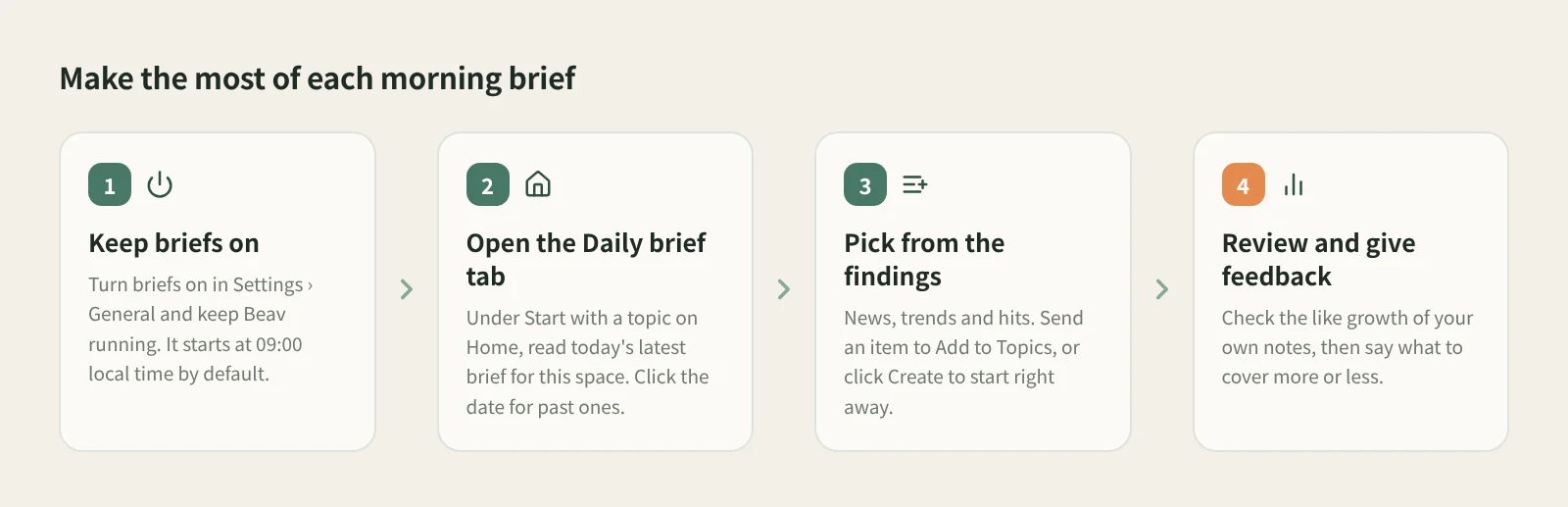
- Keep briefs on and Beav running. The switch is in Settings › General. By default the brief starts generating at 09:00 local time, and its content appears once it is finished. Before that, Home shows when it will be generated; it also shows when a brief is generating, has failed, or is turned off.
- Open the Daily brief tab. Under Start with a topic on Home, the Daily brief tab shows today's latest brief for the current space. Click the date at the top for a month calendar: days with a brief can be selected, the rest are grayed out. If a day has several editions you can pick one, and Today takes you back to the latest.
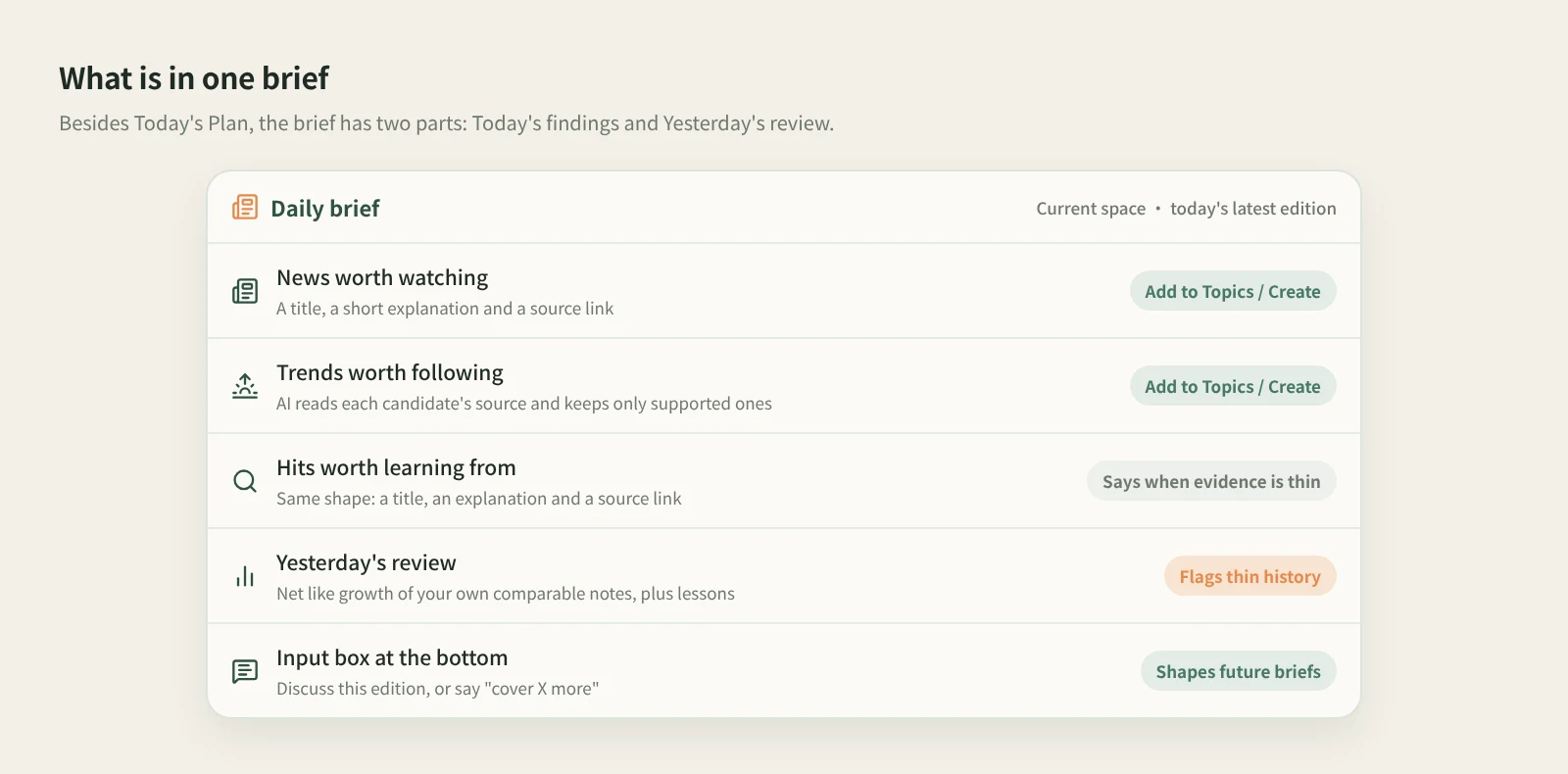
- Pick topics from Today's findings. Items are grouped into News worth watching, Trends worth following and Hits worth learning from, each with a title, a short explanation and a source link. Click a source link with an arrow to preview the original or open the page. If an item is worth doing, click the plus icon, Add to Topics, and it appears in the topic pool on Home. To start right away, click Create.
- Read Yesterday's review. The brief reads the like history saved for your own account, shows the net growth of comparable notes in a table, and summarizes lessons you can reuse. That history comes from account profile refreshes, so sync your own account under Account profile first and keep Settings › General › Scheduled account archive refresh on.
- Tell the brief what you want. Use the input box at the bottom to discuss the edition or say things like "cover X more in future briefs", "stop recommending Y" or "prefer this website". The AI merges this into the brief's Focus, tells you which item it updated, and future briefs follow it.
The brief also opens with Today's Plan, a list of tasks you can hand to the AI for the day. That is a topic for another post.
How the brief decides what to include
The brief's Focus is one configuration with three parts: Explicit requests, Auto-followed subjects and Sources. Write broad topics, exclusions and how you plan to use material, or record websites, accounts and links as sources and mark them preferred or disabled. If Focus is still empty when your first brief is generated, the AI drafts a starting list from your account operations plan.
For trends, the AI reads each candidate's original source and recommends only those with supporting evidence. Trend leads come from NewsBing's trend snapshot when a personal key is authorized, and from public trends that need no key when it is not. If you would rather browse trending lists yourself, ranked for your account, see find topics from trending lists.
How it compares
| Scrolling a few platforms daily | Data-platform reports and charts | Beav daily brief | |
|---|---|---|---|
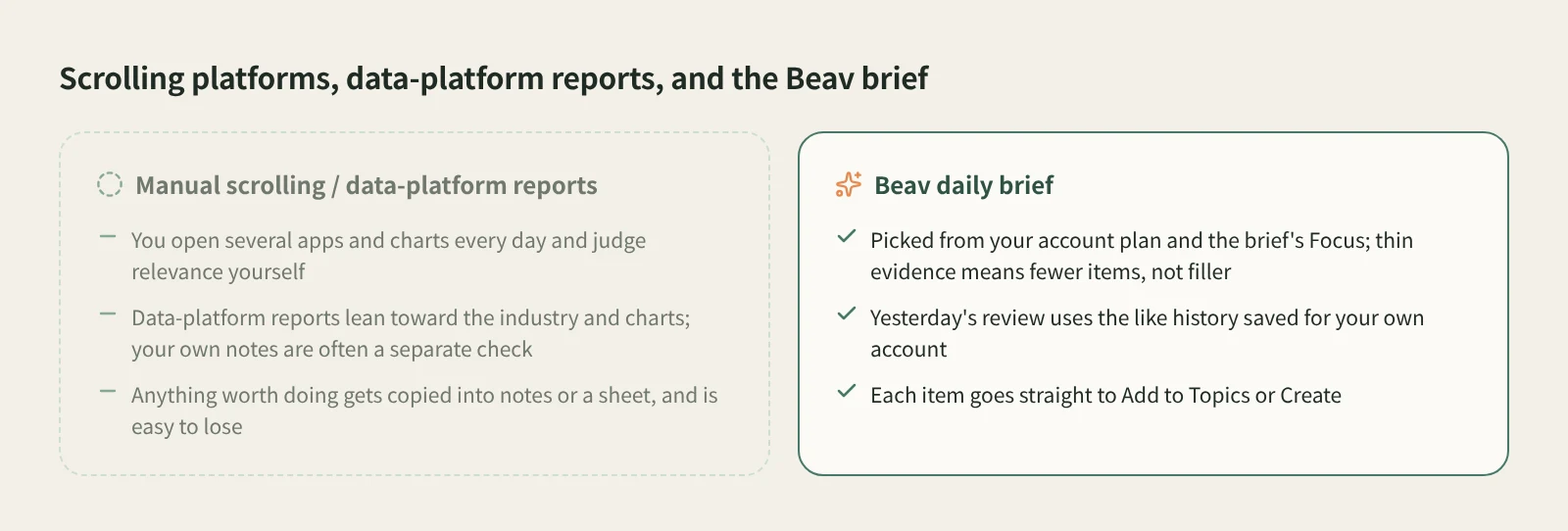
| What decides the picks | Your own judgment | The platform's charts and industry view | Your account plan and the brief's Focus |
| Coverage | Anything you choose, first-hand | Usually broader on industry, charts and other accounts | Centered on your direction; thin sections say so instead of padding |
| Whose numbers the review uses | Whatever you check in your dashboard | Mostly the industry and other accounts | The like history saved for your own account |
| After reading | Copy into notes or a sheet | Organize it separately | Each item has Add to Topics or Create |
| When it arrives | Whenever you scroll | On the platform's schedule | 09:00 local time by default, with Beav running |
Scrolling yourself means you see everything and judge everything. Data platforms usually cover industry charts and competitor numbers more broadly. The Beav brief doesn't replace either. It pulls out the part that matters to your account and connects it straight to your topics and drafts.
Limits and notes
- No brief while Beav is closed. The brief is generated on your computer, not pushed from the cloud. If your computer is off or Beav isn't running at nine, that edition doesn't appear.
- No filler. If a group has nothing well supported today, the brief says so rather than inventing items.
- The review needs your own history. Like snapshots start accumulating once account profile refresh is on, and past data is not fabricated. When history is thin or covers only some notes, the brief says so.
- One brief per space. The brief follows the current space, so check which account you are looking at.
- Add to Topics and Create only keep an idea or start a draft. Beav never publishes for you.
Next steps
- For every detail of the brief, including Today's Plan and reviews on Home, read Daily brief and today's plan.
- To give the review data to work with, see Account profile sync.
- To browse trends yourself, read find topics from trending lists.
Applies to Beav desktop 2.9. Checked 2026-10-23.