


Key takeaways
- Once you have a Xiaohongshu (RedNote) image post package, ask in the chat to "only change page two", "swap the order of these two pages" or "keep the existing images and continue with the remaining pages". Images that have not changed are not regenerated.
- For text only, open the package and click Edit text to change the title, caption and tags yourself. Saving updates the current package instead of creating another version.
- If the package was marked as published, editing and saving it moves it back to Ready to publish and keeps the original publishing record, so you can tell which version went out.
You have an eight-page RedNote carousel. Seven pages are right; page two's image is not. With many AI tools the easy fix is to regenerate the whole set, and then the cover you liked and the later pages change too, and you are back to picking through them one by one.
In Beav, a RedNote carousel is a package: the title, caption, tags and every image kept together. Editing works on a simple rule: name what to change, and only that changes. Ask the AI for image changes in the chat; edit the text yourself.
Who it is for
- RedNote creators whose carousel is nearly final and who only want to tweak a page or two.
- Marketers revising drafts for a client or manager who do not want to start over each round.
- Anyone who wants to reorder pages or add a few more while keeping a cover they already like.
How to use it
You need a package first. If you have not made one yet, start with making a complete RedNote carousel with AI.
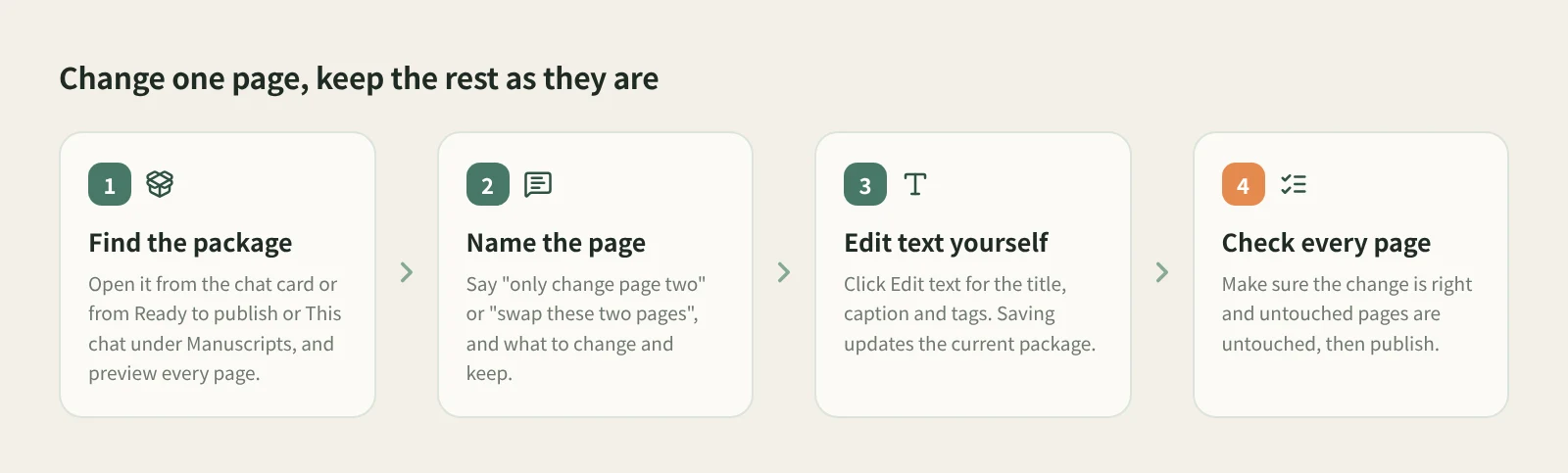
- Find the package. It is on the card in the chat where it was made, and in the Manuscripts tab of the chat's right workspace, under the default Ready to publish view or This chat. Click it to preview every image and the caption.
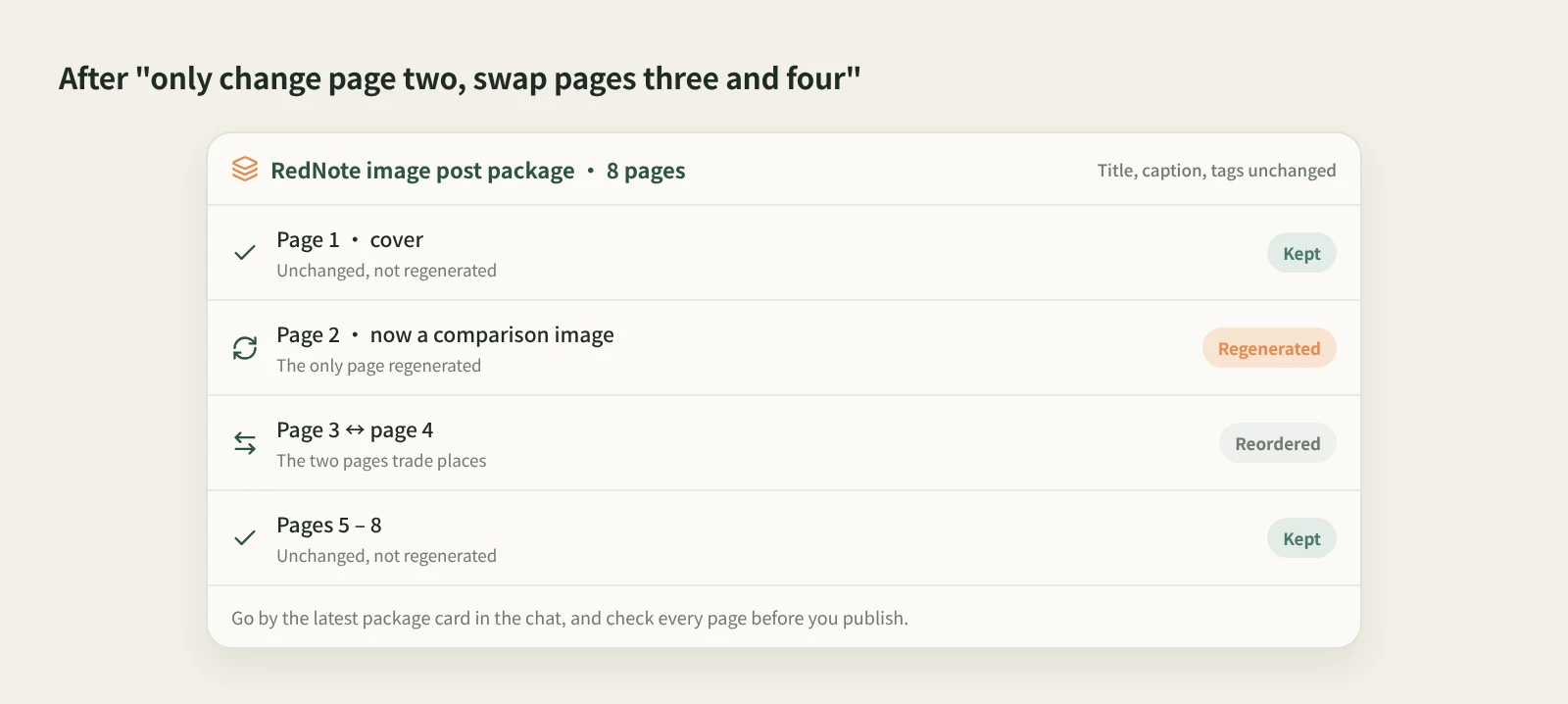
- Name the page in the chat. Go back to the chat that made the package and say something like "only change page two, make it a comparison image", "swap pages three and four" or "keep the existing images and continue with the remaining pages". Be specific: which page, what to change, what to keep. Images that have not changed are not regenerated.
- Not sure? Ask before changing. If you suspect a headline is covered on page two, ask "is the title on page two blocked by anything?" The AI checks that part of the image and answers without modifying the original.
- Edit the text yourself. Open the package and click Edit text at the top to change the title and caption; for Xiaohongshu you can also edit tags, and WeChat Official Account article packages use a rich-text editor. Saving updates the current package; it does not create a separate version. To change the underlying draft, open the master draft and click Edit manuscript.
- Check every page, then publish. Read through every page and the caption once more: the change should be right and the untouched pages should be untouched. Then click Publish to save to your computer or pick it up on your phone.
Image changes use credits or an external service you configured and take longer than text. If a result does not show up right away, check the original task instead of submitting the same change again.
How it compares
| AI chats that generate a whole set at once | Image tools with inpainting or single-image regeneration | Beav Xiaohongshu package | |
|---|---|---|---|
| Best at | Fastest way from one sentence to a set of images | Fine control over one image; inpainting and background swaps are mature | Text and every image as one unit, revised page by page |
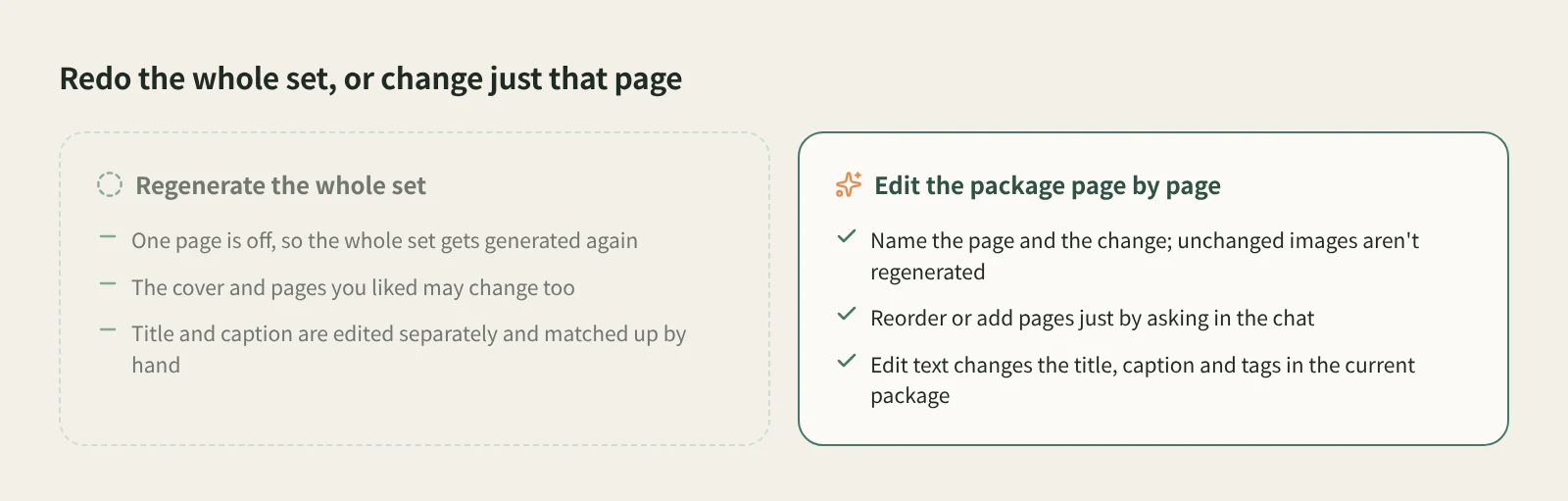
| Changing one page | Often means regenerating the set, and pages you liked may change | You can redo just that image, then fit it back into the set yourself | Name the page in the chat; unchanged images are not regenerated |
| Reordering | Describe it again, or rearrange after export | Usually rearranged by hand in the design or after export | Just say "swap these two pages" |
| Title and caption | Ask the AI to rewrite, then copy it out | Text is often handled outside the tool | Edit text for title, caption and tags, saved to the current package |
| After editing | You keep track of which version is final | You manage the exported files | A published package goes back to Ready to publish when saved; the old record stays |
For pixel-level inpainting on a single image, dedicated image tools are still stronger, and many of them have long supported regenerating one image. Beav addresses a different need: the carousel already works as a whole, and you want to change one thing while the text, tags and other pages stay as they are.
Limits and notes
- Partial edits depend on you saying which page and what to change. "Make it better" does not tell the AI which pages to keep.
- After the AI changes images, go by the latest package card in the chat and check every page. Making sure untouched pages really are untouched is part of your review.
- Edit text changes the text fields. Words drawn inside an image need to be changed by asking the AI to redo that page.
- Xiaohongshu post text is limited to 1,000 characters. Beav does not post for you, and Mark published is only recorded on your computer.
Next steps
- Publishing the same piece to WeChat or as a voiceover too? Read master drafts and packages for several platforms.
- Want to revise along the structure of a reference post? Read AI rewriting that isn't just swapping words.
- Full details are in the docs: Manuscripts, packages, and publishing.
Applies to Beav desktop 2.9. Checked 2026-10-28.