
Key takeaways
- Drag files and folders from Finder or File Explorer into an ordinary folder in the asset library, or copy and paste them. Imports are copies: the originals aren't moved or deleted, and a file with the same name is renamed automatically rather than overwriting an existing asset.
- Connect an Eagle library with Import Eagle library from the + next to Knowledge Base. It needs Eagle 4.0 Build 21 or later, running with that library open. Beav registers the library and browses it read only, without copying it.
- Connect an Obsidian vault with Import Obsidian vault. It's a linked source, so moving, renaming or trashing files in it from Beav changes the original files on disk. Connected vaults are listed by name in the chat's Knowledge / Assets tab, ready to drag into a conversation.
By the time you start using Beav, you've probably collected years of material: a "references" folder on the desktop, raw footage sorted by year, thousands of reference images in Eagle, topic ideas and breakdown notes in Obsidian. The worry with any new tool is that the old stuff never makes it across, and you end up with two separate piles that you still have to dig through whenever you need something.
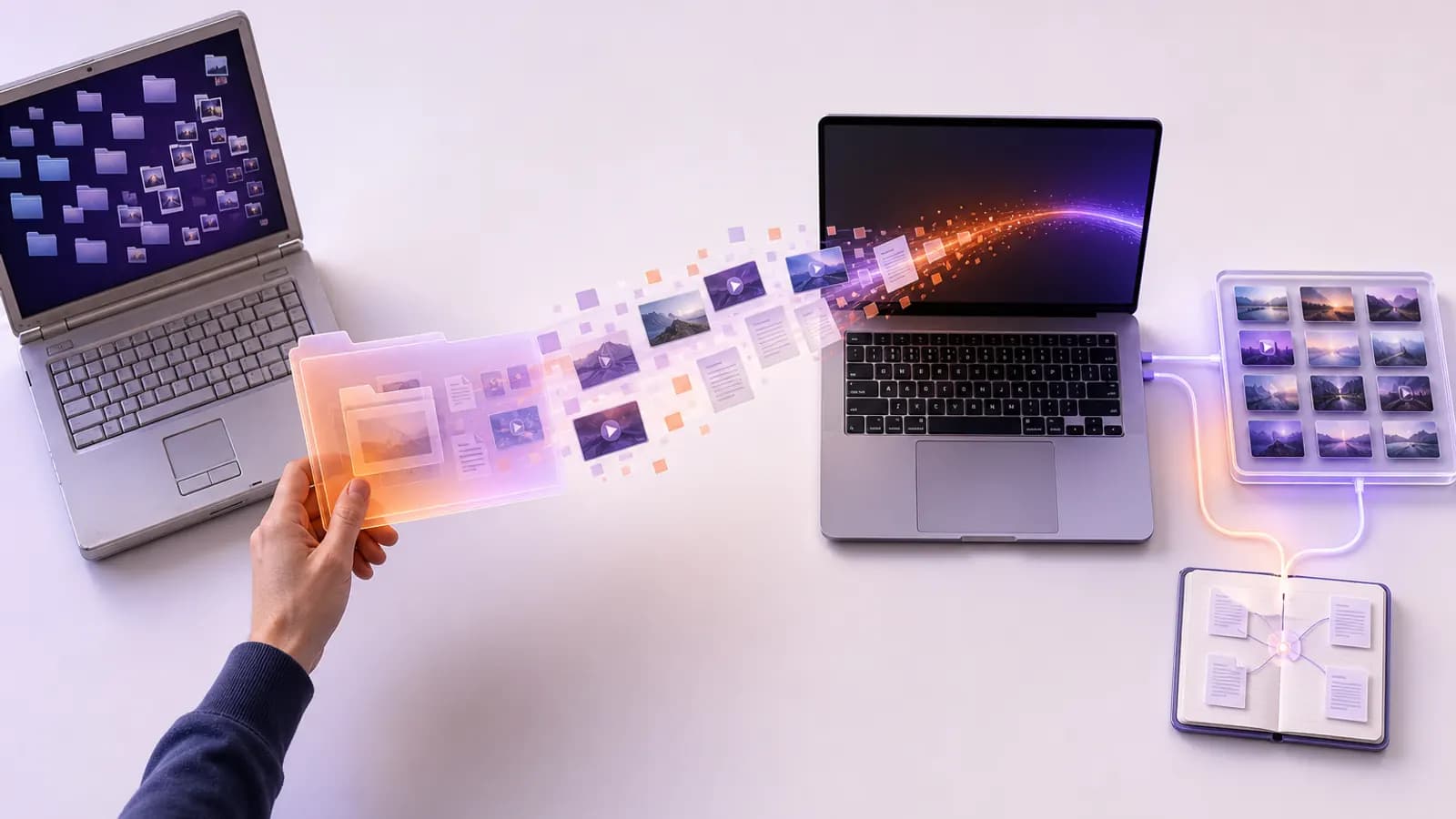
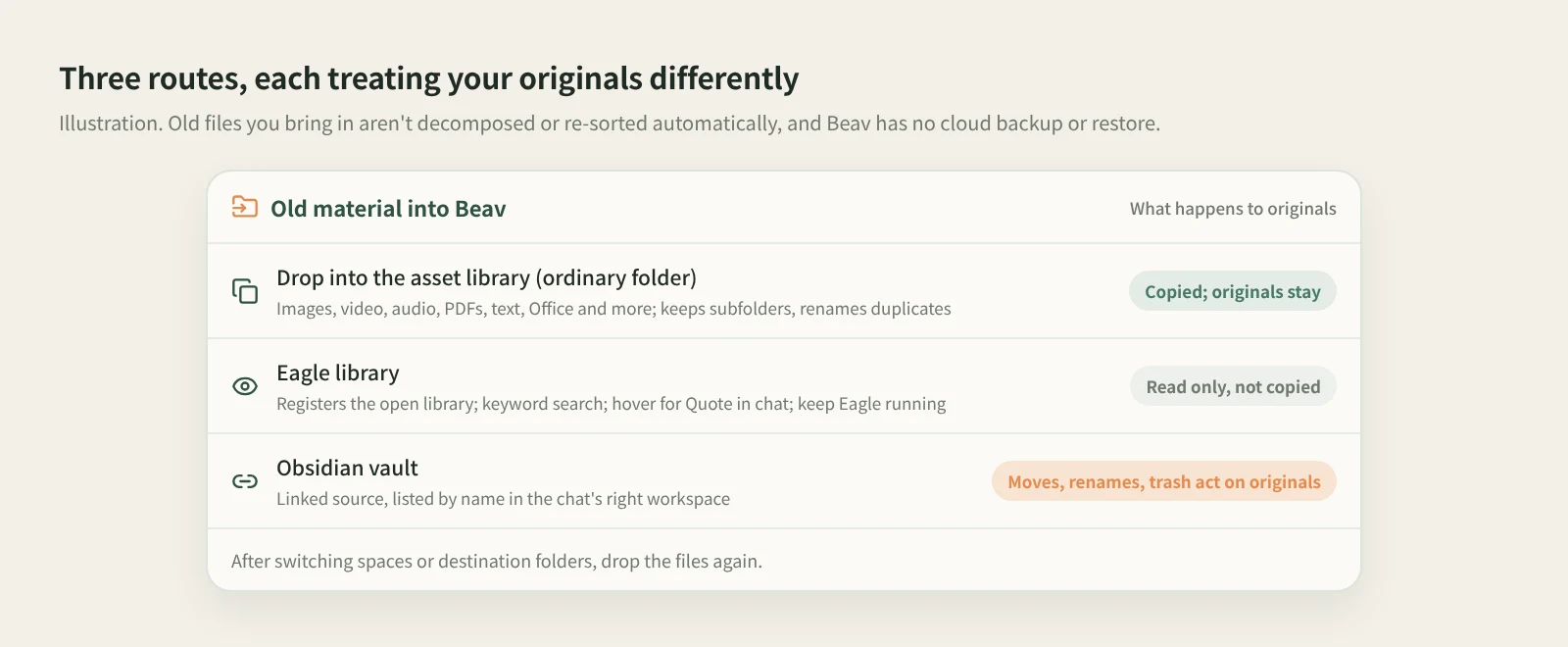
A library is built up a little at a time, and switching tools shouldn't throw that work away. Beav gives you three routes: drop ordinary files in and keep a copy, connect your Eagle library where it is, and import your Obsidian vault as a linked source. Do it once and your old material sits in the same library as everything you save from now on, ready to drag into a chat for the AI to use. For why your own library matters, see the series overview, "Accumulation Is the Moat".
Who it is for
- Creators with years of folders on their computer, with images, video, PDFs and documents all mixed together.
- Designers and creators who already manage reference images in Eagle and don't want to move the whole library again.
- People who keep topic ideas and notes in Obsidian and want the AI to read them while drafting.
How to use it
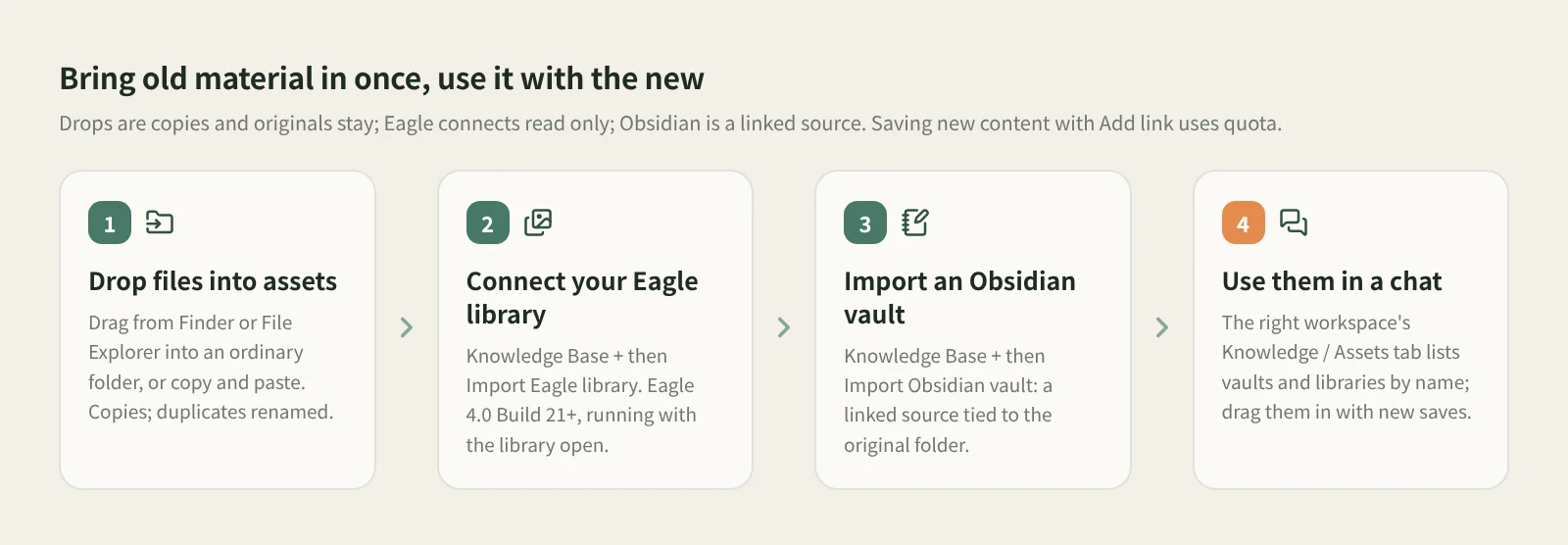
- Drop files and folders into the asset library. In Beav, open the destination space's Asset library and go to the ordinary folder you want. Select files or folders in Finder or File Explorer, drop them onto the content area and wait for the import to finish. You can also copy them and paste into the asset library. Imports are copies that keep subfolders and empty folders; the originals aren't moved or deleted. Files with the same name are renamed automatically rather than overwriting existing assets. Images, video, audio, PDFs, text, Office documents and other ordinary files are all supported.
- Connect your Eagle library where it is. Start Eagle on the same computer and open the library you want. In Beav, click + next to Knowledge Base and choose Import Eagle library. Beav registers the library currently open in Eagle without copying its files. Then open the source with the Eagle icon in the knowledge base sidebar, expand its folders and browse the images.
- Import your Obsidian vault as a linked source. From the same + menu, choose Import Obsidian vault. It becomes a linked source connected to the original folder on your computer, not a separate copy.
- Use it all together in a chat. While drafting, open the chat's right workspace, click + for a new tab and open Knowledge / Assets. Connected Obsidian vaults and Eagle libraries are listed by name next to the content you've saved with + → Add link, and you can drag any of it into the chat box. For Eagle images you can also hover and choose Quote in chat to add the original image to your draft; it goes along only when you send.
The knowledge base takes files too. Besides the asset library, files, videos and folders you drop, paste or add into the knowledge base content area are saved as real copies, folders keep their full structure, and the originals aren't moved. The knowledge base + menu also has Import files and Import folder.
What you can do with Eagle once it's connected. Click the search icon at the top right to search Eagle items by keyword; each image shows its dimensions. If Eagle's AI Search plugin is installed and enabled, you can switch the search box to AI image search and image cards offer Find similar assets; Eagle provides those results. It works the other way too: a local image under This Session in the chat's right workspace can be saved to Eagle with the Eagle icon. Choose the library and folder, enter a name and tags, and the original output stays where it is.
What uses quota? All three routes work with files already on your computer. Saving new content with Add link goes through the capture service and uses quota according to its rules, and asking the AI to draft from this material uses the chat model.
How it compares with the usual ways
| Re-organizing by hand | Keeping a copy in each app | Eagle on its own | Beav's three routes | |
|---|---|---|---|---|
| Strength | A chance to clean up and build exactly the structure you want | Each app works its own way without affecting the others | Mature image management with rich tags, filters and plugins | Old material and new saves share one library and go into a chat together |
| Time it takes | A lot; years of files, one by one | Every new item has to be imported again | Covers images and design references | One drop; Eagle and Obsidian are registered once |
| What happens to originals | Moved and renamed, so old paths break | One file, several copies | Stored inside the Eagle library | Drops are copies and originals stay; Eagle is read only; Obsidian is linked in place |
| Old and new together? | Yes, but you keep maintaining it | Spread across apps | Platform posts and video transcripts need somewhere else | Same knowledge base and asset library |
| Into an AI | Find it, then upload by hand | First remember which app it's in | Export or drag out first | Listed by name in the chat's right workspace; drag it into the chat box |
If you want the move to double as a proper clean-up, re-organizing by hand gives the tidiest result; it just takes time. Eagle handles images in more depth than Beav, with mature tagging, color filters and a plugin ecosystem, and once connected you keep organizing in Eagle while Beav only reads. For how the two split the work, see Beav vs Eagle. Beav suits creators who don't want to re-organize at all and just want their old library usable by the AI alongside new material as soon as possible.
Limits and notes
- Drops are copies and use your disk. The asset library keeps copied files while the originals stay where they were, so both take up space.
- Switch, then drop again. An import is tied to the space and folder you dropped into; if you switch either partway, drop the files again.
- Keep Eagle open. Eagle needs to be running with the connected library open while you browse. If it can't be read, check Eagle, then click Retry on the source. Quoting an image doesn't send a message or index the whole library for image understanding.
- Actions in an Obsidian vault change the originals. Moving, renaming or trashing files in a linked vault from Beav acts on the files on your computer; trashed files go to the system Trash or Recycle Bin.
- Old files carry no source record. Files dropped in from your computer don't get a source attached, and they aren't decomposed or re-sorted automatically.
- No cloud backup or restore. Your material lives on your computer, so back up anything important yourself.
Next steps
- How to choose between Eagle and Beav and use them together: Beav vs Eagle. See also the asset management page.
- Find imported material by Images, Videos, Copy and Music: how the asset library sorts itself.
- Move material between your phone and Beav on your computer: phone-to-computer transfer.
Applies to Beav desktop 2.10 and later.