
Key takeaways
- Expand the asset library on the left and you can view every file by Images, Videos, Copy or Music, whichever folder it sits in. Topics reads from the topic center and isn't shown in shared spaces. Categories show the last result while they refresh in the background.
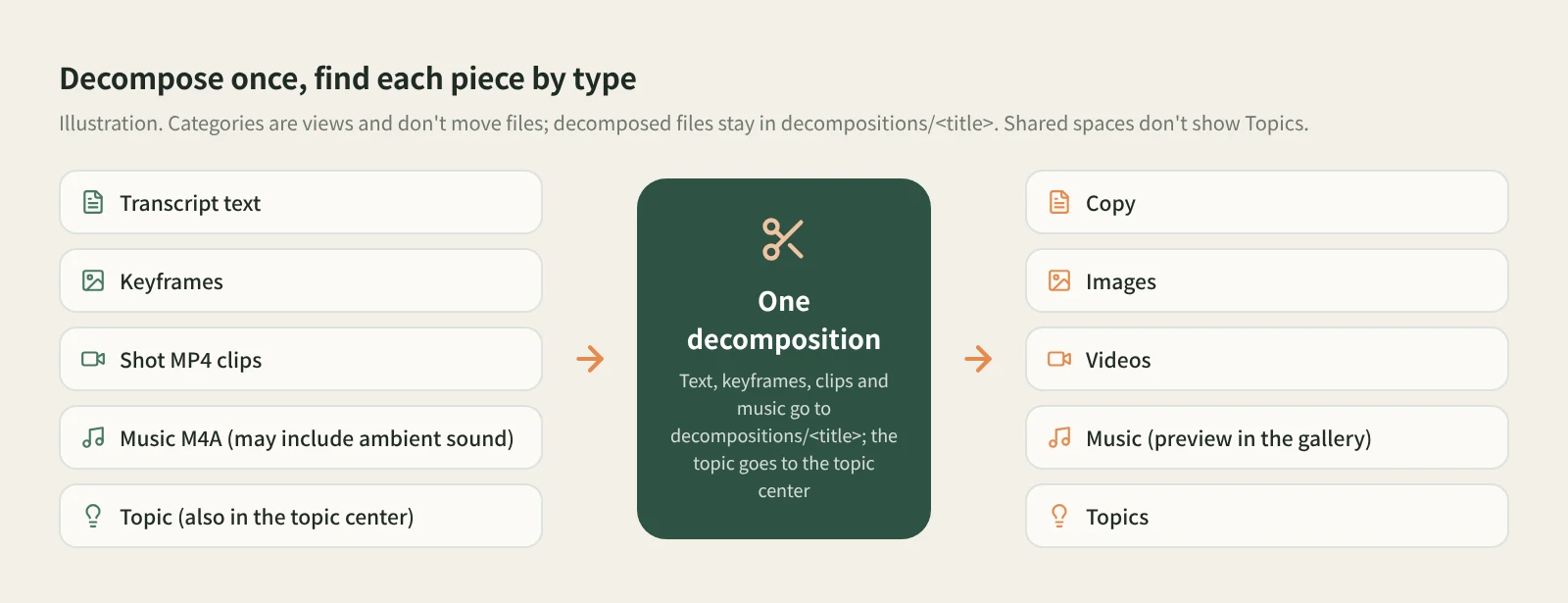
- Decompose runs only when you click it. Since 2.9.0, new decomposition text, keyframes and media clips are saved in
decompositions/<title>, and folders Beav names itself use English:decompositions,shots,clips,music.- Save first, decompose, then find things by type. Add folders only when you want finer grouping. Existing folders are never migrated or re-sorted automatically.
Most people start organizing material by building folders: covers, images, voiceover, BGM, ideas. Then half of what they save doesn't fit anywhere obvious, and whatever lands in the wrong folder is gone for good. The tree keeps growing, and when it's time to use something you're still scrolling.
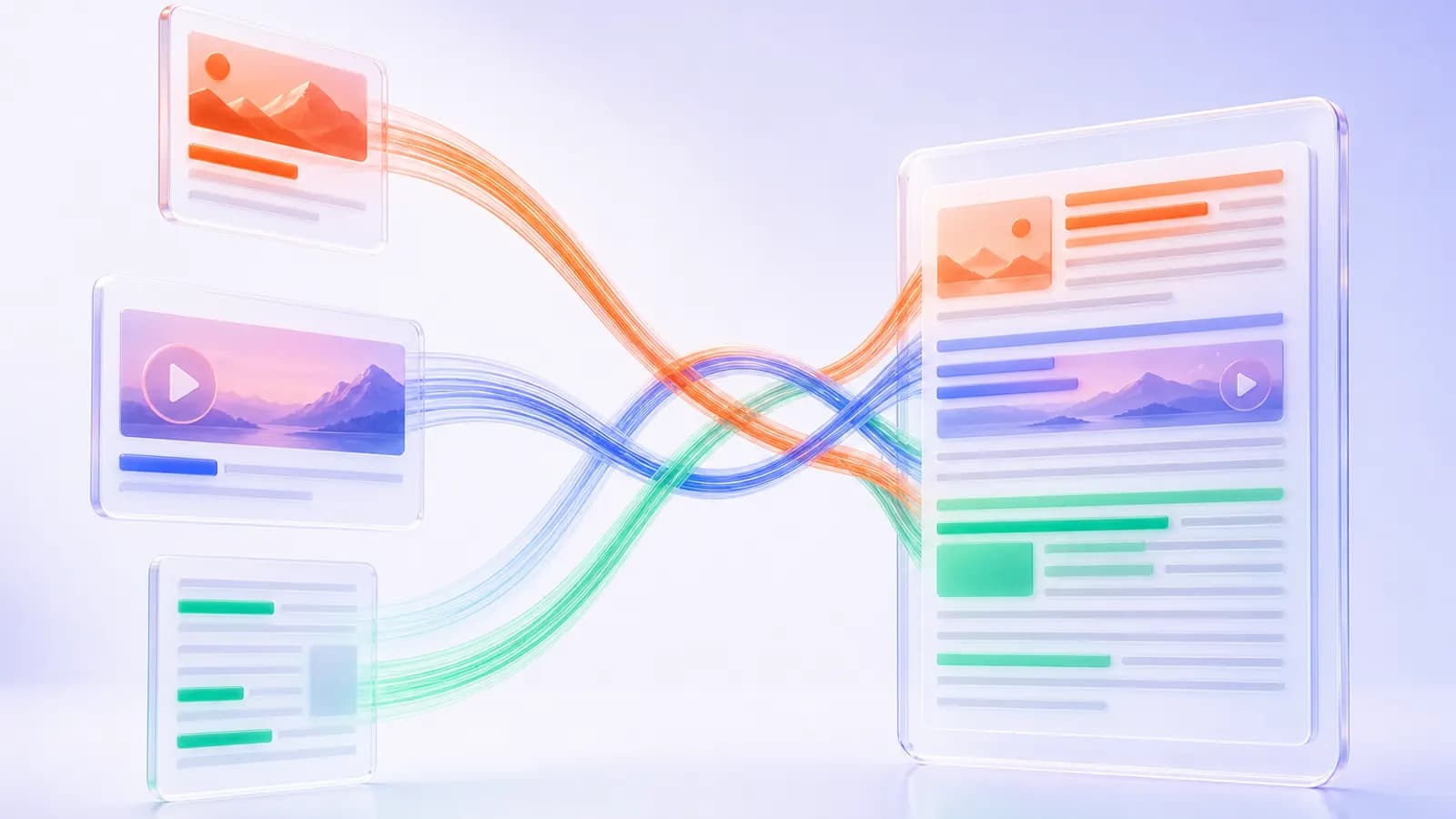
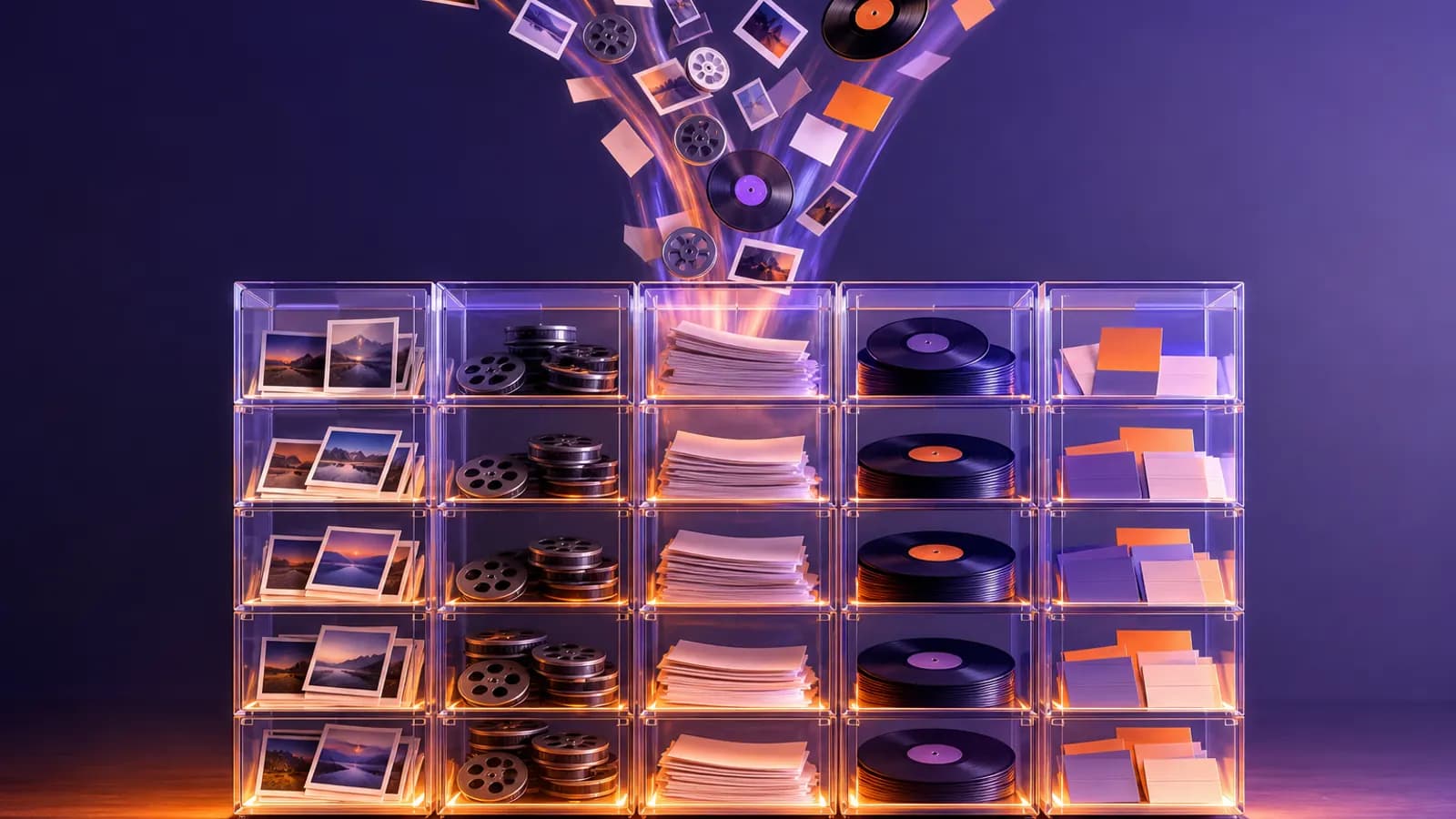
Beav's asset library flips the order. You save and decompose first; sorting by file type is the library's job. Decompose one video and its transcript, keyframes, shot clips and music cues all land in the library. Open Music and you hear every cue you've extracted; open Images and you see every image. Saving and decomposing build the library, and finding things by type is what stops it turning into a pile of files you can't locate.
Who it is for
- Creators who have saved lots of benchmark videos and posts, and find it harder to locate things the more they collect.
- Solo creators who don't want to maintain folders and just want to open music when they need music and images when they need a cover reference.
- Team members who manage material and need to tell apart original content, working copies and drafts.
First, three different places
| View | What it holds | What organizing changes |
|---|---|---|
| Knowledge Base | Original captured content, including text and media | Categories and titles change; captured directories and original links stay put |
| Asset library (formerly Content Assets) | Copies of images, video, audio and other files for production | Ordinary folders are asset directories, so moving changes the file's location |
| Account profile → Manuscripts | Source manuscripts and their platform versions | A category applies to the whole manuscript without changing review or publication status |
In short: the knowledge base holds other people's originals, the asset library holds files you create with, and Manuscripts holds what you've written. This article is about the asset library.
How to use it
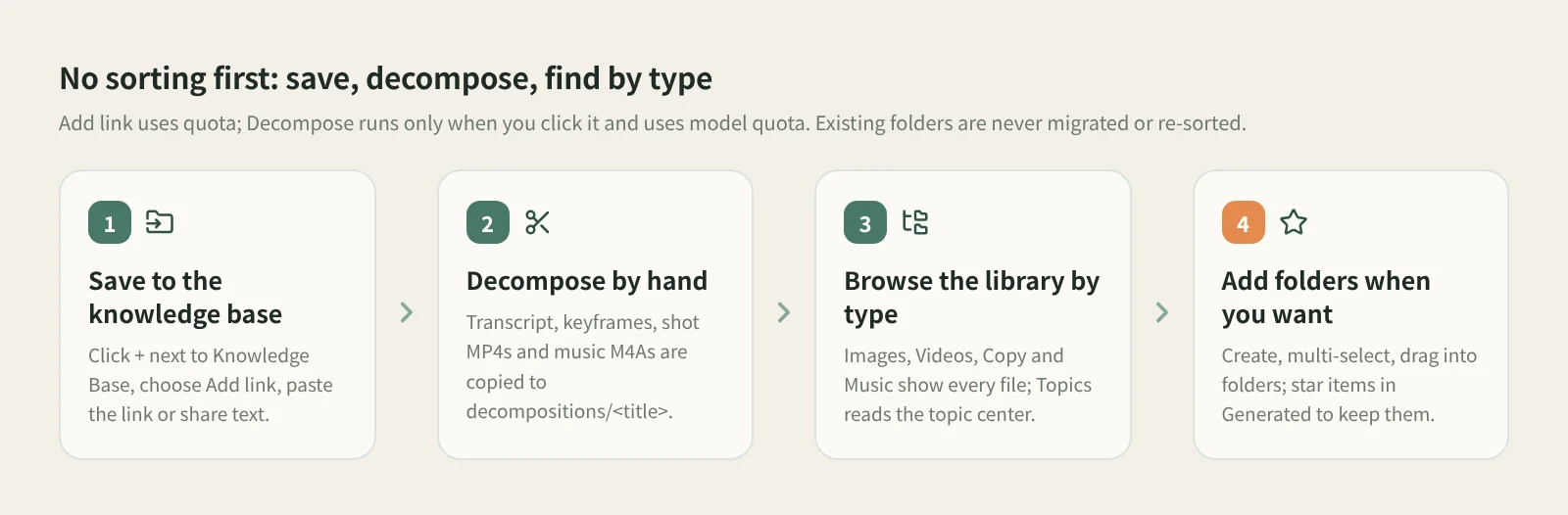
- Save content to the knowledge base. Click + next to Knowledge Base, choose Add link, and paste the link or share text. Add link goes through the capture service and uses quota according to its rules.
- Decompose by hand; the outputs go to the asset library. Click Decompose in the item's details; decomposing uses model quota. Results are copied to
decompositions/<title>in the asset library: transcript text, keyframes, shot MP4s and music M4As. Items decomposed earlier keep their old拆解/<title>folder. A video must be saved locally to get shots and clips. Music cues come from stretches with sound but no speech, so they may include ambient sound; this isn't vocal separation. - Expand the asset library and browse by type. Expand the asset library on the left and click Images, Videos, Copy or Music to see every file of that type in the library, without remembering which folder it's in. Topics reads the topic center, so topics from decompositions show up there too. Each category shows the last result first and refreshes in the background.
- Add folders when you want finer grouping. Create a folder from the destination's add menu or by right-clicking empty space. Type the name inline; Enter saves and Escape cancels, and renaming works the same way. Command/Ctrl toggles multiple selections, Shift selects a range, or drag a box from empty space. Then use Move to… from the right-click menu, or drag the selection onto a folder.
- Generated items live in Generated. AI-generated images, videos and audio don't go straight into the asset library. They land in Generated, the item below the divider under the asset library categories. Star the ones you'll reuse (top-left of the card) to save them to the library.
Music has its own gallery. Since 2.8.14, the Music category shows wide track cards. Click a cover to listen; each card shows the source title, author and the clip's range in the original. See using the music you pulled from a video. Keyframes are images, so you'll find them under Images and can use them as cover references; see keyframes are material too.
Handy shortcuts. Folder shortcuts work only in lists that support the action:
| Action | macOS | Windows |
|---|---|---|
| New folder | Command+Shift+N | Ctrl+Shift+N |
| Rename | Return | F2 |
| Copy and paste files | Command+C, Command+V | Ctrl+C, Ctrl+V |
| Move files | Command+C, Command+Option+V | Ctrl+X, Ctrl+V |
Dragging inside the asset library moves items by default. Hold Option on macOS or Ctrl on Windows to copy instead.
What uses quota? Saving with Add link goes through the capture service and uses quota according to its rules. Decomposing uses model quota. AI-generated images, video and audio use credits or an external service you've configured.
How it compares with the usual ways
| Cloud-drive folders | Phone gallery | Hand-built local folders | Beav asset library | |
|---|---|---|---|---|
| Strength | Syncs across devices, easy share links | Shoot and view on the spot, find by date or person | Exactly your own system, opens in any app | View the whole library by Images, Videos, Copy, Music and Topics; decomposition outputs arrive on their own |
| Sort first? | Yes, and misfiled items are hard to find | No, but it only handles photos and video | Yes, and you keep maintaining it | No; browse by type and add folders only when you want |
| Is the source kept? | Usually only the file name | Lost once you screenshot | Only if you remember | Decomposition outputs have a source record that leads back to the original |
| Copy and music | Mixed in with other files | Not covered | Separate folders you build | Copy and Music categories, with music you can preview |
| Into an AI | Download, then upload | Export first | Drag files over by hand | Drag straight from the chat's right sidebar onto the input box |
For syncing and sharing across devices, a cloud drive is more mature. Beav keeps material on your own computer and has no cloud backup or restore, so back up important files yourself. For just looking at photos, your phone's gallery is the most natural. If you like a strict folder tree, local folders give you full freedom. Beav suits creators who keep decomposing and collecting: you don't decide where something goes before saving it, and you find it by type when you need it.
Limits and notes
- Old folders aren't tidied for you. Existing directories and history stay as they are, with no automatic migration, decomposition or re-sorting, and existing Chinese-named folders aren't renamed.
- Categories are views, not moves. Browsing by type doesn't move files; moving between ordinary folders does change where an asset lives.
- Decompose runs only when you click it. Saving, subscription sync and phone uploads never decompose automatically.
- Shared spaces show one less category. Topics isn't shown in shared spaces.
- Extracted material has rights holders. Music, keyframes and clips belong to the original creators; confirm permission before publishing or commercial use. Beav doesn't post for you either.
Next steps
- Preview extracted music, trace its source and use it in a new video: what to do with the music you pulled from a video.
- For why it's worth building up your own material, read the series overview, "Accumulation Is the Moat". See also the asset management page.
- Full reference: organize knowledge, assets and manuscripts and Generated.
Applies to Beav desktop 2.10 and later.