
Key takeaways
- The first card in the new-chat template list, the one with a plus sign, is Create template. Drop in an image, check the preview, click Create, and the AI breaks it down and saves it as your personal image template.
- The AI proposes the template's name; if you don't like it, ask for a new one in the same chat. Personal templates stay in the current workspace and are never published to the public marketplace.
- Once saved, it works like any other template: select it, add this post's topic, requirements and reference images, and send. Generation starts only then.
You come across a cover you love: the colors, where the headline sits, how the subject is framed. The usual move is to attach that image as a reference every time you generate, or screenshot it and dig it out of your camera roll later. That works for one or two images. For a whole series it gets tedious: the image goes missing, or each result drifts a little from the last.
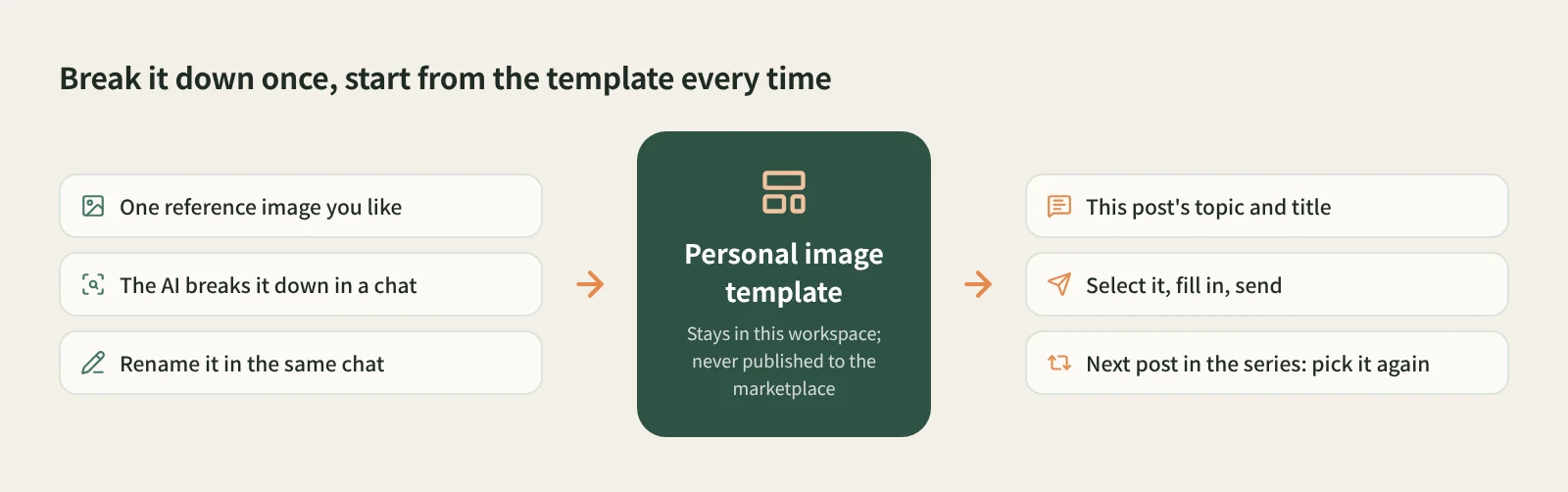
Beav takes a different approach: break the image down once and save it as your own template. For the next post in the series, pick it from the template list instead of describing the style all over again.
How to browse and use the public templates is covered in Creation templates. This article covers one thing: turning an image you found into a template of your own.
Who it is for
- Creators on Xiaohongshu (RedNote) and short-video platforms who want every episode to look like part of the same series.
- Marketers who spot a strong cover layout on an account they benchmark and want to keep it as a starting point.
- Anyone who can't find the right style among the public templates and wants to build a set that matches their own taste.
How to use it
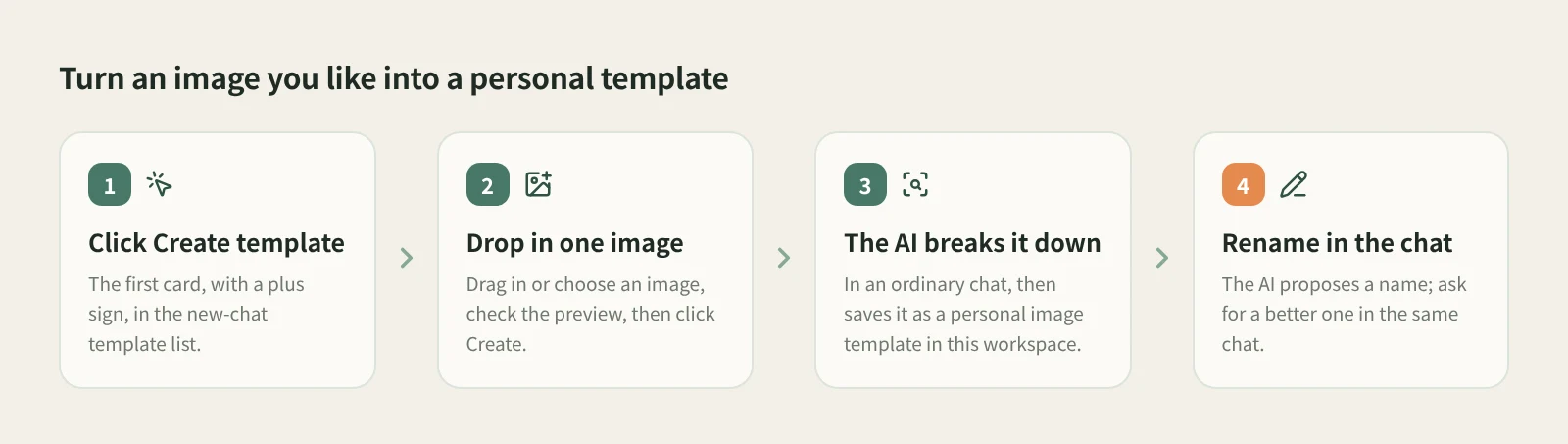
- Open a new chat and find Create template. The template list sits below the input box. The first card, with a plus sign, is Create template.
- Drop in one image and click Create. Drag an image in or choose one from your computer, check in the preview that it's the right one, then click Create. Pick the single image you most want to reuse.
- Let the AI break it down and save it. Beav breaks the image down in an ordinary chat and saves the result as a personal image template in the current workspace. Because it happens in a chat, you can see how the AI read the image.
- Rename it in the chat if needed. The AI proposes the name. If you want something easier to find, such as "Series name · big-text cover", just say so in the same chat.
- Generate with it. Creating a template and generating with it are separate steps. Once it's saved, select it in the template list, add this post's topic, headline and requirements, upload reference images if needed, and send. That's when generation starts.
A personal template belongs only to the current workspace. If you keep a separate workspace for each account, use the template in the workspace where you created it.
How it compares
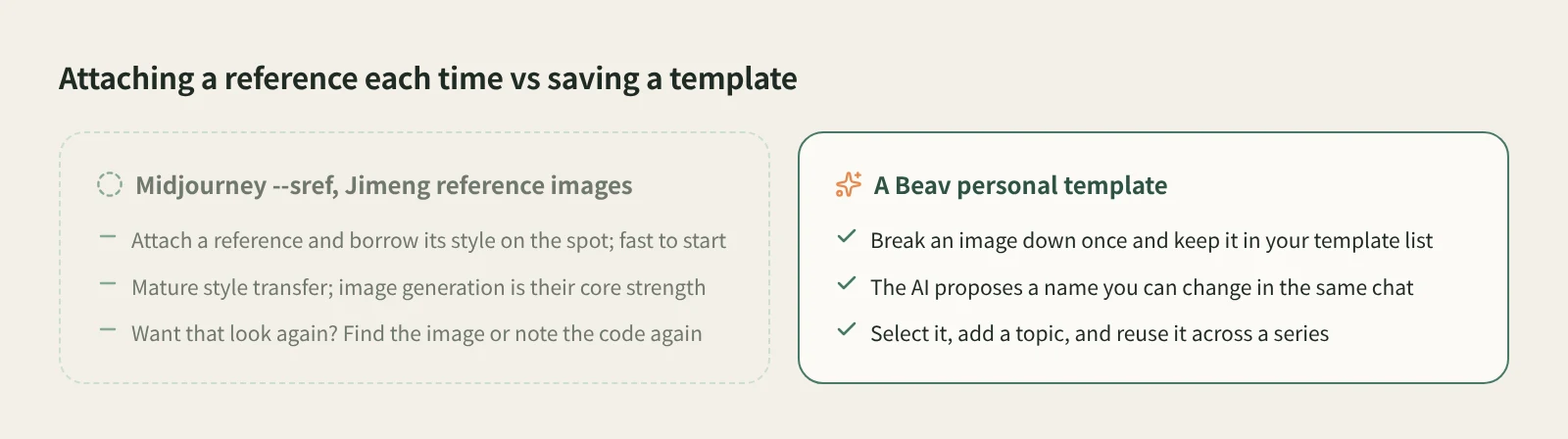
| Midjourney style reference (--sref) | Jimeng reference images | Beav personal template | |
|---|---|---|---|
| Strengths | Mature style transfer, with a very high ceiling for image quality and aesthetics | Upload a reference and generate right away; quick to pick up | Turns one image into a template that stays in your list for reuse |
| How the reference comes in | An image URL or style code in the prompt each time | Upload the reference with each generation | Break it down once, then just select the template |
| Getting that look again | Keep the URL or code yourself | Find the image again and re-upload it | Pick it from the template list |
| What you can change | Parameters and prompt | Reference settings and prompt | The AI proposes a name you can change in the same chat |
| Best for | People chasing image quality who enjoy tuning parameters | Making a single image fast | Creators running a series who want a stable look |
If you care most about how a single image looks, or you only want to borrow a look once, attaching a reference in Midjourney or Jimeng is faster and the results are excellent. A Beav personal template suits a different case: you plan to use the style again and again, want it on hand like a public template, and only change the topic and photos each time.
Limits and notes
- Respect the reference image's copyright. Saving it as a template is about learning its composition, colors and layout, not copying someone's work. Using another creator's image as a reference is fine, but don't reproduce their people, logos, text or the original image in your cover. If you want to use the original itself, get the author's permission first.
- You drop in one image per template. The breakdown happens in an ordinary chat, just like any other conversation with the AI.
- Saving a template does not generate anything. Credits or your configured external services are used only when you generate with it. Available parameters, such as aspect ratio and the number of reference images, vary by model; go by what the interface shows.
- Personal templates are visible only in the current workspace and are never published to the public marketplace. Switch to another workspace and you won't see them.
- Check the output as usual: typos in the headline, distorted people or products, whether it still reads at phone size, and whether the platform's crop hides anything important.
Next steps
- See whether a public template already fits: read how to pick and use creation templates, or browse the templates page.
- To get a title, caption, tags and every image in one go, read how to make a complete RedNote carousel with AI.
- Full reference: Creation templates.
Applies to Beav desktop 2.9. Checked 2026-10-29.