
Key takeaways
- Creation templates sit right below the input box in a new Beav chat. Filter by industry and type, click Use template, add your topic and reference images, and send. No long prompt to write.
- Each template carries a creation method and reference image requirements. Generated images stay in the chat for further revisions, and video templates produce a video project you can keep editing.
- Choosing a template, or bringing one in from the website, submits nothing and charges nothing. Generation starts only when you send.
The hard part of making a cover with AI is usually the prompt, not the tool. Composition, type, color, where the person stands: leave something out and the result is random; write too much and you can't tell which line did what.
Beav's creation templates do that work up front. Each template holds a fixed visual direction and input requirements, such as "Big-text portrait · 3D composition cover" or "Home · White-line hand-drawn diary". You pick a style and bring your own topic and photos.
Who it is for
- Creators on Xiaohongshu (RedNote) and short-video platforms who want a consistent cover style without writing prompts from scratch every time.
- Marketers running accounts for food, home, beauty, pets and similar industries who need a batch of images in one look.
- Anyone who finds a style they like on the Beav website and wants to use it on their own computer.
How to use it
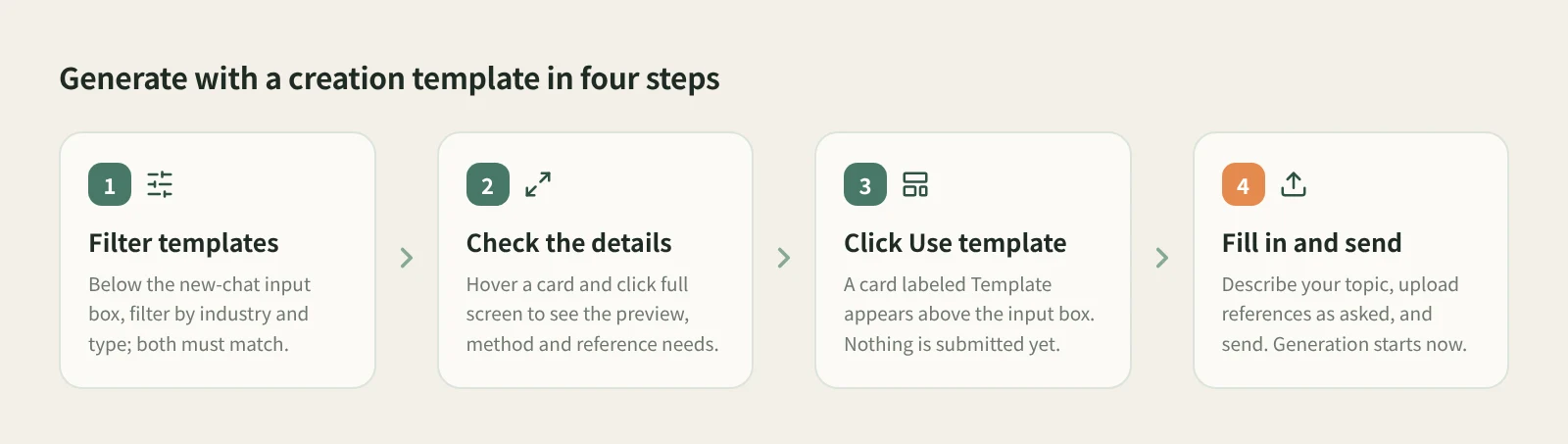
- Open a new chat and filter. The template list is below the input box. At the top you can filter by industry (Personal brand, Tech creator, Food & dining, Real estate, Home, Pets, Beauty & care, Outdoor) and by type (Cover, Image, Xiaohongshu, Video); templates must match both. Public templates come from Beav's online template marketplace, so the first use needs an internet connection. After that, Beav shows the local cache first.
- Check the details first. Hover over a card and click the full-screen button to see the preview, categories, creation method and reference image requirements. This is where you find out whether you need a portrait photo, and how many.
- Click Use template. A small card labeled Template appears above the input box. Using another template replaces it, and removing the card leaves your text and attachments alone.
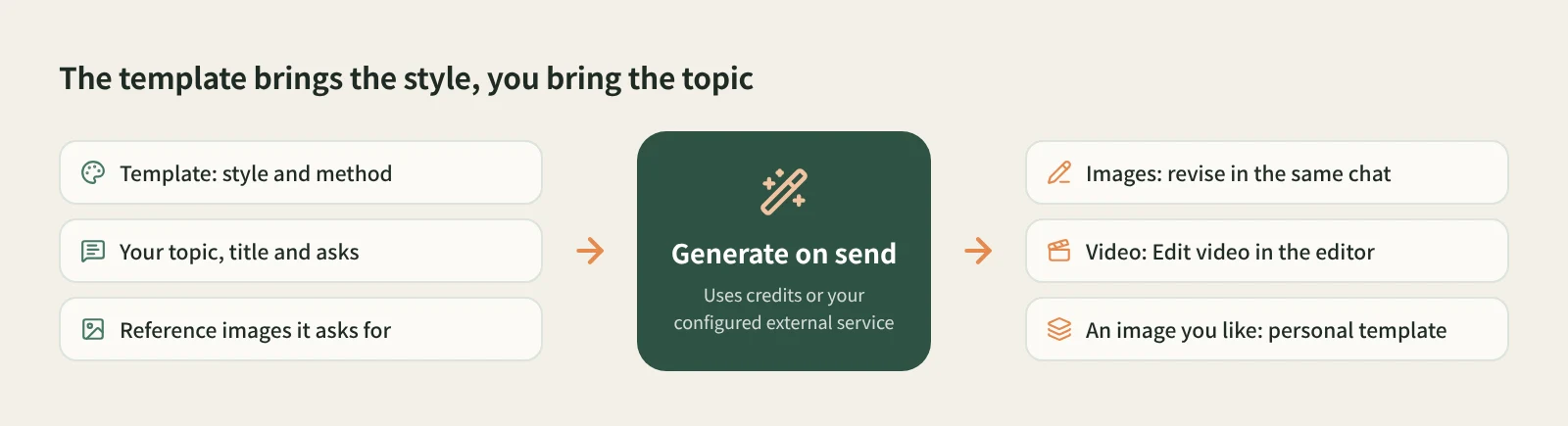
- Add your topic, requirements and references, then send. Describe the title, subject and feel you want, and upload reference images as the template asks. A template marked as needing references cannot be sent without them, and the template's sample images are only previews; they are not sent as your references. After you send, a small card with the template's cover appears below your message.
- Keep revising in the chat. If an image is not quite right, say what to change in the same chat. With a video template, Beav opens the template's generation dialog and works through the workflow node by node. Click Retry node on a failed node, and once a video project exists, click Edit video to keep working on captions and visuals in the editor.
Bring a template in from the website
On the website's templates page you can browse and search public templates first. Each details page shows the full prompt, aspect ratio, how many reference images it needs and which industries it suits, and you can copy the prompt directly. Click Use in Beav and allow your browser to open Beav; the template lands in the input box of a new chat, and you add your content and send it yourself. Nothing is generated or charged at this step.
Turn an image you like into a personal template
The first card in the template list is Create template, with a plus sign. Drag in or choose an image, preview it and click Create. Beav breaks the image down in an ordinary chat and saves it as a personal image template in the current workspace. The AI proposes a name, and you can keep revising it in the same chat. Personal templates belong only to the current workspace and are never published to the public marketplace.
How it compares
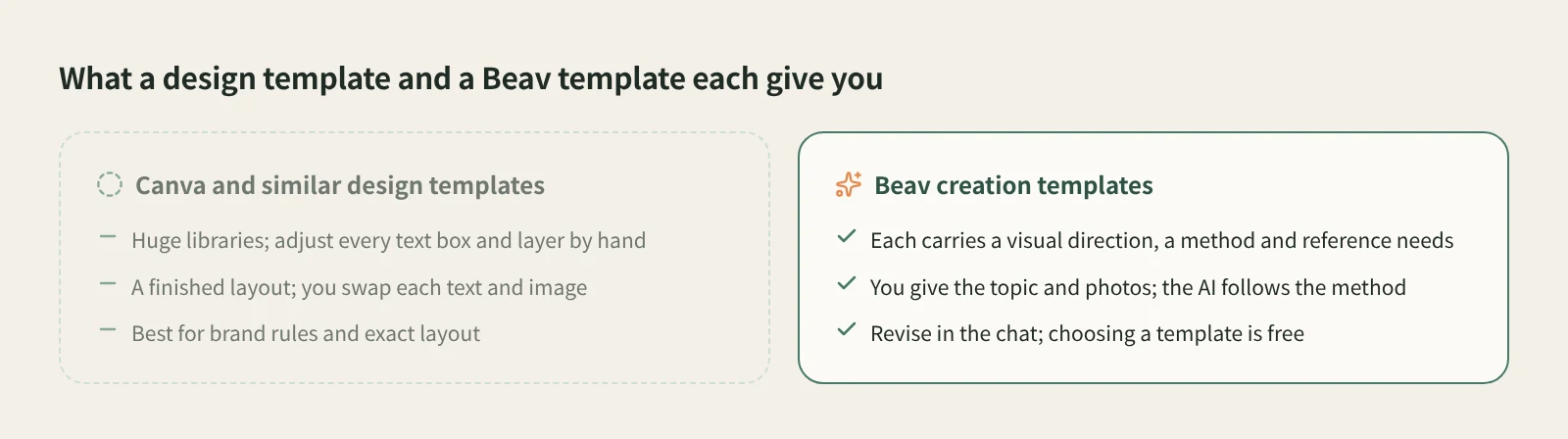
| Canva and similar design templates | Beav creation templates | |
|---|---|---|
| Strengths | Huge template libraries; you can position every text box and layer by hand | Pick a style, add a topic and photos, and the AI generates following the template's method |
| What a template holds | A finished layout where you swap text and images | A visual direction, a creation method and reference image requirements |
| Your part | Replace each piece of text and each image, then tweak the layout | Describe the topic and requirements, upload references as asked |
| After generating | Keep dragging things around in the editor, then export | Ask for changes in the same chat; video templates give you a project to keep editing |
| Your own style | Save your designs and brand assets | Use Create template on an image you like to save it as a personal template |
| Cost | Depends on the platform and plan | Choosing a template is free; credits or your configured external services are used only when you send |
If you need exact control over where every word goes, have strict brand rules, or your team already has a library of designs in Canva, stay with it. Beav templates suit a different case: you don't want to lay things out or study prompts, you just want to hand the AI a topic and photos, get a first version in a set style, and refine it in conversation.
Limits and notes
- Choosing a template or bringing one in from the website does not submit a task or charge anything. Image and video generation uses credits or external services you configured only after you send.
- Available parameters (duration, aspect ratio, number of reference images, whether there is sound) vary by model; go by what the interface shows.
- A successful submission is not a finished result. If nothing shows up yet, check the task status instead of sending it again.
- Creating a personal template and generating with it are separate: after the template is saved, select it, fill in your content and send before any image is made.
- Use your own photos or ones you have permission to use. Check text, people and details in the output, and preview the platform's crop before posting.
Next steps
- Browse the styles on the templates page and click Use in Beav on one you like.
- To get a title, caption, tags and every image in one go, read how to make a complete RedNote carousel with AI.
- Full reference, including how to edit video workflows: Creation templates.
Applies to Beav desktop 2.9. Checked 2026-10-28.