
Key takeaways
- In the Beav knowledge base, click + next to Knowledge Base and choose Add link. Paste one RedNote post's link or its whole share text. You don't pick a platform; short links are resolved and the post is saved to the current space.
- RedNote links are read through the capture service, which needs sign-in or a configured capture API and consumes quota according to its rules. A post you already saved is not saved twice, and if saving fails the link stays in the box so you can try again.
- Found something on your phone? Scan a QR code and submit several links to your computer at once. Mid-draft, you can also send the link in a chat and ask the AI to save it.
When a good RedNote (Xiaohongshu) post scrolls by, most people tap the favorite button. It is quick, but a month later, finding "that storage tips carousel" means digging through hundreds of favorites. And if the post is deleted or made private, the favorite usually stops opening too.
Saving to Beav works differently. The post's text, images or video, author and source link become one entry in your knowledge base, on your own computer. You can search it, file it, break it down and hand it to the AI later. It is the first step in building a material library.
Who it is for
- RedNote creators who keep collecting benchmark posts and hit examples.
- People who want more than a video file: the title, the caption and where it came from.
- Anyone who mostly scrolls on the phone and wants good posts to land on the computer.
How to use it
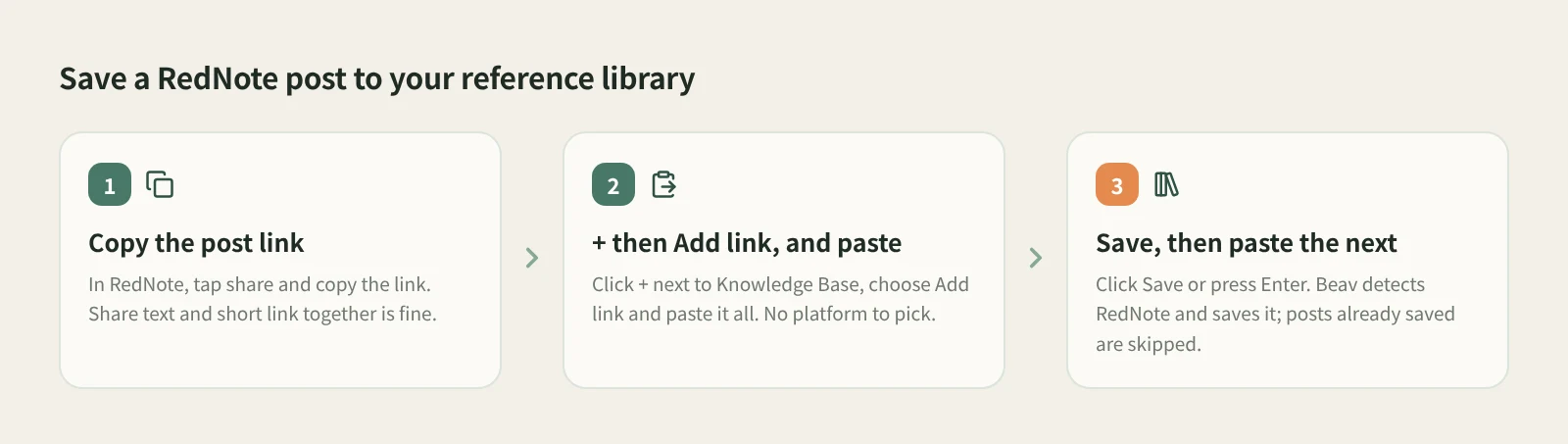
- Copy the post link. In RedNote, open the post, tap share and choose copy link. You usually get share text plus a short link; no need to trim it.
- Open Add link. At the knowledge base root or in a personal folder, click + in the title bar or next to Knowledge Base on the left, then Add link.
- Paste and save. Paste the whole thing and click Save or press Enter. Beav resolves the short link, detects RedNote and saves to the root of the current space's knowledge base. The dialog shows the detected platform and clears, ready for the next link. One link at a time.
- Handle failures. If saving fails, the dialog keeps the link and shows the reason; fix it and save again. Profile links are not supported and are reported right away, so use a single post's link.
- Break it down later if you want. Saving never starts a breakdown. To pull out the topic and structure, or a video's shots and script, click Decompose on the saved item.
Other entry points. For posts found on your phone, click Phone Upload in the desktop knowledge base, put the phone and computer on the same Wi-Fi, scan to pair, then paste several links in the phone browser and submit, up to 50 per batch. See phone and computer pairing. Mid-draft, send the link in a chat and say "save to the knowledge base"; the AI reads the text and media and files it. See saving links from a chat. When browsing on your computer, the browser extension can also save a post, and ticking Save comments collects the comments too.
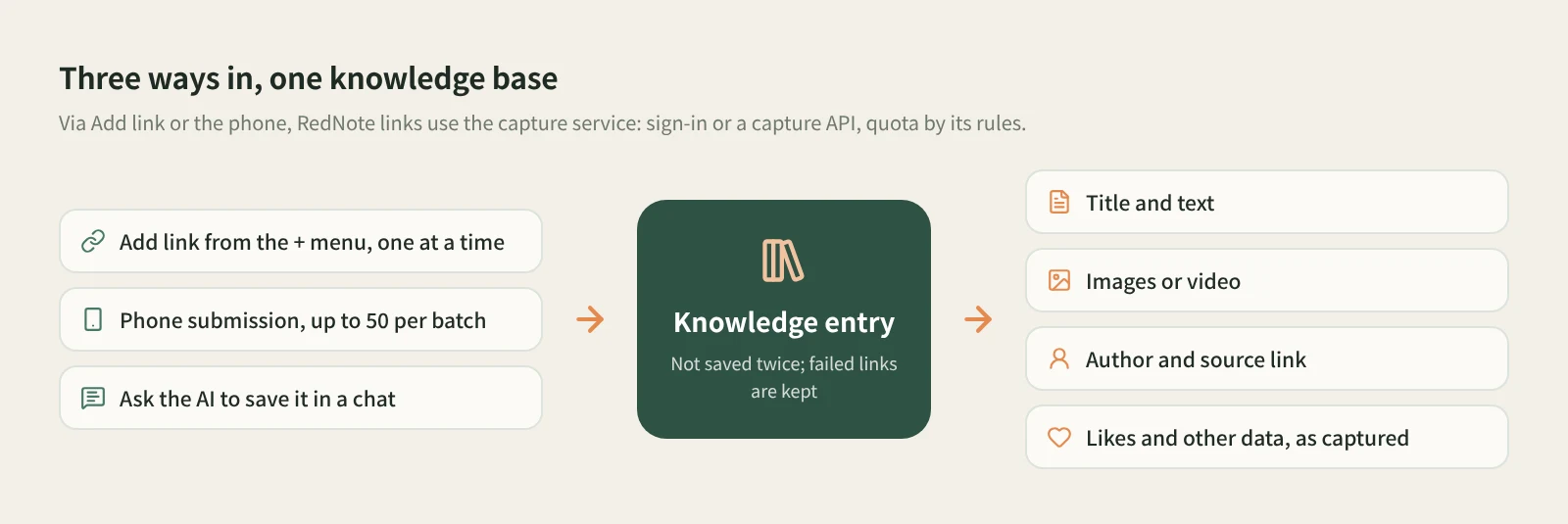
What do you keep? A knowledge base entry with the post's text, images or video, author and source link. Likes and other numbers are whatever the capture returned. Cards show the data as saved, not a live count, and missing numbers are left blank rather than guessed.
What uses quota? RedNote links, whether from Add link or the phone, are read through the capture service, which needs sign-in or a configured capture API and consumes quota according to its rules. Clicking Decompose later uses model quota on top of that.
How it compares with the usual ways
| RedNote favorites | Downloader apps and sites | Beav reference library | |
|---|---|---|---|
| Effort to save | One tap in the app, the fastest | Copy the link, download a file | Copy the link, paste, save |
| What you keep | A favorite on the platform | Usually just the video or image files | Text, media, author, source link and captured data |
| If the post is deleted | Usually won't open | Files remain; you track the source | Saved text and media stay in your library with the link |
| Finding it again | Scroll your favorites | Hunt through file names | Folders and search in the knowledge base |
| What comes next | Rewatch in the app | Edit and sort files yourself | Decompose by hand; drag into a chat for the AI to cite |
| Cost | Free | Depends on the tool | Capture service quota, by its rules |
Favorites are effortless: one tap while scrolling, and you can revisit them anywhere on your phone. If you only want a single video file, a downloader is often more direct. Beav is for treating posts as long-term material: you want the text, the source and the numbers, not just a file, so you can study and reuse them later.
Limits and notes
- One single post at a time. Add link does not accept profile links and is not a bulk import. To send many links at once, use phone submission.
- What can be read has limits. It depends on the platform, the capture service, account permissions and quota. "Received" on the phone means the computer accepted the task; images or video may still be processing.
- Add link saves to the root of the current space's knowledge base. The entry is not shown in shared spaces, account profiles, subscription views or local source folders. Phone submission needs Beav running on a computer on the same local network.
- Saved posts are for your own research. Rewriting should learn the structure and ideas, not copy. Ask the author before republishing, commercial use, or reusing their images or video.
Next steps
- To take saved posts apart, read RedNote breakdown and rewriting.
- To collect links from RedNote and other platforms in one place, see one box for every platform. For why collecting matters at all, read the series overview, "Accumulation Is the Moat".
- Full reference: add a link to save a single post and uploading links from your phone.
Applies to Beav desktop 2.9. Checked 2026-10-30.