
Key takeaways
- Select YouTube from the new-chat platform bar (via More) or start from Creation → Creation templates (2.10.4) to generate a master Markdown draft + YouTube package containing title variations, opening hooks, chaptered talking points, and 16:9 thumbnail concepts.
- Edit recorded footage beside the same chat with Smart talking-head cuts—auto-removing retakes and pauses, rendering built-in Montserrat / Noto multilingual captions, adding 9 talking-head overlay animations, and layering 67 offline sound effects (52 CC0 commercial-safe).
- Need visual diagrams or workflow charts? Install the recommended Remotion or HyperFrames plugins so the AI writes, renders, and aligns animated explainers directly onto your timeline.
Turning an approved YouTube topic into an upload-ready video usually spreads work across five disconnected steps: brainstorming title-thumbnail curiosity pairs, planning clean 16:9 widescreen thumbnail copy that complements rather than repeats the title, writing chaptered spoken scripts, trimming twenty minutes of A-roll pauses, and mocking up visual explainer diagrams.
Beav keeps your master draft, thumbnail concepts, rough cut, captions, and custom explainer clips inside one workspace so every piece moves forward together.
Who it is for
- Educators, tech reviewers, podcasters, and commentary channels publishing regular long-form YouTube videos or Shorts.
- Small production teams wanting a consistent package pipeline—from title/thumbnail pairs to multi-track timelines.
- Solo creators who want clean visual explainer motion graphics without dedicating hours to keyframing every diagram by hand.
Step 1: Generate the chaptered master draft, titles, and 16:9 thumbnail bundle
- Pick YouTube or a reusable template. Enable YouTube under More on the new-chat platform bar (or select a saved structure under Creation → Creation templates), and attach your YouTube topic, decomposed peer benchmarks, and product notes or screenshots.
- Generate the master draft and production package. Beav outputs a reusable master Markdown draft alongside a complete YouTube package: 3–5 paired title + 16:9 thumbnail visual directions, a 30-second opening promise, timed chapter breakdowns with natural spoken cues, and a checklist of required screen recordings or B-roll (plus optional 9:16 Shorts spin-off cuts from the same master draft).
- Update individual components cleanly. Tweak a chapter hook or swap a thumbnail card inside the right workspace—changes save straight back to that single package with timestamp tracking. See Master drafts and packages.
Step 2: Rough-cut, caption, and animate right beside the chat
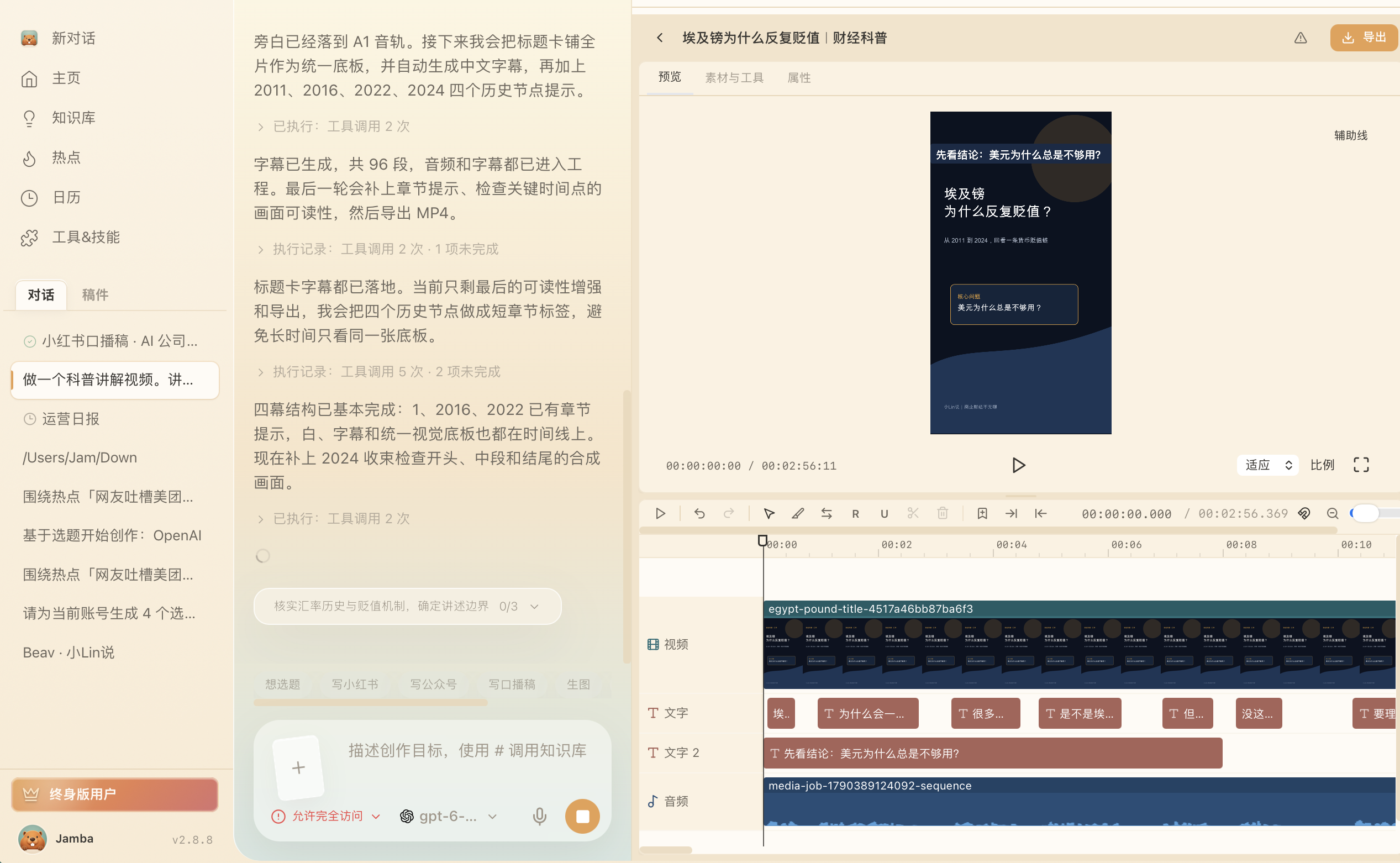
Drop recorded talking-head footage and screen captures directly into the conversation and ask Beav to clean up stumbles, generate chapters, and prep B-roll placeholders:
- Smart talking-head cuts & word anchors: The editor transcribes speech, cuts false starts and dead air, builds semantic subtitle segments, and lets graphic overlays stay locked to
@{name}script anchors when lines shift. - Built-in multilingual fonts & 67 offline SFX: Captions use built-in Montserrat and Noto fonts so typography matches identically across Mac, Windows, and Linux exports. Drop in 9 talking-head overlay presets, 93 styled text presets, automatic music ducking, and 67 offline sound effects (including 52 CC0 commercial-safe recordings) before exporting in the background. See Smart talking-head cuts.
- Code-rendered explainers via Remotion & HyperFrames: Install the recommended Remotion or HyperFrames plugins under Tools & Skills → Plugins (with local runtime dependencies such as Node prepared) so AI can build data charts, comparisons, or process diagrams, render them into real video files, and sync them to spoken timestamps. See Skills, plugins and MCP.
Step 3: Export locally and finish upload checks in YouTube Studio
Click Save to your computer once background export completes to gather your MP4, 16:9 thumbnail assets, chapter timestamps, and description text—or use Share to phone for vertical Shorts. Open YouTube Studio yourself to upload the file, verify chapter markers, declare any altered or synthetic media per YouTube policy, and hit Mark as published for YouTube inside Beav.
Limits and notes
- Play back full exports before uploading. Verify audio loudness, safe caption margins, and narration sync across every transition and re-dubbed segment.
- Explainer plugins need a ready local runtime. Installing Remotion or HyperFrames does not automatically install Node or system dependencies—follow the plugin checklist before rendering complex scenes.
- Use authorized likenesses for digital humans. When testing spoken segments with a digital human, run only with your own or properly authorized footage and voice, inspect the 480P preview carefully, and then confirm 1080P rendering.
Next steps
- Need overseas references saved and translated first? Read Save YouTube videos to your library and Break down YouTube structure & shots.
- Ready to monitor how published videos grow? Read YouTube channel data review.
- Full workflow and docs: YouTube operation guide, Video editing & smart cuts, and Creation templates.
Applies to Beav desktop 2.9.2 and later; script anchors, offline SFX, and template workflows apply to 2.10.4.