
Key takeaways
- Open a knowledge note's details, use the add-as-asset action, tick media that's already saved on your computer and pick an asset folder. Beav saves a complete copy of the media and leaves the original untouched. If the item only has a web address and its media isn't saved locally, the action isn't offered.
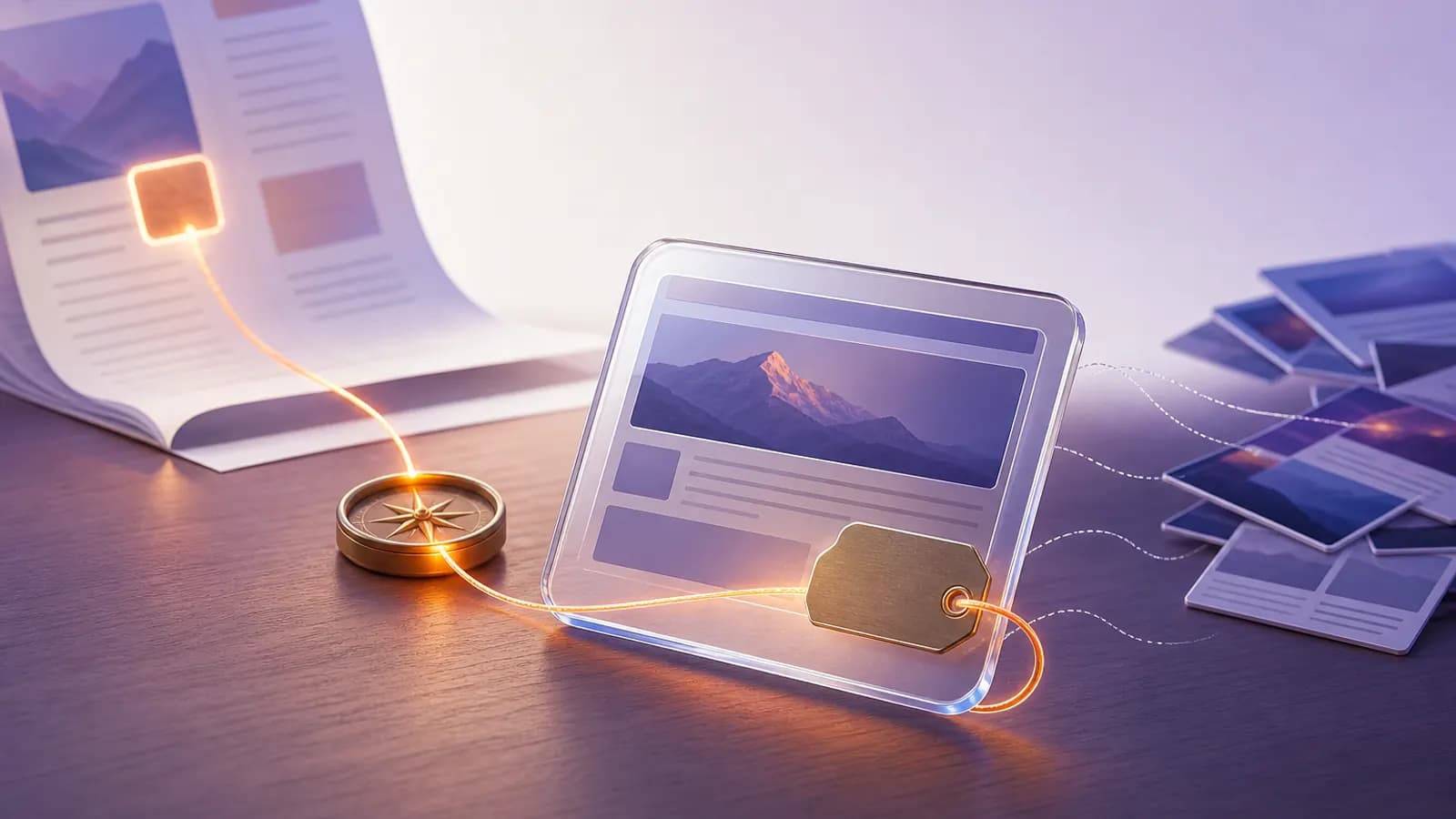
- The asset and the original stay linked. Open an asset's preview or text details from inside the knowledge base and its source link takes you back to the original note; in the note's details, the extracted-assets section finds the assets that came from it; an asset opened in its own window shows the source title.
- Deleting the original keeps the assets by default. They're removed with it only if you tick "Delete related assets" in the confirmation dialog. If the source becomes unavailable, the asset keeps at least its title as attribution.
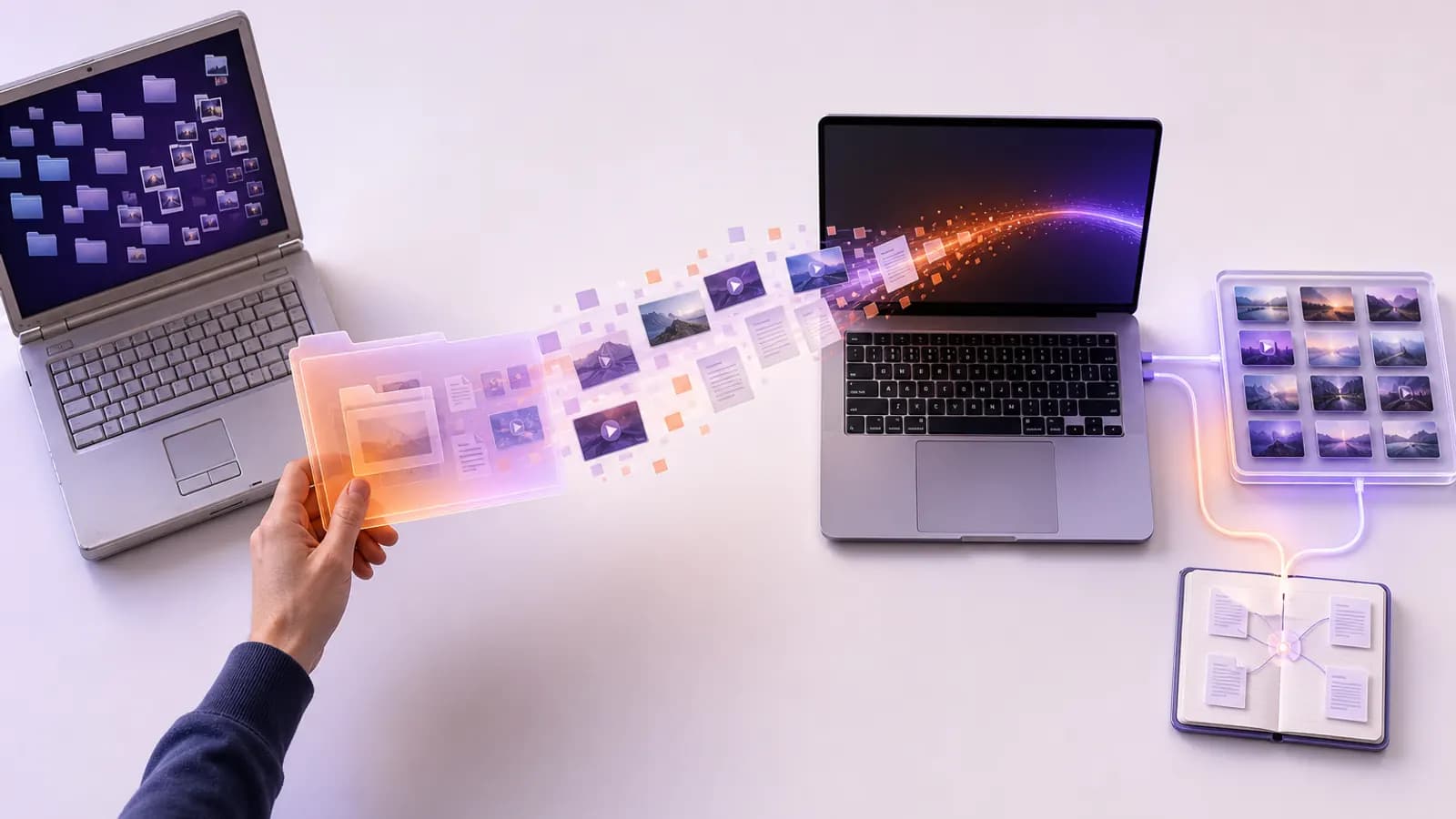
When you save a great image, you know which post it came from. Two months later the screenshot is just a picture, the saved file is named with a string of digits, and you can't recall who made it, where the post was or what its numbers looked like. To use it in something new you either search the platform all over again or decide not to risk it.
Saving material is only the first step of building a library; remembering where each piece came from matters just as much. With the source still attached you can check the facts, credit the creator and ask permission before you reuse anything. Beav builds this into the asset itself: save assets from the original item in your knowledge base, and the two stay connected so you can always go back.
Who it is for
- Creators who collect material with screenshots and Save As, and soon lose track of where things came from.
- Reviewers and explainer creators who go back to the original before quoting a number or an argument.
- Creators and social media managers who want to credit the author and ask permission before reusing someone's images or video.
How to use it
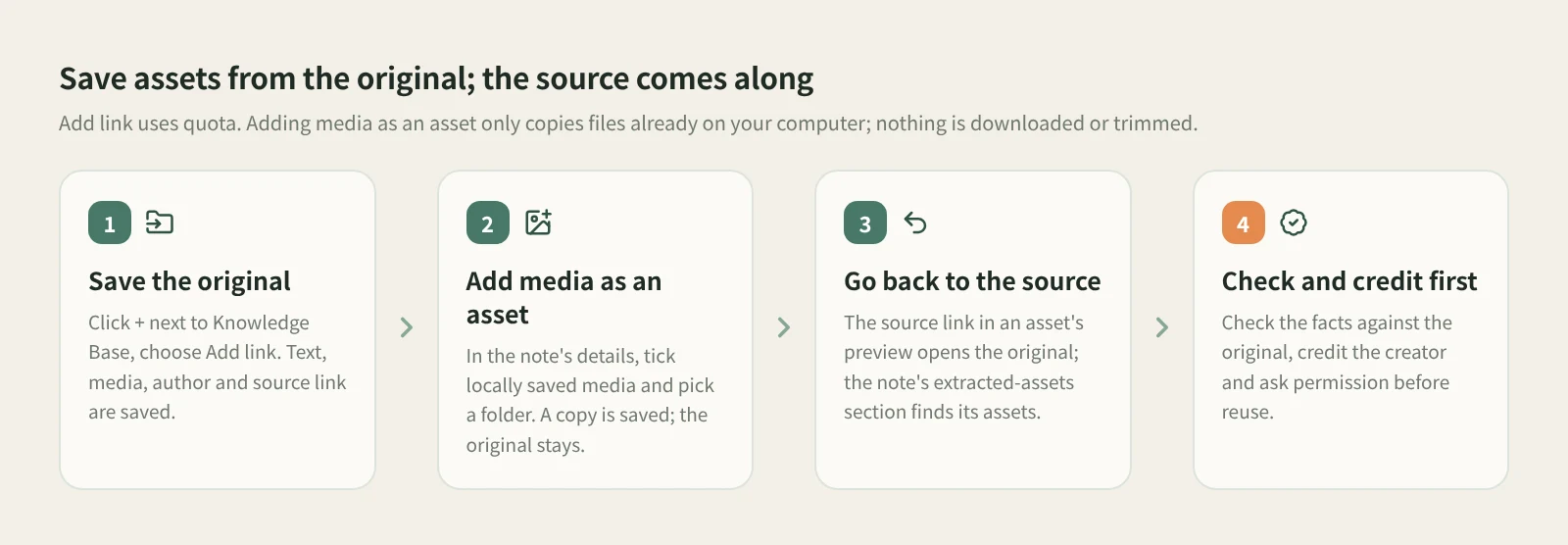
- Save the original to the knowledge base first. Click + next to Knowledge Base, choose Add link, and paste the link or share text. Add link goes through the capture service and uses quota according to its rules. What you save is the original itself: text, images or video, author and source link. For platform details, see save any link to your knowledge base.
- Use the add-as-asset action in the note's details. Open the knowledge note's details, choose add as asset, tick the media you want (it must already be saved on your computer), then choose an asset folder. Beav saves a complete copy to the asset library and the original in the knowledge base stays as it was. Nothing is downloaded or trimmed automatically.
- Go from the asset back to its source. Open an asset's preview or text details from inside the knowledge base and follow its source link to the original note. The other way round, the extracted-assets section in the note's details locates the assets saved from it. An asset opened in its own window shows the source title too.
- Take a look before you use it. Before writing or designing, go back to the original: are the numbers still current, what exactly was said, who's the author? If you want to use someone's image or video as is, contact the creator for permission first and credit the source when you publish.
Decomposed assets keep their source too. Click Decompose in the details and the results are copied to decompositions/<title> in the asset library: transcript text, keyframes, shot MP4s and music M4As, all linked back to the original in the same way. Decompose runs only when you click it and uses model quota. To find those outputs by type, see how the asset library sorts itself.
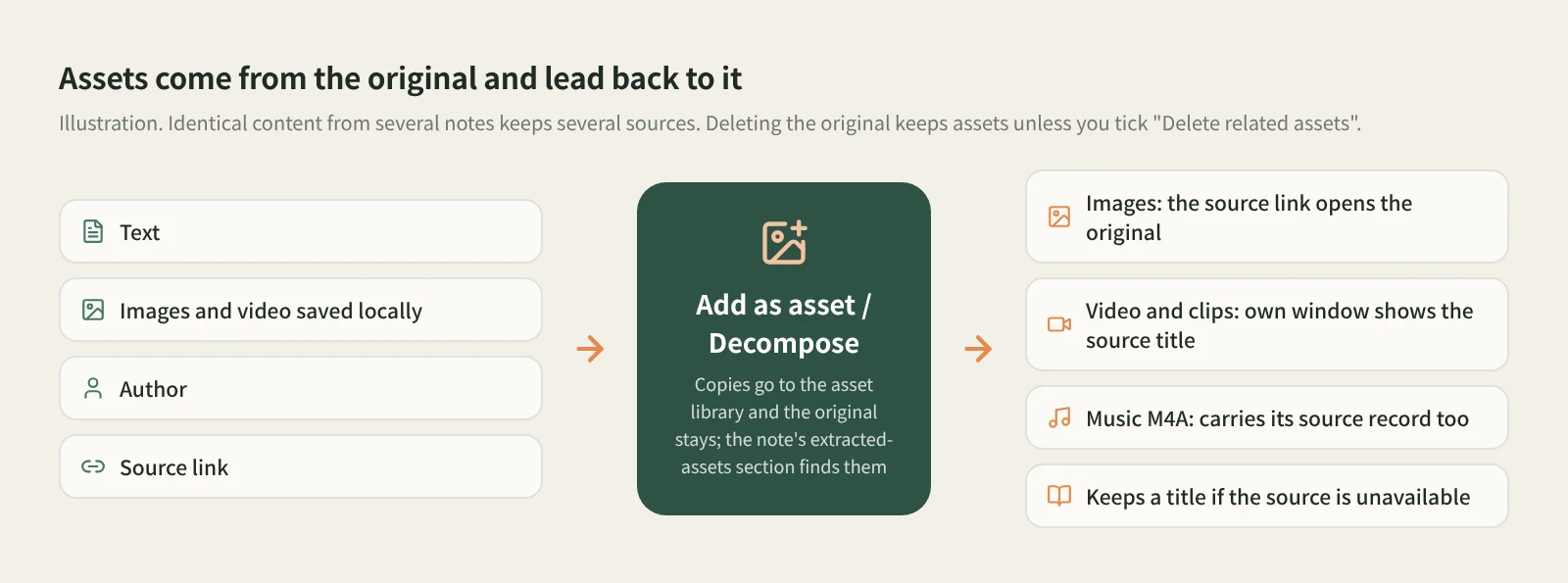
What happens to the source in common situations:
- The same content comes from several notes. The asset keeps every source, not just the latest one.
- You delete the original. Assets are kept by default. The confirmation dialog has a "Delete related assets" checkbox, unchecked each time. Tick it and assets with a recorded link to that note, decomposition outputs included, are deleted too; assets that another source still uses are kept, with a notice.
- The original becomes unavailable. The asset still keeps a minimal title, so you know where it once came from.
- You edit the asset file in another app. The changed content no longer carries the old source. From then on it's your own new asset, and attributing it is your call.
What uses quota? Saving with Add link goes through the capture service and uses quota according to its rules. Decomposing uses model quota. Adding media as an asset only copies files already on your computer, with no capture involved.
How it compares with the usual ways
| Screenshot folder | Browser bookmarks | Eagle | Beav: assets saved from the original | |
|---|---|---|---|---|
| Strength | Fastest; captures anything on screen | Remembers the URL and opens the real page | Mature image management with good tags and color filters; images saved from the web keep a source URL | Assets and the original in your knowledge base can always find each other |
| Is the source kept? | Lost the moment you capture | The URL is, but no file is saved | Web-saved images have a source URL field; files you drag in need it filled by hand | The source link returns to the original, which holds the text, author and source link |
| If the post is deleted | You have the picture but no source | The link breaks and nothing's left | The file stays; the URL may stop working | The original is already saved in your local knowledge base, and the title is kept even if it becomes unavailable |
| Find assets from the original | Not possible | Not possible | Search by URL or tag yourself | The extracted-assets section in the note's details goes straight there |
| Into an AI | Drag images over by hand | Open the page, then copy | Export or drag out first | Originals and assets sit in one library; drag them straight into the chat |
A screenshot is the quickest way to keep something you just saw. Bookmarks take no space and work fine as long as the page survives. Eagle is a mature image manager: it records the source URL for images saved from the web, and its tagging and filtering go further than Beav's. Its source is a URL, while Beav's source is the original saved in your own knowledge base, so you can still read the text and see the author after the post is gone. The two work together too, since an Eagle library can be connected to Beav. Beav suits people who want assets and originals to stay connected for the long run, so they can always go back and check.
Limits and notes
- Media must be saved locally first. Items that only have a web address don't offer add as asset, and Beav won't download or trim anything for you.
- Older assets aren't backfilled. Assets you dropped into the library earlier without a recorded source don't get one in bulk, and Beav won't guess by file name.
- Edited files lose the old source. Once you change an asset in another app, the old source doesn't carry over to the new content.
- A source isn't a license. The source helps you find the creator, but you still need permission before using someone's images, video or music. Beav doesn't post for you either.
- No cloud backup or restore. Your assets and originals live on your computer, so back up anything important yourself.
Next steps
- For why it's worth building your own material and how, read the series overview, "Accumulation Is the Moat".
- Find decomposition outputs by Images, Videos, Copy and Music: how the asset library sorts itself.
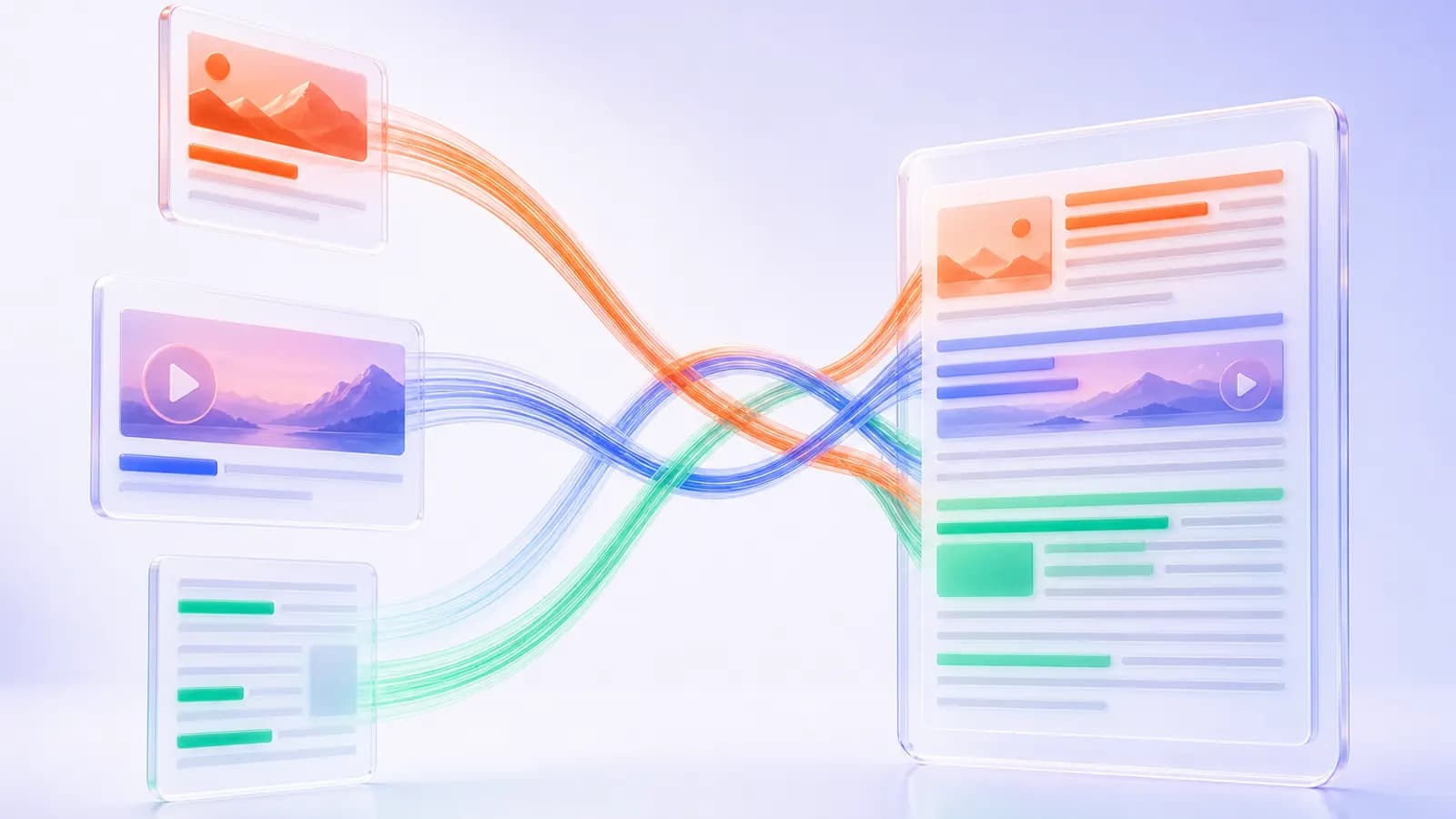
- Sources pay off most while writing. To combine material from several platforms with each point marked by where it came from, see mixing sources from several platforms.
Applies to Beav desktop 2.10 and later.