
Key takeaways
- Save and download a benchmark Douyin video locally, then manually click Decompose to extract shot cuts, a per-shot script and a timed transcript.
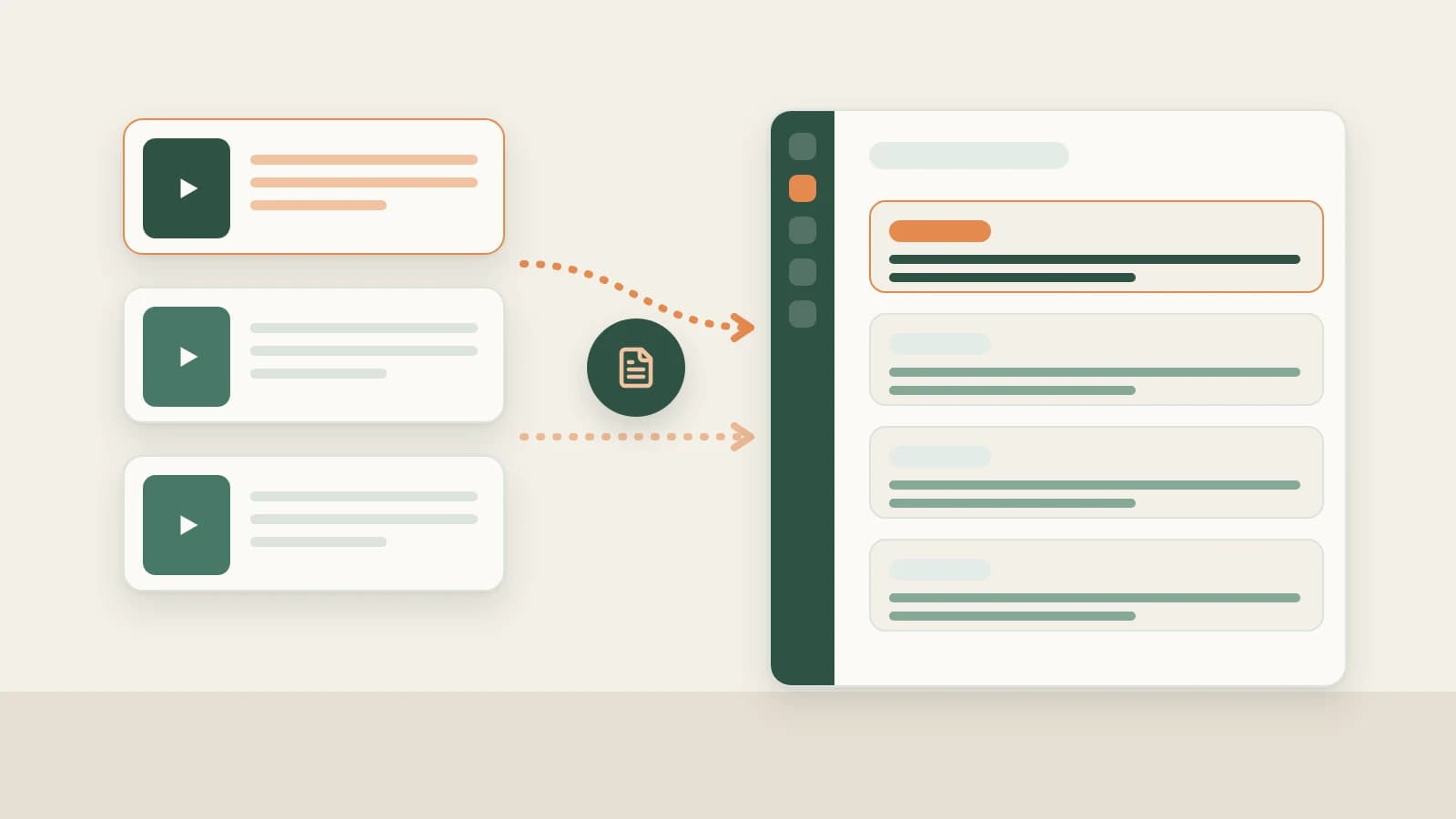
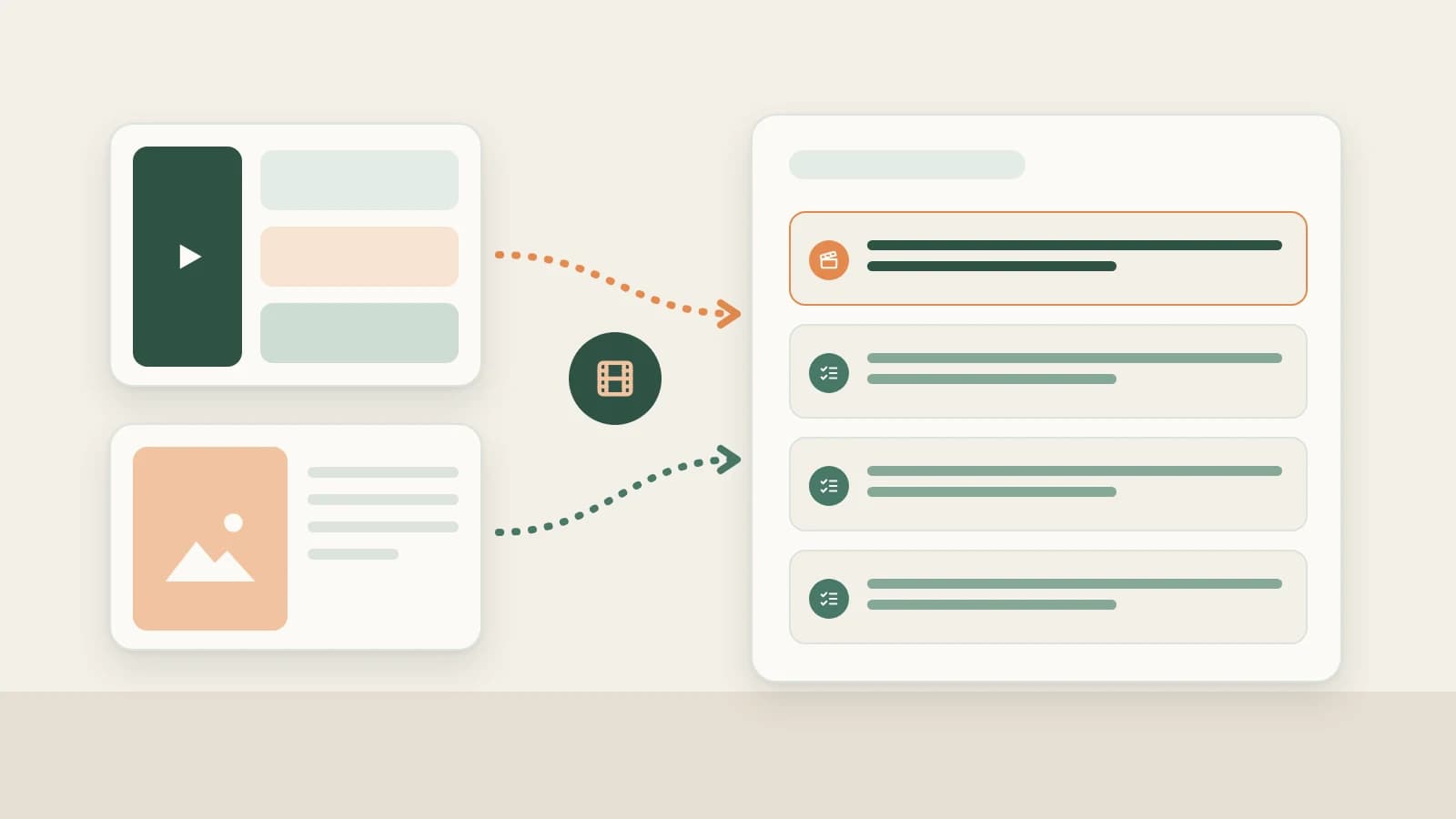
- Open a new chat, drag both the decomposed Douyin video and your own product/store assets into the composer, specify Douyin 9:16 vertical and target audience/selling points, and ask for a shot-by-shot list covering framing, seconds, actions, lines and props.
- Save the finalized shot list as a manuscript to bring on shoot day. Beav produces the plan while you film the real footage — and you can bring filmed talking-head takes back into Beav for AI cutting.
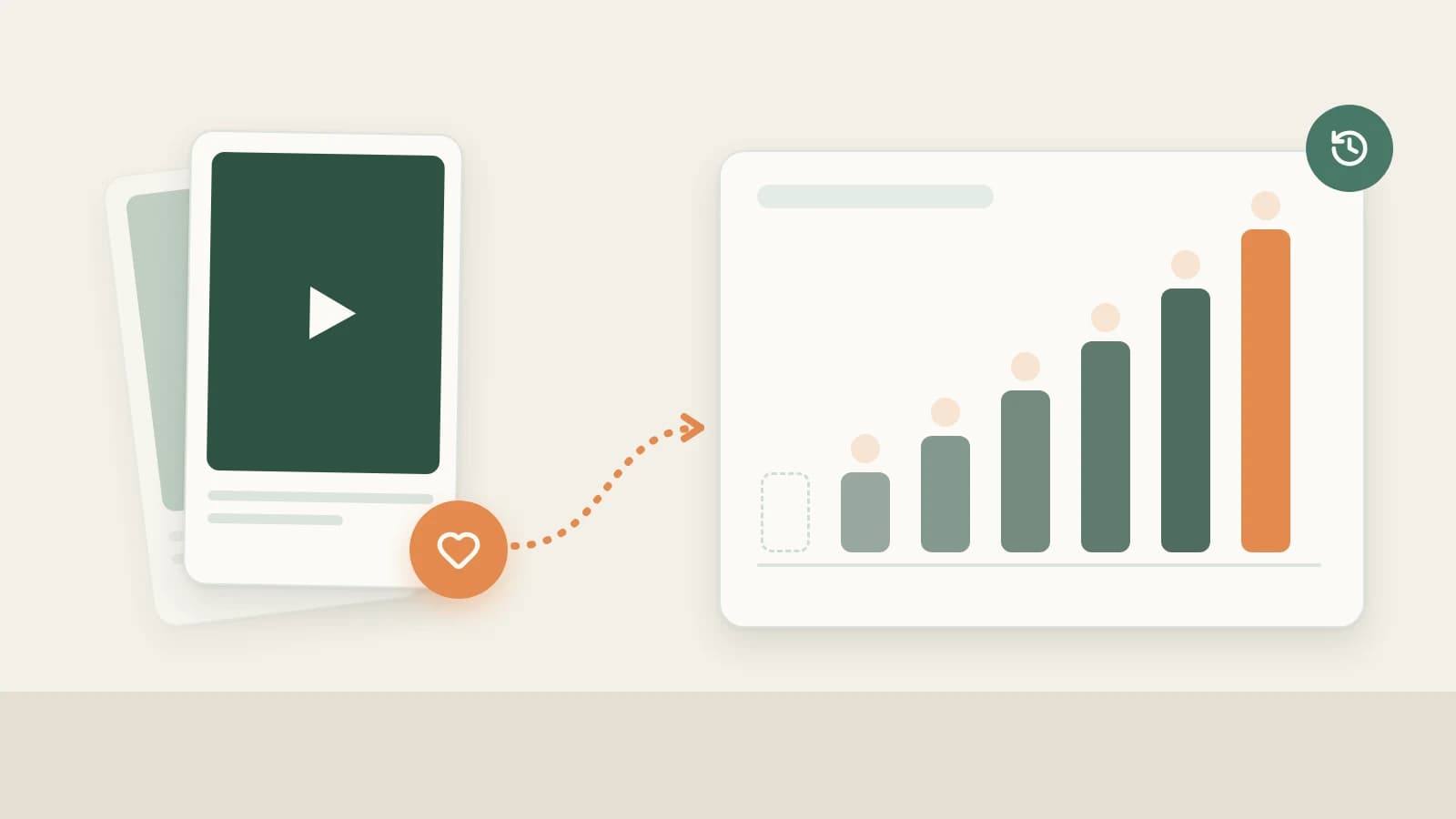
After running Decompose on a breakout Douyin video, the pacing makes sense immediately: Shot 1 close-up hook, Shot 2 medium-shot problem, Shots 3–5 three rapid comparisons, Shot 6 price/CTA close. Yet when filming day arrives, staring at someone else's restaurant or someone else's product still leaves you wondering what your own camera should shoot.
Turning that breakdown into a Douyin shot list keeps only the visual rhythm while swapping every scene, prop and spoken line for your real product.
Who it is for
- Douyin creators filming talking-head, local-store visit or product-demo videos who want proven pacing without shot-for-shot imitation.
- Content producers and directors writing clear shoot checklists for camera operators and hosts.
- Brand teams shooting multiple angles for one SKU who need a reusable pacing skeleton.
How to use it
- Decompose a benchmark Douyin video first. Save the clip via the desktop extension or Add link, wait until Downloading finishes, and click Decompose manually. Only downloaded videos can produce shot cuts and clips.
- Verify cut points. Click any shot thumbnail or timestamp to inspect cuts against playback. Fix double-cuts with Merge into previous shot or add missing transitions with Split at playhead so your shot count matches real beats.
- Drag references and your assets into a chat. Press
⌘K(Ctrl+Kon Windows/Linux) in the composer to open the right workspace, drag in the decomposed Douyin entry from Knowledge Base plus your own product shots or storefront clips from Asset Library — or start directly via AI Rewrite on the video details page. - Specify platform, audience and shot-list fields. Tell the AI it is for Douyin vertical 9:16, who watches, and which local assets must appear:
Follow the shot pacing of this Douyin reference video: keep the first 3 seconds delivering an instant visual/spoken payoff, and preserve what role and approximate duration each shot plays.
Replace all content with my product (a portable blender) and my real scenes (morning kitchen counter, commute), aimed at young office workers, for Douyin 9:16 vertical around 30 seconds total.
Output a shooting checklist listing for every shot: camera framing, seconds, action, spoken voiceover/caption line, and required props.
Do not copy the reference video's shots or lines, and never treat numbers from the reference video as facts about my product.- Check pacing and refine beats. Review the draft list against the reference shot script, then ask follow-ups such as trimming the first 3 seconds down to one punchy line plus a close-up, or placing an existing asset clip into Shot 3.
- Save as a manuscript. Save the confirmed shot list as a manuscript rather than leaving it buried in chat history, keeping beats, script and remaining production notes together for shoot day.
What to keep versus replace for Douyin. Preserve three elements: (1) the first 3 seconds (whether the opener delivers an immediate visual result, sharp question or dramatic action — clear from Shot 1's keyframe and opening timestamps), (2) beat role and duration per shot, and (3) 9:16 vertical framing cues. Swap everything concrete as a matched set: product, host, setting, props, spoken lines and on-screen text.
Talking-head vs storefront/skit shoots. For talking-head clips, focus the shot list on sentence grouping and cutaway timing (which line uses a medium shot versus a product insert). For local store visits and skits, lean on the decomposed MP4 shot clips to pace walk-in, reveal and twist timing — see breaking down a Douyin video.
After filming. Bring recorded talking-head takes back into a Beav chat and ask the AI to cut pauses and stumbles and generate captions — see smart talking-head cuts.
How it compares with pausing frame-by-frame, CapCut templates and generic scripts
| Scrubbing frame-by-frame | CapCut template ("Cut same style") | Generic AI script generator | Beav decomposed shot list | |
|---|---|---|---|---|
| Strength | Deepest feel for manual timing | Swap assets quickly into preset edits | Fast zero-to-one rough outline | Reference beats and your real assets paired shot-for-shot in one space |
| Where pacing comes from | Your manual notes | Template creator's preset | Prompted generic pattern | Decomposed Douyin video carried into chat as a linked card |
| Customizing to your shoot | Fully manual | Constrained by preset slots | Often reads generic | Preserves beat role/duration while adapting scenes and props to yours |
| Output location | Notebook / spreadsheet | Edit timeline project | Usually stranded in chat | Saved manuscript linked to references and assets |
| Cost | Free, slow | CapCut terms | Tool-specific | Model quota for decomposition + chat |
Watch top references once manually anyway — nothing beats training your own eye for pacing. When you already have footage and just want a quick cut, CapCut templates shine. Beav targets teams turning analyzed Douyin hits into customized shoot plans grounded in their own inventory.
Limits and notes
- Beav prepares the shoot plan; you film and publish. It does not record footage or auto-post to Douyin.
- Local video download required first. Items still downloading cannot cut shots or clips, and Beav's Douyin workflow covers single videos rather than photo sets.
- Review AI-generated shot lists against your real location. Adjust any shot that is impractical on set before filming.
- Borrow structure, never footage. Original clips, keyframes and non-speech music cues belong to the source creator; obtain permission before reusing any third-party media or numbers.
Next steps
- Only need a talking-head script without shot lists? Read Douyin breakdown and rewriting and rewriting scripts from breakdowns.
- For the platform-agnostic filming guide, see shoot your own video from a shot script.
- See the complete Douyin operation guide or docs on Set the direction and Save it as a draft.
Applies to Beav desktop 2.9 and later.