

Key takeaways
- In the Beav knowledge base, click + next to Knowledge Base, choose Add link and paste a WeChat Official Account article link. The app's built-in parser reads the body, layout and inline images, with no capture API or sign-in, so no capture quota is used. Content already in the knowledge base is not saved again.
- Good articles are worth collecting over months, not just bookmarking for a day. Each one becomes an entry with its source link, which you can file into folders by column, topic or writing style without changing the original link.
- When you write, drag article cards into a chat and the AI uses them as references. Working in Claude or ChatGPT instead? Use Add to chat on the local library page to copy Markdown with the title, source and original link.
If you write for a WeChat Official Account, you probably have a handful of articles you think of as "the one that really nailed it." The trouble is they're scattered across WeChat Favorites, chat history and browser bookmarks. Three months later, writing on a similar topic, you remember one piece explained it perfectly but can't recall which account published it. When you do find it, the article may have been deleted and the link no longer opens.
Saving a single article solves "don't lose it." This piece is about something longer term: collecting good articles one at a time into your own reference library, sorting them by column and writing style over a few months, and letting the AI cite them while you write. Anyone can use the same AI you do. Nobody else has the six months of articles you've collected, and that's the point of building a material library.
Who it is for
- Writers who run a WeChat Official Account and want a reference library of strong articles in their field.
- Content planners and editors who collect examples by column and topic for a team to write against.
- Anyone already writing long-form with AI who is tired of pasting the same reference articles in every time.
How to use it
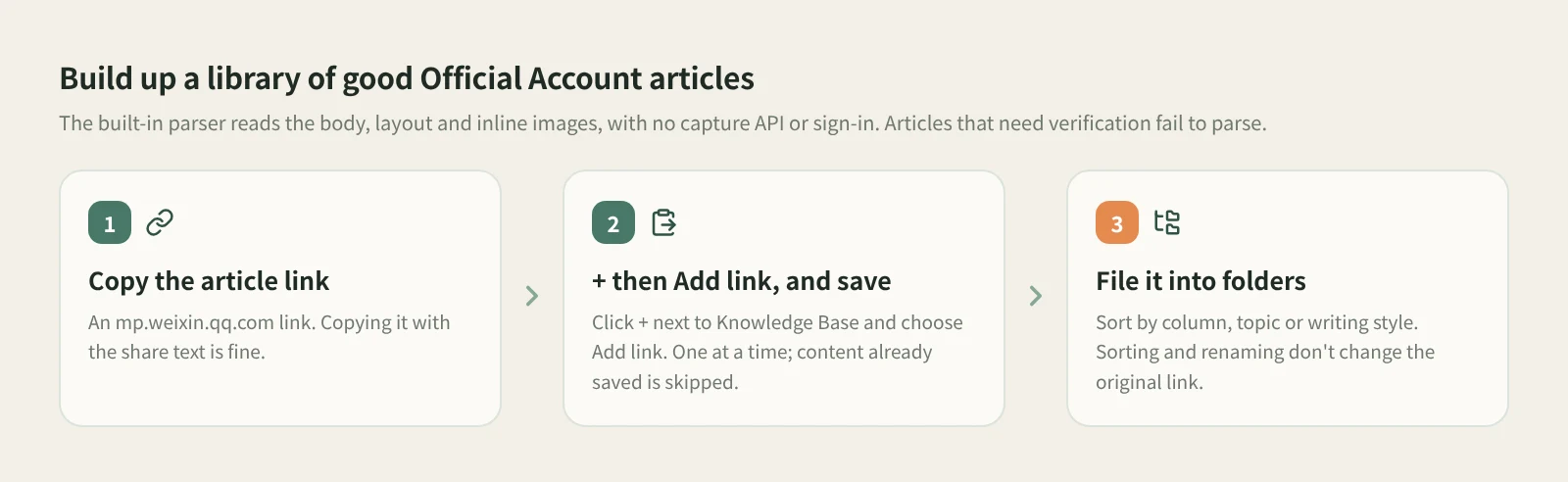
- Copy the article link. Open the article in WeChat and copy its link. Copying it with the share text is fine too; Beav finds the link.
- Click + and choose Add link, then save. At the root of the knowledge base or in a personal folder, click the + in the title bar or next to Knowledge Base on the left, choose Add link, paste and click Save or press Enter. On success, the dialog shows the detected platform and clears the input so you can paste the next one. Links are saved one at a time.
- Check what was saved. The app's built-in parser reads the body, layout and inline images. In the knowledge base gallery, an Official Account article shows as a card with a wide cover, its title and author. If an article requires verification or isn't publicly accessible, you're told parsing failed, and the dialog keeps the link and the reason.
- File it into folders regularly. New articles land at the root of the current space's knowledge base. Once a week, take a few minutes to create folders by column, topic or writing style (say, "listicles", "story openings", "industry reviews") and move articles in. Sorting and renaming in the knowledge base don't move the captured files or change the original link.
- Bring them out when you write. In a chat, open the knowledge base in the right workspace and drag the article cards you want onto the input box. A reference card appears above the input and goes to the AI when you send. With the input box focused, ⌘K (Ctrl+K on Windows) opens or closes the right sidebar.
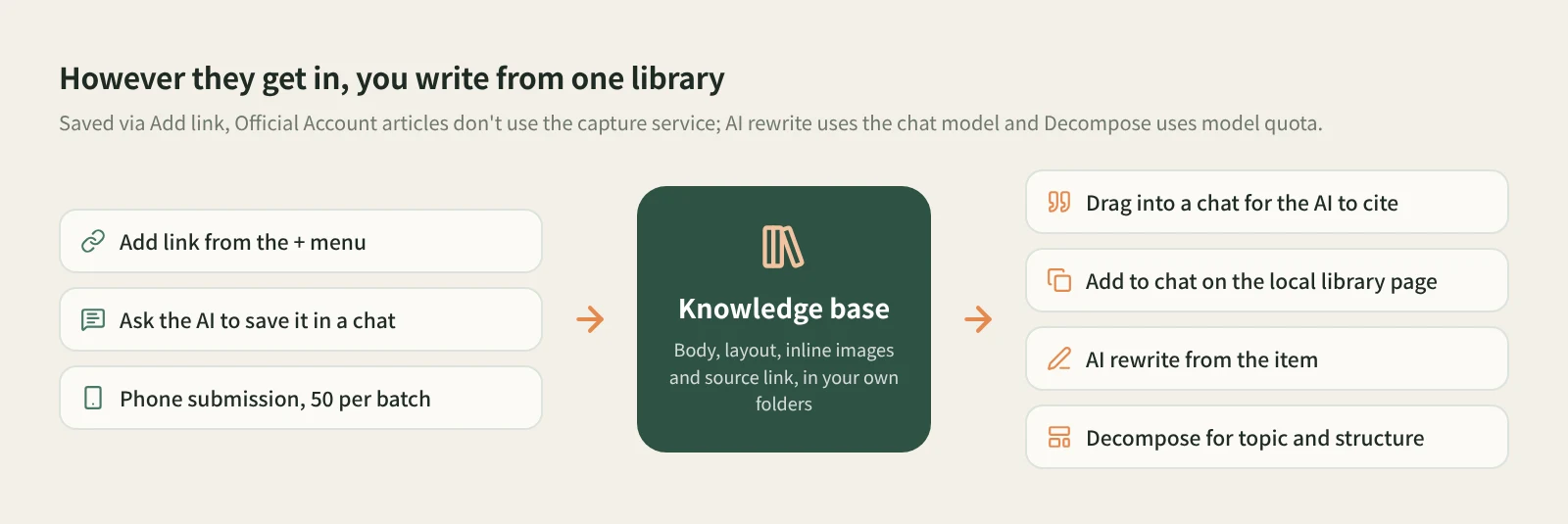
Other ways in. If you come across a good article while discussing topics with the AI, send the link in the chat and say "save to the knowledge base". Public Official Account articles are read by the local parser, body and images included. See saving links from a chat. For articles you read on your phone, click Phone upload in the desktop knowledge base, pair by scanning with your phone on the same Wi-Fi, and paste links on the collection page, up to 50 per batch. See moving things between phone and computer. If you're reading the article in a desktop browser, the Beav browser extension can also save the current page.
Let the AI cite, not guess. Drag two or three similar articles into a chat and be specific: "Using the openings of these pieces as reference, write three openings for my new topic, and note which article each one borrows from." The AI reads the text you saved, not a vague memory of "some viral article." If you write in an outside tool such as Claude or ChatGPT, open the local library page at http://127.0.0.1:31937/library while Beav is running and use Add to chat on an article card. It copies Markdown with the title, source, original link and body for you to paste in.
Save your own articles too. Your own past pieces that you're happy with can be saved the same way. Drag one into a chat and say "Use this piece as a long-term reference example" so the AI learns how you write. See getting AI to remember your writing style.
Want to see how one is built? Click Decompose on the entry yourself. For an article it mainly produces a topic and a structure template, with no shots or music, and it uses model quota. See breaking down and rewriting an Official Account article.
How it compares with the usual ways
| WeChat Favorites, forwarding to File Transfer | Evernote Web Clipper, Cubox and similar | Article export and download tools | Saving to your Beav library | |
|---|---|---|---|---|
| Strength | One tap while reading, fastest of all | Reading experience, cross-device sync, highlights | Export to PDF, HTML and other files, good for archiving | Articles sit with material from other platforms and go straight to the AI when you write |
| Where it lives | Your WeChat account | Each service's cloud | A folder you choose | The Beav knowledge base on your computer |
| After the original is deleted | Usually won't open | Clipped full text is usually still there | The file is still there | The saved text, images and source link remain |
| Finding it months later | Scroll back through Favorites | Mature tagging and search | Look up file names | Your own folders, next to notes and videos on the same topic |
| Handing it to AI | Copy it out first | Export or copy first | Upload it again | Drag it into a chat, or Add to chat for an outside AI |
WeChat Favorites takes no effort and is the easiest way to share an article with a colleague right after reading. Clipping and read-later tools are very mature for reading itself: on the phone, across devices and with highlights, they're smoother than Beav. If you just want articles archived as files, an export tool is more direct. Beav is for collecting Official Account articles as writing material over the long term, in the same library as your RedNote and WeChat Channels material, sorted your way and ready to hand to the AI when you write.
Limits and notes
- Public articles only. Articles that require verification or aren't publicly accessible fail with a parsing error.
- Add link takes one at a time. It isn't a bulk import, and it isn't shown in shared spaces, account profiles, subscription views or local source folders. Phone submission needs Beav running on an awake computer on the same local network.
- Your articles live on your computer. Beav has no backup or restore feature yet, so plan for that before you switch machines.
- Saving never starts a decomposition. Click Decompose on an entry when you want one.
- Saved articles are for your own reference and research. Rewriting should learn structure and delivery. Ask the original author before republishing or quoting at length, and remember Beav never posts for you.
Next steps
- For the basics of saving Official Account articles, including the extension, read saving a WeChat Official Account article in full.
- To break a saved article's structure down and write your own, read breaking down and rewriting an Official Account article. For why collecting matters at all, read the series overview, "Accumulation Is the Moat".
- Full reference: add a link to save a single post, organize knowledge, assets and manuscripts and the local library page.
Applies to Beav desktop 2.9 and later.