
Agent overview
Local library page and open API
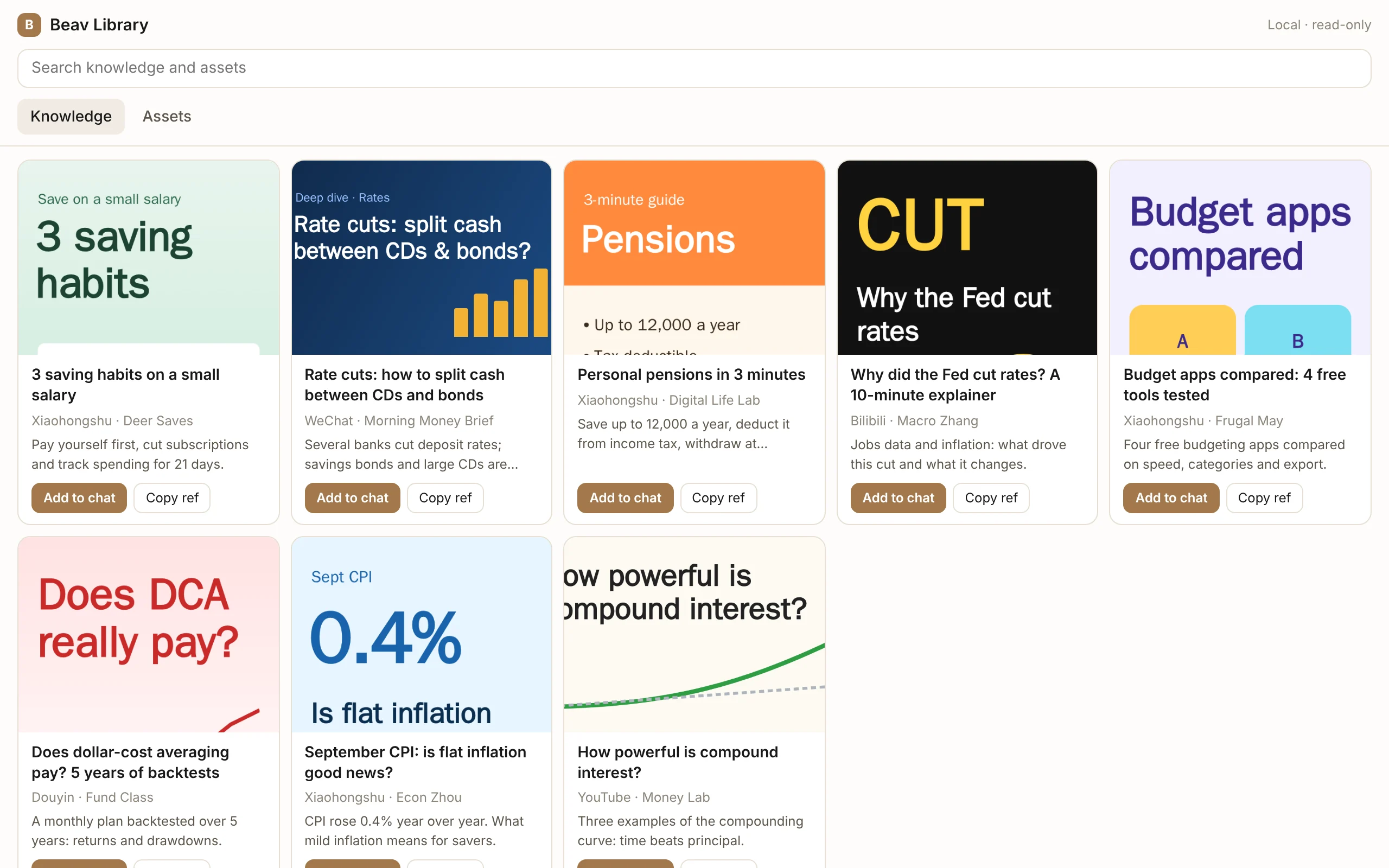
Open 127.0.0.1:31937/library in a browser or an AI tool's side panel to browse and organize your knowledge base and asset library, add items to another AI's chat, or read them through the local API.
Checked 2026-10-13. This page describes Beav desktop 2.9.0. The local page and external-agent integration have been source-reviewed; verify the specific client combination against the prerequisites below.
While Beav is running, it serves a library page and a read-only API on your computer, so you can use your Beav material in other AI tools such as Claude, ChatGPT, and WorkBuddy.
Open the library page
Open this address in a browser or an AI tool's side panel:
http://127.0.0.1:31937/libraryThe page shows the knowledge base and asset library of the current space:
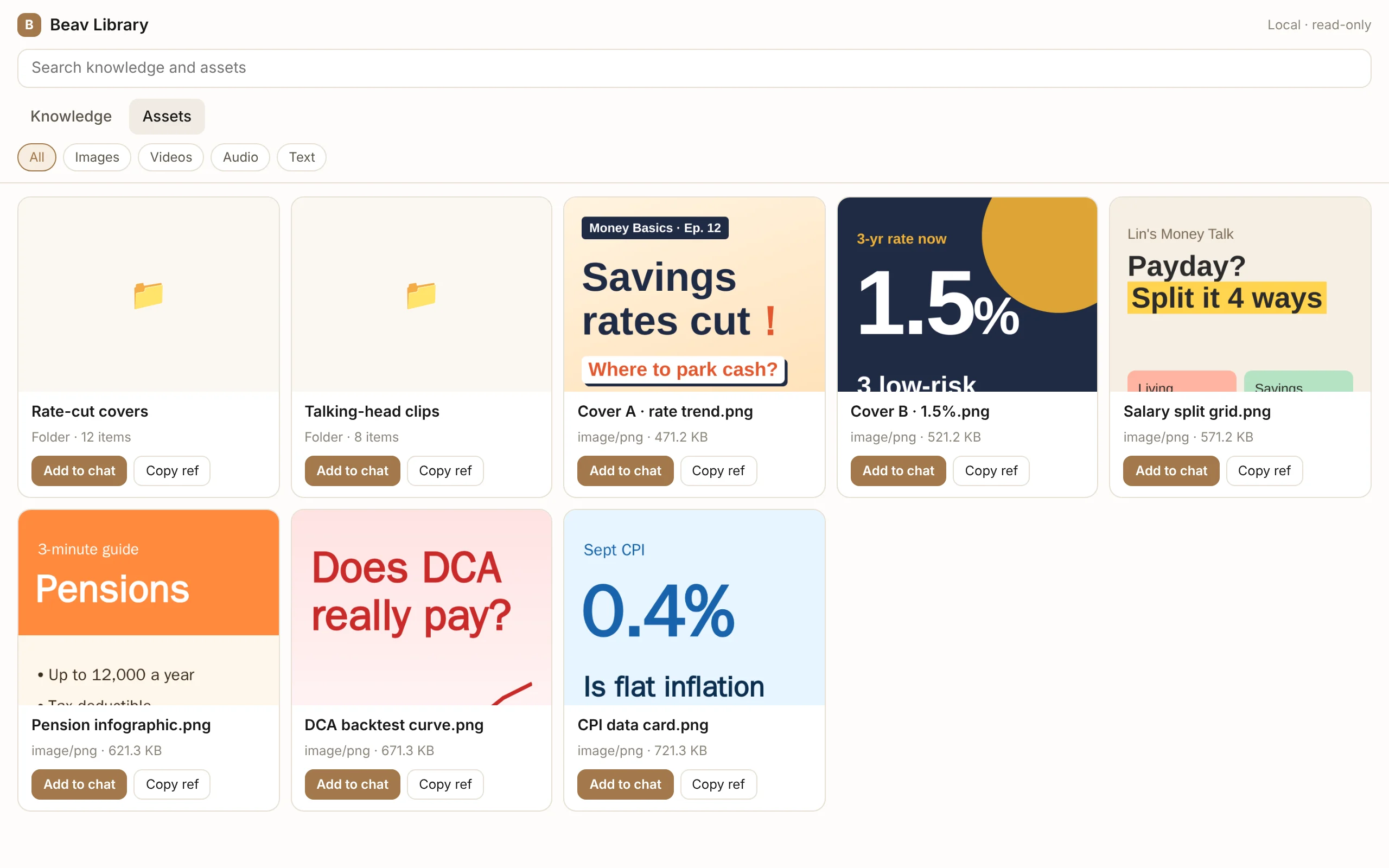
- Switch between knowledge, assets, and folders in the sidebar; search the current location at the top right.
- Filter the asset library by images, videos, audio, text, or prompts, and double-click a folder to open it. Prompts are the saved prompts in the
promptsfolder, shown as text cards: Copy copies the whole prompt and a double-click opens it; once added to chat, the AI can read the full text. - Click to select a card, press Space to preview, or double-click / press Enter to open. On touch screens, tap to open.
- In newer Beav builds (with the 2026-10-08 page update), everything except music is laid out as a masonry grid, with images and videos at their own proportions; music shows as player cards you can preview in place. The page looks and works like a Mac Finder window: click selects, Space opens Quick Look and Space again closes it, double-click opens, and right-clicking a card shows Open, Quick Look, Add to chat and more. Back and forward sit in the toolbar, and a path bar at the bottom shows where you are and how many items there are; ⌘[ / ⌘] go back and forward and ⌘↑ goes to the enclosing folder (Ctrl on Windows). Images, videos, and music preview in a Quick Look panel (arrow keys switch); knowledge items and copy open a details window with traffic-light buttons. The Add to chat button appears when you hover over or select a card. On touch screens a tap opens.
Beav 2.9.0 displays platform-specific knowledge cards: Xiaohongshu uses a cover, title, and author/likes row; X and other social posts show the author, text, media, and engagement; YouTube shows channel and view information; Bilibili shows views and the uploader. Instagram, Reddit, WeChat articles, Zhihu, and short videos use their own arrangements. Covers retain their proportions in responsive masonry, and the top-right slider adjusts card size.
Cards show saved data, not a live platform feed. Missing engagement counts are omitted; author initials stand in for avatars unavailable in the list, and durations or bullet-comment counts are not fabricated. Preview, details, and Add to chat remain available. Restart a host containing this update and refresh the page to use it. Source, real local list data, and the public Xiaohongshu/Bilibili homepages were reviewed; cross-browser rendering of the updated page still needs acceptance. These page updates are included in 2.9.0. The screenshots below show the earlier version.
Beav 2.9.0 provides a single filter icon at the top right. Open it to select a knowledge platform/content category and sort order, or an asset media type. Changes apply immediately to the current folder, search, and subsequent pages; the icon changes color when conditions are active. Clear filters restores the current library's defaults while keeping the search and folder. Click outside, click the icon again, move keyboard focus outside, or press Esc to close. Reloading the page resets filters. The icon appears only in Knowledge and Assets, and the toolbar is slightly shorter. Source and script checks are complete; actual interaction still needs acceptance in an updated host.
In the current space you can organize, upload, move items to the Trash, and edit prompts or drafts, as described below. Captured Knowledge text remains for browsing. Other spaces opened by ID remain read-only. If Beav is not running, the page shows Cannot reach Beav.
The music update adds each track’s title, its recorded Knowledge source cover, and a “From” label. Double-click or press Space to open a larger player; click the source title to open that Knowledge item. Tracks without a recorded source say so. Deleted sources or sources outside the current space retain their saved title but are marked unavailable. A missing cover does not prevent playback. Restart Beav 2.9.0 and refresh the page. Actual playback and source navigation still need acceptance; this update is included in 2.9.0.
Drafts now use a gallery: completed packages appear first, followed by Markdown files, with each group ordered by update time. Package cards use the saved cover or first image. Double-click or press Space to preview text, images, or video and open the included files; packages without images use a file icon. Markdown reading, search, and thumbnail sizing remain available. Restart an updated development host and refresh the page; actual rendering and interaction still need acceptance.
Open it inside Codex or ChatGPT
After you install the Beav plugin in the Codex or ChatGPT desktop app, Beav 素材库 appears under More tools › Plugins and MCP on the new-task screen. Click it to open the library beside the conversation, with no browser; the main sidebar has the same entry so it can stay open. It shows the space open in Beav (requires a Beav build with the 2026-10-09 change).
WorkBuddy and Claude desktop have no such entry. Ask the AI to "open the Beav library" and it shows the same page in the conversation. Images from other sites and videos over 12 MB may not show there; Open file opens them in your browser.
Open another space
Put a space ID before library to browse that space without switching Beav to it (requires a Beav build with the 2026-10-09 change):
http://127.0.0.1:31937/<space-id>/libraryThe top-left corner shows the space's name, and links copied there keep the space ID. Agents connected to Beav get each space's address from the space list, or name the space when they open the page. For a space you have not opened in Beav lately, the knowledge base shows what was indexed the last time it was open. A space that has never been opened may have an empty knowledge base.
Organize with folders
Every page can hold folders, with Finder-style selection and drag and drop (in the new Beav release):
- New folder: right-click empty space and choose New Folder, or click the folder button in the toolbar or press ⇧⌘N, then type a name and press Return.
- Select: click one item; ⌘-click (Ctrl-click on Windows) adds or removes one; Shift-click selects a range; drag on empty space to draw a selection rectangle; ⌘A selects all.
- Move into a folder: drag the selection onto a folder, a folder in the sidebar, or a level in the path bar at the bottom. The right-click menu also has New Folder with Selection and Move Out of Folder.
- Where folders live: the asset library home and its folders hold real folders, the same as the app's asset library; the knowledge base and drafts use the app's own category folders. On pages whose items have a fixed location (the image, video and other type views, topics, following, tags, linked folders and account archives) folders are virtual: they organize without moving files, and deleting one moves its contents up a level.
- Only the space open in Beav can be organized; another space opened by its ID stays read-only.
Hand content to the AI you are using
- Add to chat: image assets are copied as images; knowledge entries and other assets are copied as a block of Markdown (title, source, original link, Beav reference, body, transcript, and image URLs) that you paste into the chat box. For videos and audio, only the description and URL are copied; upload the file itself separately.
- Copy ref: copies only the title, the
knowledge://orassets://reference, and the local read URL. This suits Agents that have the Beav Creator plugin and can read Beav themselves. - Drag into the chat box: you can also drag a card into an AI's chat box; whether it is accepted depends on each tool.
- Delete: select assets, asset library folders, knowledge items, drafts or topics, then right-click and choose Move to Trash, or press ⌘⌫ on a Mac or Delete elsewhere, and confirm. Items are deleted the same way as in the app, so all can be recovered: assets go to the asset library trash, knowledge items to the system Trash, drafts to the draft trash, and topics are marked abandoned. Account archives, files in linked folders and packages can't be deleted from the page.
- Add: the + in the toolbar matches the app's asset library: New Folder, Upload Files (pick files, or drag them onto the page; they go into the asset folder that's open) and Upload from Phone.
- Inside an AI tool's side panel: works the same as in a browser: New Folder, move, delete, upload and Upload from Phone (requires the updated Beav and plugin). Each file uploaded from the side panel can be up to 20 MB; for larger files use Upload from Phone, open the page in your browser, or import in the app. Environment variables are managed only in the app or a browser.
- Edit drafts: under Drafts, double-click a draft or package (or select it and press Return) to edit it right in the page (new in Beav; works in a browser and in an AI tool's side panel). It feels like Obsidian: headings, bold, quotes, lists, task checkboxes and links show formatted, and the Markdown marks appear only on the line you are editing. ⌘B, ⌘I and ⌘K add bold, italics and links, lists continue when you press Return, and ⌘F finds text. Changes save automatically a moment after you stop typing (the title bar shows Saved), and again when you close the window. For a package you edit that platform version's title and body, and the same package is updated in place; WeChat article packages are typeset, so edit those in the app. If the draft was just changed in the app or by an agent, the page says Changed elsewhere and lets you load the latest version, so neither side overwrites the other. Pressing Space still only previews.
- Right-click menus: every card, folder and empty area on the page, and every row in the sidebar, has a right-click menu with Add to chat; with several items selected it copies them all. If your browser does not show the menu, use the Actions button in the toolbar or the keyboard menu key.
Cloud tools such as Claude or ChatGPT on the web cannot reach 127.0.0.1 on your computer, so use Add to chat with them.
Agents with the Beav Creator plugin know about this page. The Codex installation guide updated on 2026-10-08 asks the new chat to read the active workspace's profiles after connection verification and open the knowledge library in Codex's right-hand browser panel. The installation reply reports the current workspace, profile-read and browser results. This uses existing 2.8.14 interfaces and requires the updated website guide or plugin Skill; the revised full installation still needs desktop acceptance. You can also ask the Agent to open the page later. Hosts without a browser panel tool fall back to the system browser; failed opening returns a link.
Upload from phone and save to phone
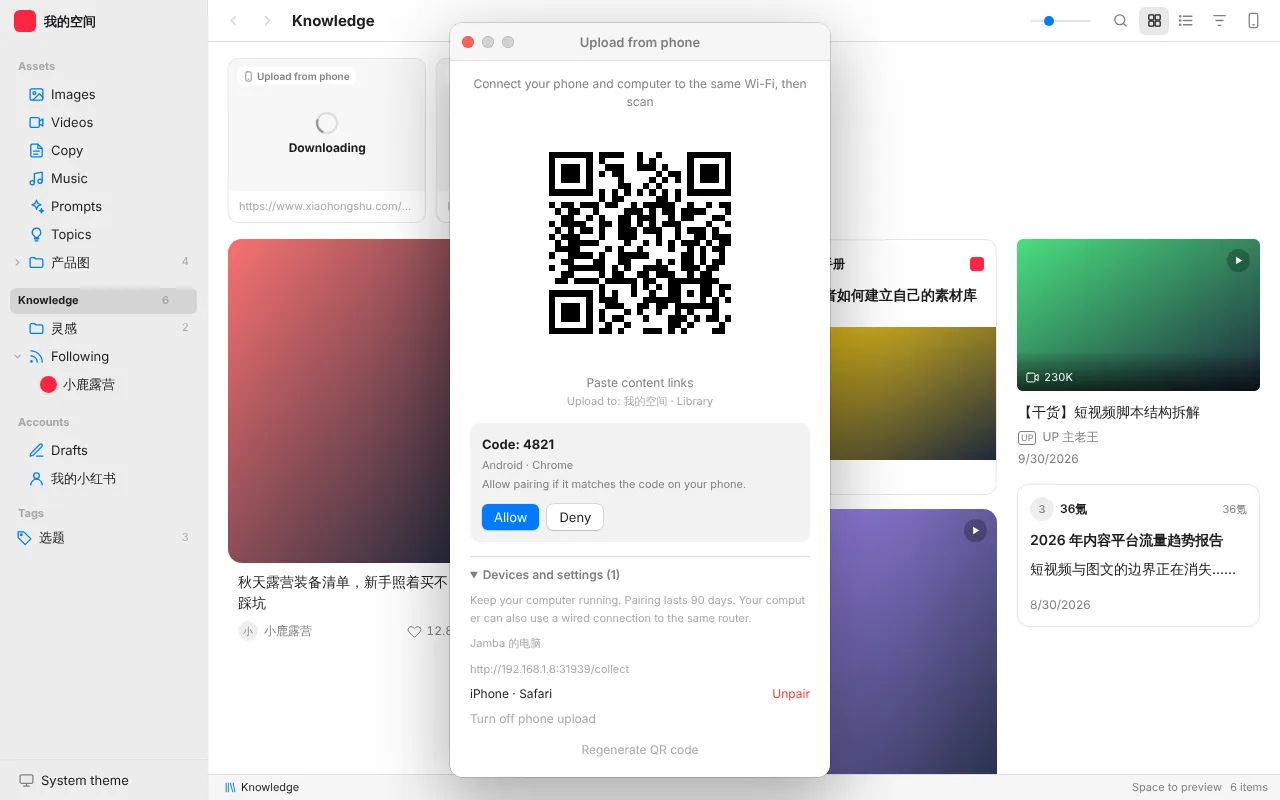
Requires Beav desktop 2.9.0. These are the same phone upload and phone save features as the knowledge page in the app; your phone and computer only need to be on the same Wi-Fi:
- Upload from phone: on a knowledge or assets page, click the phone icon at the top right and scan to pair. The first time, the page shows a code; click Allow if it matches the one on your phone. Knowledge pages take content links; asset pages take images, videos, and audio and save them to the assets root. Uploads still downloading appear as Downloading cards at the top of the knowledge page, and failed ones can be retried or removed. Unpair devices or turn phone upload off under Devices and settings.
- Save to phone: asset, knowledge, draft, and package cards show a phone button at the top right on hover or selection; Save to phone is also in the context menu, Quick Look, and the detail window. Scan to view, play, or download on your phone; folders and packages download as a ZIP. The QR code is valid for 30 minutes, and you can Stop sharing at any time.
Both only work for the space open in Beav and are hidden when a space-ID address opens another space. Folder organization, uploads, and editing also apply only to the current space; the local read-only API remains read-only.
Gallery, timeline, and filters
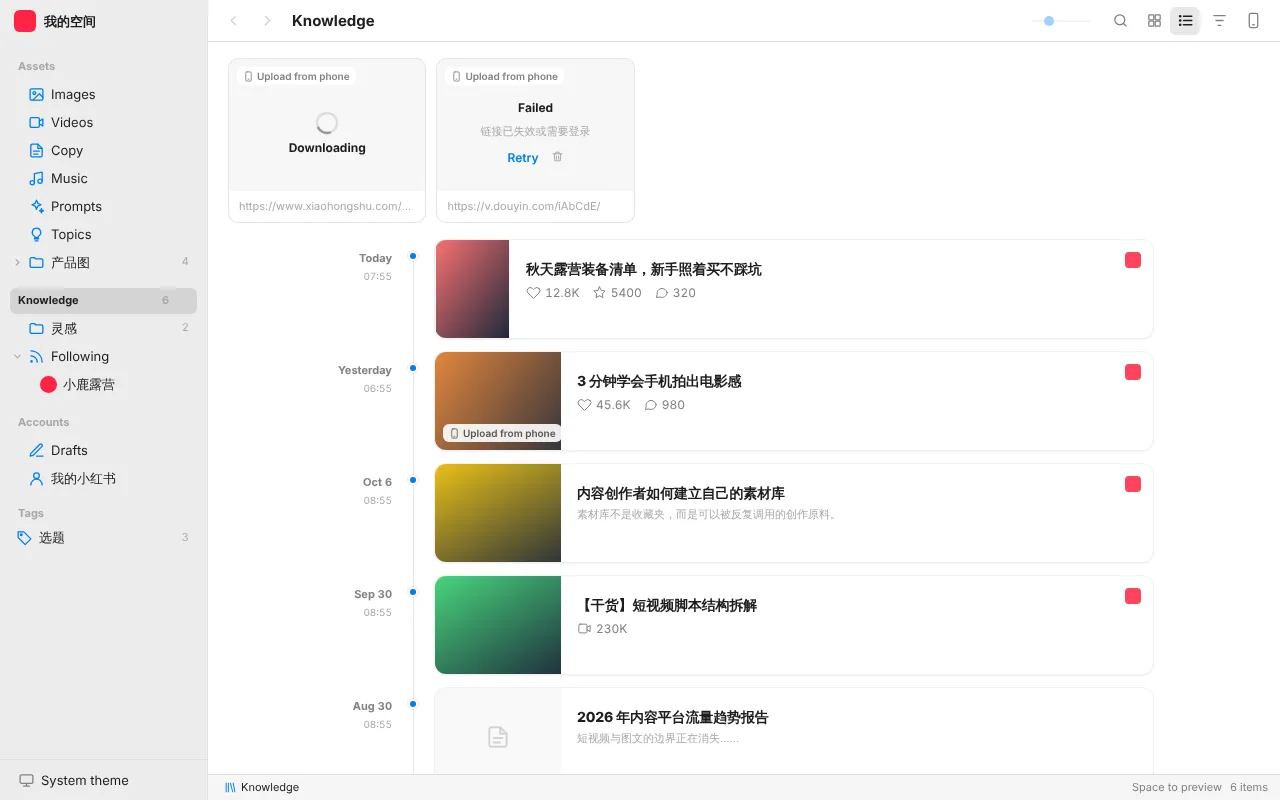
The title bar matches the app's knowledge page:
- Gallery / Timeline: knowledge, subscriptions, account archives, drafts, topics, and assets can all switch. The timeline lists items newest first by publish date with the date on the left; subscriptions open in the timeline.
- Filter: knowledge filters and sorts by platform and content; assets by type; drafts can show only drafts or packages and be sorted; account archives can show only videos or posts and sort by likes; linked folders filter by file type.
Local read-only API
External programs and Agents can read:
http://127.0.0.1:31937/api/v1/libraryThe available read-only endpoints cover: listing and searching the knowledge base, listing and searching the asset library, reading a single item (which can be returned directly as Markdown), and reading media files.
- Programs on your computer need no token.
- Only local-address requests are accepted; cross-site requests that other websites make from a browser are rejected.
- The API listens only on the loopback address, so other devices on your local network cannot reach it. To use Beav from another device, see Web access.
Prompt folders and saving
Source checked on 2026-10-09. Requires Beav desktop 2.9.0; real desktop and Safari behavior remain unverified. The Prompts view in the app and library page browses prompts/, with subfolders, text cards, and copy actions. The app and an ordinary browser viewing the current space support new prompts, folders, and editing. Updated Beav and plugin builds also allow embedded AI-tool views to create, edit, move, and delete prompts in the current space; other spaces remain read-only. An ordinary browser initializes the folder on its first visit; read-only access does not create it.
Saving becomes available after the editor loads the text successfully. Close and reopen after a read failure. If the file changed elsewhere, saving rejects the overwrite; refresh and edit again. Cards show a text preview.
Environment variables in the library
Source checked on 2026-10-09. Requires Beav desktop 2.9.0; real Tauri desktop, Safari, and AI-tool side panels remain unverified. In library mode, Environment variables at the sidebar footer opens a full page. Select another sidebar item to return. Variables created or imported here default to Inject only, so an authorized external agent can discover them with secrets_list and use them through secrets_run. The existing account-menu entry in Agent mode still defaults new variables to Not shared.
The library page in an ordinary browser has the same entry; ?tab=env opens it directly. Variables are app-wide and do not change with the selected space. You can add, edit, enable, disable, and delete them. Secret values are never returned to the page; leave a Secret field blank to retain its value. Plain values are displayed. Raising access to Readable requires the Beav app. Embedded AI-tool library pages do not show this entry.