
Asset capture extension
Capture pages and platform content
Use the Beav browser extension to save regular web pages, Xiaohongshu, YouTube, WeChat Official Account articles, images, and selected text.
For local mode, keep the Beav desktop app running and confirm the current workspace. For server mode, connect this browser’s extension first. Captures go to the current space of the connected Beav instance.
Connect this browser to server edition (2.9.3)
Use extension 2.7.27. Sign in to your own Beav server in the same browser, open settings and choose “Connect this browser’s extension”. Check the server address in the extension confirmation, approve it, then wait for settings to show Connected. Captures go to the server’s current space, and AI can use the websites you are already signed into in this browser. Connect only to your own trusted server. Choose Disconnect in settings to stop the connection.
Source and remote transport checks cover this flow. Extension reload, real pairing, capture and revocation still need validation on the specific server and browser.
Regular web pages
Open the side panel and choose to save the current page. Beav keeps the page title, source link, body text, and any available media information as faithfully as it can.
This suits articles, product pages, research material, and any public page you will want to cite later.
Xiaohongshu
On a Xiaohongshu note page you can use the on-page actions or the side panel:
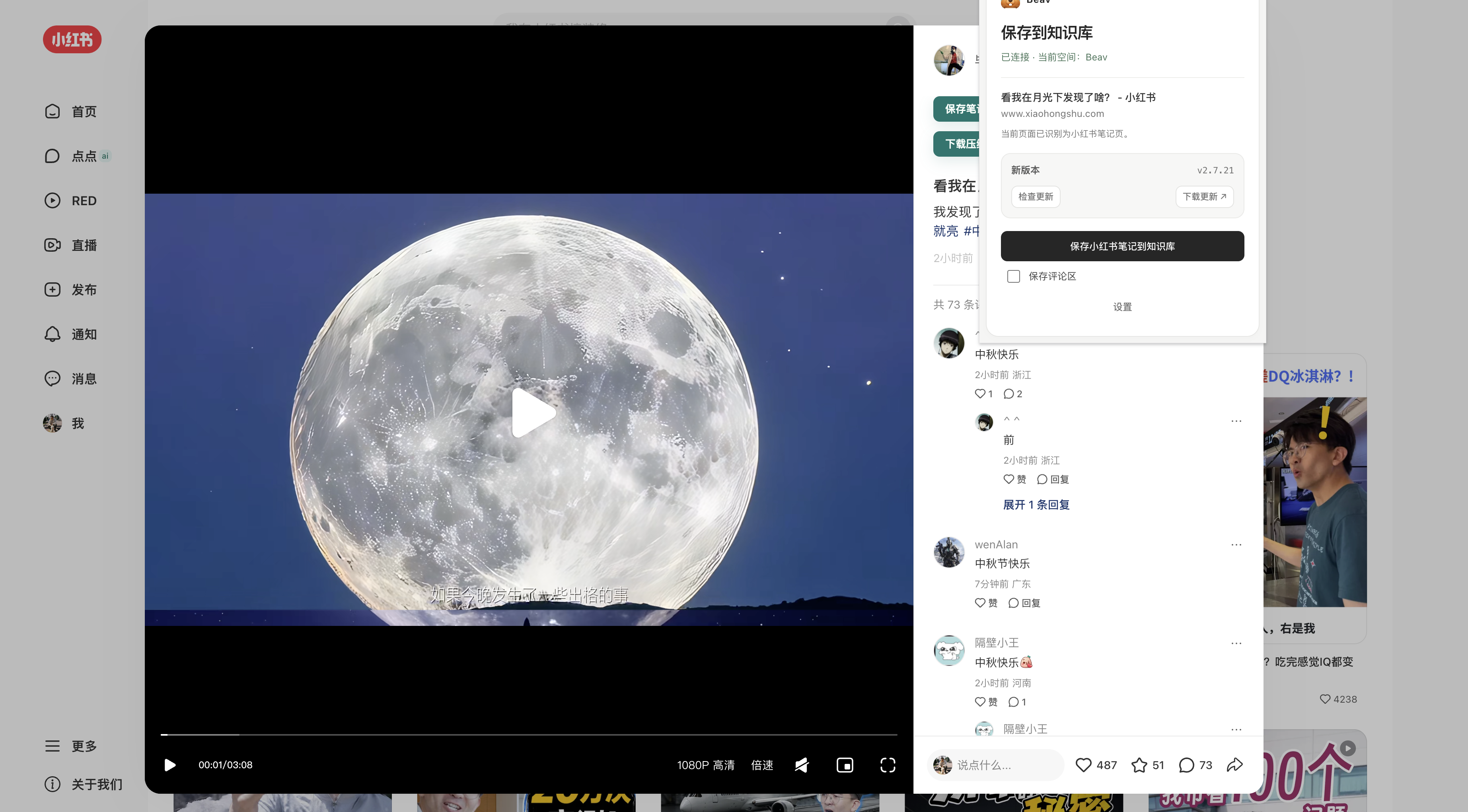
- Save the note text and its source information.
- Save image or video assets.
- Collect a comment snapshot.
- Download the assets of the current note.
On search pages, feeds, and creator profile pages you can save a single note or start a batch capture. Batch tasks share one background queue, so keep the volume and intervals reasonable; stop the task when you hit a verification page or a site limit, finish the verification, and then continue.
Comment sections are useful for pulling out frequent questions, objections, purchase concerns, and users' own words. After saving, you can search and analyze the comments separately from the original note in Beav.
YouTube
In Beav 2.9.2, the confirmation dialog labels 360p as Fastest, 720p as Recommended, and 1080p as Larger file, with a reminder that higher quality can take longer. Download cards and details show the percentage and transfer speed for the current video or audio file; when the total is unknown, they show downloaded bytes. Video and audio have separate progress, followed by merging and saving, so one file reaching 100% does not mean the whole task is complete. Speed drops to 0 B/s after three seconds without new bytes. This applies to desktop 2.9.2 with extension 2.7.26. Source, type checks, and focused byte-copy tests have been reviewed; real transfers, charging, and visual behavior still need scenario validation.
Open a video or Shorts page and save it from the extension popup or side panel. The extension prompts you to confirm in the desktop app, where the knowledge base keeps an entry awaiting download confirmation. Choose a maximum of 360p, 720p, or 1080p and review the current points quote. If the source has no stream at that resolution, Beav selects the best one at or below your limit. The current quote is 15 points for regular accounts or 9 for members; use the amount shown in the confirmation dialog. Canceling keeps the entry for later.
After confirmation, the desktop app requests a video address through the shared TikHub streams_v2 gateway, then downloads the video bytes directly. A successful API call incurs the quoted charge even if the subsequent download fails. A failed entry can be retried, with a new confirmation before another API call. Once saved locally, the video can be previewed and is automatically transcribed. To decompose it, click Decompose after the video is on disk. This flow does not fetch YouTube's platform subtitles; earlier records and subtitles remain readable. No yt-dlp setup is needed.
Reviewed 2026-10-12 against the desktop and extension development source. This has not been formally released. Existing video stream forwarding and production pricing are configured and have been read back, and a minimal API request returned HTTP 200. The new quote route still awaits deployment. Client charging, transfer, transcription, and decomposition remain unverified.
WeChat Official Account articles and long reads
Open the article, then save the current page. For long articles and image-heavy posts, wait until the page has fully loaded before starting the save. If the body text is missing, refresh, scroll to the main content area, and try again.
Images and selected text
- Use the Beav save action or the right-click menu on a web image.
- Select text, right-click, and choose Save selected text to Beav.
- When saving a short passage, keep the original page as the source instead of pasting it into a chat window.
Decompose after saving (removed)
Beav desktop and the browser extension with the 2026-10-27 change no longer offer Decompose after saving (保存后拆解); saving never starts a decomposition. To decompose, open the item in Beav and click Decompose, or select several items and decompose them from the context menu. See decompose videos and notes. Requests from older extension versions are ignored.
Confirm the result
After every important capture, check these in Beav: the source link, the body text, image or video references, the workspace it belongs to, and the save status. Only use the content for creation once both the extension and Beav show it correctly.
Xiaohongshu batch collection (extension 2.7.28)
Checked 2026-10-23 against the 2.10.0 release candidate, bundled guide, and source. Real-account generation, cross-platform interaction, and exported results still require runtime validation.
The default randomized interval is 10–20 seconds per item, with 30 posts per creator profile. Reduce the count or increase the interval as needed; slower collection does not guarantee that the platform will not restrict an account. Reload the extension after updating and check the sidebar settings.