
Frequently asked questions
Account, credits, and model settings
Sign-in and membership entry points, redemption codes, top-up orders, credit usage display, and how to connect third-party or local models.
Verified 2026-10-19: the App 2.9.2 development source temporarily hides the first-month trial membership product. Plan comparison shows Free and Lifetime, the official account page omits the trial product, and the chat membership/insufficient-points dialog offers Lifetime and points-only top-up, defaulting to Lifetime. Existing purchased or redeemed trial benefits, account status, remaining days and pending-order recovery remain available. This change has not been packaged; released installers and desktop rendering have not been verified, and existing installations have not received it yet.
Checked 2026-10-07. Applies to Beav desktop 2.8.13.
Sign in
The Beav desktop app signs in with a China-region account and supports WeChat QR code scanning. After you confirm the scan on your phone, sign-in succeeds only once the desktop app finishes signing in; if the QR code expires, get a new one. Connections may fail while you use a VPN or system proxy. Switch networks and try again; if it keeps failing, report it through Help and feedback and note your VPN mode and when it happened.
Development version: return to the app after Google sign-in
Source checked on 2026-10-17 for 2.9.2 development builds containing this change. The website handoff and Netherlands backend are deployed; the desktop build is not released. Real Google authorization and OS app opening remain unverified.
Outside mainland China (including Hong Kong, Macao, and Taiwan), the sign-in screen offers email codes and Google for the separate Beav Global account system. Google opens the Beav international website (getbeav.com) in your system browser, then Google authorization. After authorization, the website tries to open Beav. If it does not, click Return to Beav and allow the browser to open the app. Sign-in is complete when the app confirms success. This flow does not change the website's existing China-region account session.
The app waits up to five minutes; the return ticket expires after 60 seconds. After cancelling, timing out, or restarting the app, start again from the app rather than reusing the callback page. For redirect_uri_mismatch, an administrator must check the fixed website callback on the Web OAuth client and deploy/configure the matching website, Global backend, and APP settings.
Website sign-in and account regions
Deployed on 2026-10-18. Both sites' sign-in methods, default languages, cross-region request blocking, www redirects, and language preferences after refresh have been checked. Email and Google sign-in are displayed; email delivery and real Google website sign-in remain unverified.
Website sign-in is fixed by domain, regardless of your IP address, VPN, proxy, or page language. beav.pro is the mainland site, offering phone and WeChat sign-in through the primary node's China account system. getbeav.com is the international site, offering email codes and Google through Beav Global on the Netherlands node. Pages on www.beav.pro redirect to beav.pro; pages on www.getbeav.com redirect to getbeav.com. Legacy website addresses permanently redirect (301) to the mainland site, preserving the page path and query parameters. The mainland site defaults to Chinese and the international site to English. Use the existing language switch to choose either language; the site remembers your choice. Language changes do not change your account region.
After sign-in, balances, orders, top-ups, and teams use the domain's account region. Accounts, balances, orders, and teams remain separate and do not merge automatically. To use the other region, open its website and sign in. An older session from another region requires a fresh sign-in and does not transfer the account or balance. After closing the Google popup, you can use email sign-in. The desktop app's country/region setting and Google return-to-app flow keep their existing behavior.
Navigation, documentation links, share links, and copied installation commands use the serving website’s own domain: beav.pro on the mainland site and getbeav.com on the international site. Switching languages keeps the same domain.
Development build: website links inside the app
Source checked on 2026-10-18 for the 2.9.2 development build containing this change; the desktop installer has not been released. Usage records, invoices, team billing/top-ups, extension downloads and tutorials, library-mode documentation, and website download links follow the signed-in account region: China accounts open beav.pro; Global accounts open getbeav.com. The next click follows a newly selected account while preserving the page and its parameters. Language and country settings do not change the account region. Device management during an unfinished login follows that login attempt's region.
App and website sessions remain separate, so you may need to sign in on the corresponding website. Links do not carry app login tokens. Payment URLs, fixed authorization callbacks, APIs, and third-party pages retain their original addresses.
Membership and credits
Click your avatar in the lower-left corner to open the account menu. Below your account information is the membership entry (Personal Free, Personal Lifetime, Founding Sponsor, or Team), then your points balance with Recharge, the appearance switch (light / dark), and Use a redemption code, Environment & secrets, Settings, Help and feedback, and Check for updates. If you qualify for a new-user offer, the same row shows the original price, the discounted price, and a countdown.
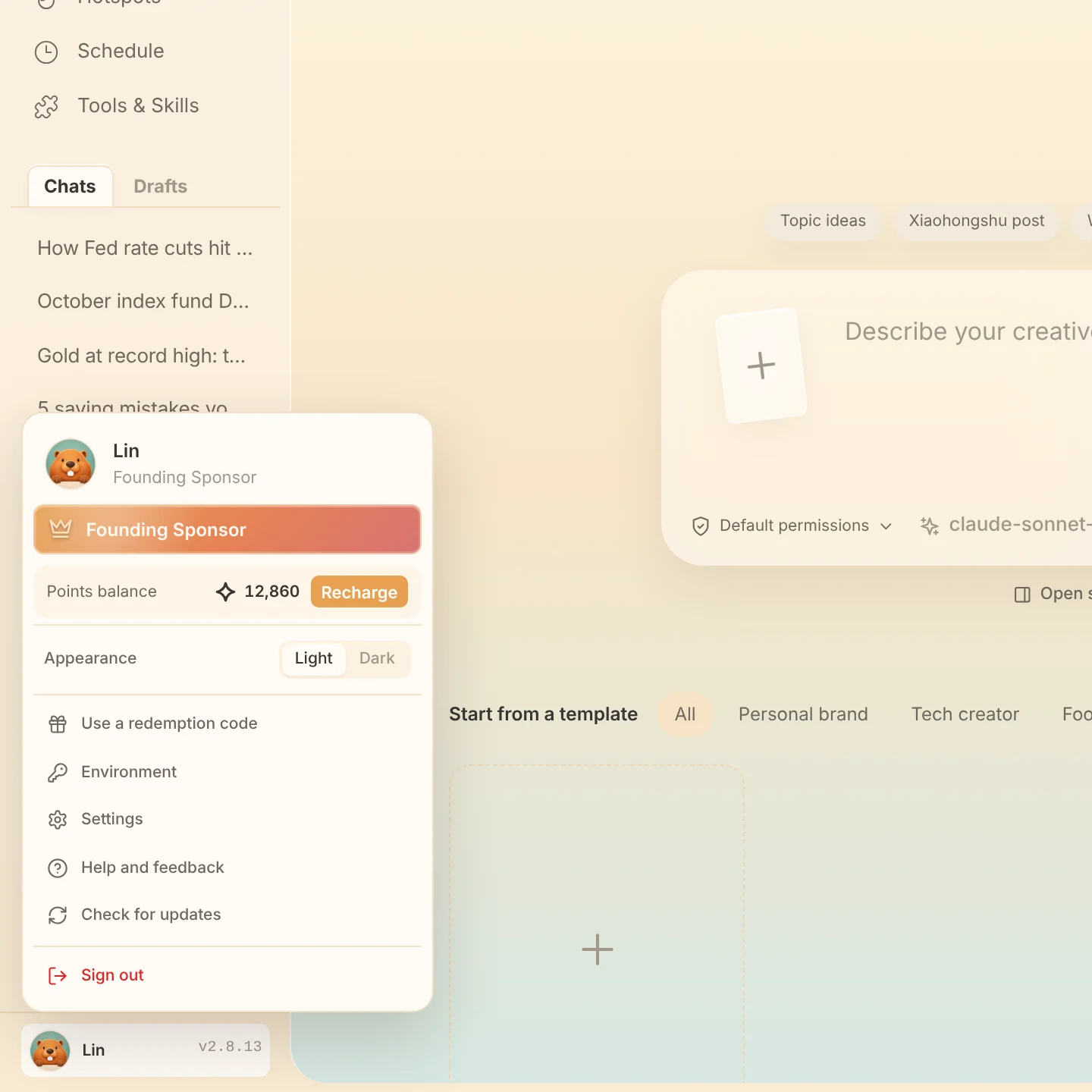
The bottom of every AI reply shows the credits used for that reply. For non-members, once credits are settled, the discounted member price appears next to it as Members pay. For the multipliers shown next to official models in the model picker, see Get to know the workspace. Actual prices, quotas, and benefits are whatever the current interface shows.
Global USD purchases (development source)
Checked 2026-10-18. The supporting backend is deployed for the matching 2.9.2 development app; the desktop version is not formally released, and real payment and delivery remain unverified. Global accounts use the existing top-up and membership entry points. Annual membership costs $49, includes 25,000 bonus points, and lasts 12 calendar months without automatic renewal. Lifetime membership costs $89 and includes 50,000 bonus points. Both support up to three devices and 40% off official AI calls while membership is active. Points packages are $10 / 5,000 points, $20 / 10,000 points, and $50 / 25,000 points. The app payment window shows the matching product and amount; only the server order status confirms payment. China-region CNY top-ups and account data remain separate.
In this development version, the comparison shows Personal Free, Annual Membership, and Lifetime Membership from left to right. China-region annual membership costs CNY88 and includes 9,000 bonus points for 12 calendar months without automatic renewal. A points-only top-up adds balance without membership: AI calls remain at full price and free-plan feature limits still apply, including one personal space. Existing members and teams keep their current benefits when topping up. Both regional discount policies were read back from admin settings; real member AI billing was not performed. The current account interface is the source for the final quote and benefits.
Use a redemption code
Click your avatar in the lower-left corner, choose Use a redemption code, enter it, and click Redeem. On success, a dialog shows the credits, membership type, and validity period you received; on failure, your input stays and the reason is shown. Product redemption codes are not the same as the invite code on the account page.
Top-up orders
Membership and points orders use the payment deadline returned when created, or 30 minutes from the first request when no deadline is returned. An unfinished order shows Awaiting payment, a countdown, and Continue payment at the bottom of the sidebar. Another purchase first checks the existing order. If you close the dialog or restart Beav, sign in to the same account to recover an unexpired order. Successful payment clears the reminder and refreshes credits. Expiry returns to plan selection; a new order can be created after the unpaid old order is confirmed closed.
A Global checkout link can expire early after it is submitted once. Reopening purchases or choosing Continue payment checks the old link. If payment is processing or the query fails, the old order is retained for a later retry. The local countdown alone does not confirm closure. On 2026-10-18, the original account successfully created a new $49 annual order after its old order closed. No payment or delivery was performed. This applies to the matching 2.9.2 development frontend and supporting backend.
Connect third-party or local models
In the 2.9.2 development build containing this membership update, using a custom third-party provider or local model requires membership. Free accounts retain all creation features and pay the standard credit price for official AI. Saved provider and model configurations remain available; become a member or switch to an official model to continue. This desktop build has not been formally released.
After signing in, go to Settings → AI models:
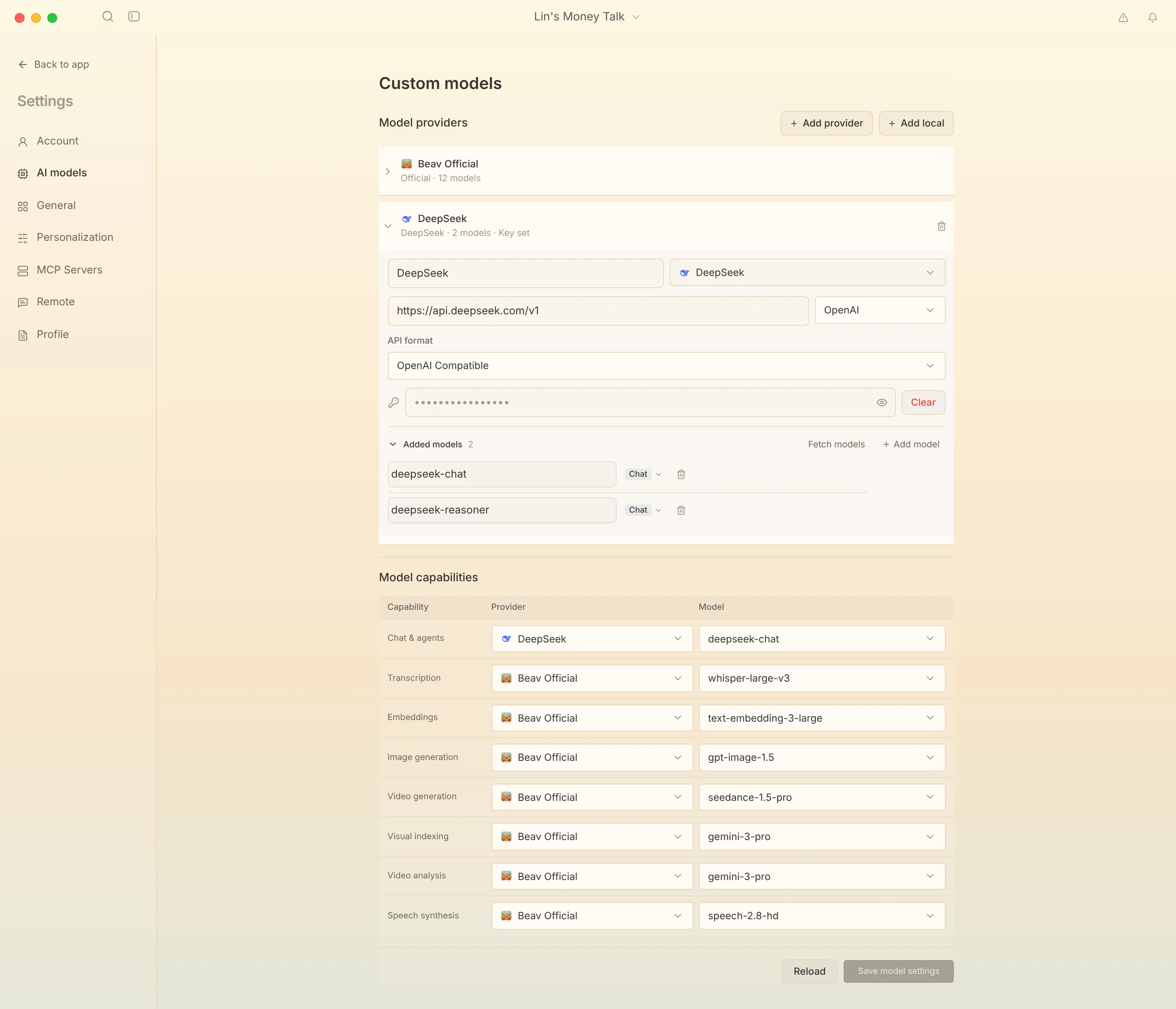
- Click Add provider to connect a third-party API, or Add local to connect a model on your computer or local network.
- Under the provider's Added models, enter a model ID manually or click Fetch models.
- In Model capabilities, choose a provider and model for each use, such as chat and image generation.
- Click Save model settings. The settings take effect only after you see that they saved successfully.
Notes:
- Enter the API root path as the API URL, and enter the API Key separately; do not put it in the URL.
- OpenAI Chat Completions, Responses, Anthropic Messages, and the native Gemini protocol are supported. Choose the protocol the upstream service actually provides.
- A regular API, a Coding / Token Plan, and China versus international regions may use different URLs, keys, and model IDs. Fill them in according to the instructions for the service you bought.
- Chat models and image or video generation models are configured separately. Changing only the chat model does not change the image model, and a working chat connection does not mean the upstream service supports tool calls or image generation.
- Switching models within the same chat keeps the text and tool results. If a provider cannot continue an older reasoning record, start a new chat and reference the existing assets to continue.
Self-hosted models
In the development build that includes this change (not yet released), the Self-hosted group in Add provider offers templates for Ollama, LM Studio, vLLM, llama.cpp Server, Xinference, LocalAI, GPUStack, SGLang, Jan, KoboldCpp, Docker Model Runner and the LazyCat AI pod. All of them connect through the OpenAI-compatible API:
- Start the server on this computer, another computer on your network, or a NAS.
- Pick its template. The API address already uses the server's default port. If the server runs on another computer, replace
127.0.0.1with that computer's LAN IP (for Ollama, setOLLAMA_HOST=0.0.0.0on that computer). - Leave the API key empty if the server has none. If you started it with a key (such as
--api-keyfor vLLM or llama.cpp), enter the same key. GPUStack always needs a key. - Click Connect to read the model list and tick the models to use. Ollama, LM Studio, LocalAI, GPUStack, Xinference and the LazyCat pod report each model's type, so embedding, rerank, speech recognition, text-to-speech, image and vision models land in the matching capability. For other servers Beav recognizes common open models by name; correct the type by hand if needed.
Each model app on the LazyCat pod shows a URL under View model info (for example http://192.168.6.142:8009) and has no API key. Pick the LazyCat template, paste that URL as the API address and leave the key empty; Beav adds /v1 for you. Each model app has its own port, so add one provider per model. Off the LAN, the pod's built-in Ollama is at https://ollama-ai.<box name>.heiyu.space/v1 (this computer must be on the LazyCat network). ComfyUI and Stable Diffusion WebUI do not offer an OpenAI-compatible API and cannot be connected yet.
The Local AI routers group offers CC Switch and Magpie templates for routing tools already running on this computer. In CC Switch, turn on its local router first (default http://127.0.0.1:15721/v1); requests go to the provider currently selected for Codex in CC Switch. It does not list models, so click Skip and add models manually and type the model name. Magpie defaults to http://127.0.0.1:3425/v1; leave the key empty and click Connect to read the models it aggregates from its providers.
If saving fails, read the specific message first. If writing the API Key fails, try again or restart Beav. If writing the configuration file fails, check disk space and folder permissions. If you see a version conflict, note your changes, click Reload, then edit again. When you report a problem, include the app version and the original error text, and do not send your API Key.
Stop, retry, and credits
- When the AI service returns a temporary error, Beav waits and retries automatically within the same task, showing Queued and the time remaining. You can stop while it waits; you do not need to send the request again.
- Clicking stop ends only the current run. It cannot undo writes that have already finished, and it does not guarantee that an external service stops billing immediately.
- If an image or video job was submitted but its result cannot be confirmed, Beav keeps the failure details and any existing output and does not regenerate automatically. Check the original task before deciding whether to retry, so you are not charged twice. See Performance and long tasks.
Development build: 1-Year Membership
Source checked on October 18, 2026, for the 2.9.2 development frontend containing annual membership support. The app frontend has not been released. Both regional catalog offers have been configured and read back as active and public; real in-app payment settlement remains unverified.
The app membership comparison displays Free, Annual and Lifetime from left to right, with Annual in the middle and Lifetime on the right. The team purchase card and term dropdown are removed. The account page and insufficient-points dialog also offer Annual and Lifetime, with Annual selected by default in the latter. Existing team identities and management remain available. Pricing is CNY 88 with 9,000 bonus points in China, and USD 49 with 25,000 bonus points internationally. A one-time purchase grants 12 calendar months without automatic renewal. Price, bonus points and purchase eligibility come from the account's server offer; memberships with an expiry show their end date. This does not mean the annual plan is available in the released app. Actual entitlement duration and point settlement still need verification.
Development build: insufficient points and international top-ups
Checked October 18, 2026, for the unreleased 2.9.2 development source containing this fix. Insufficient balance shows a short message. Notices that require action remain visible until dismissed or updated when switching conversations or starting another request. “Get membership and continue” shows Annual and Lifetime options; “Top up only” opens point packages directly. An unavailable membership quote keeps the membership options and a retry action.
Current international offers are USD 49 with 25,000 points for Annual and USD 89 with 50,000 points for Lifetime, both one-time purchases. Chat and account-page top-ups use actual catalog products: USD 10 / 5,000, USD 20 / 10,000 and USD 50 / 25,000 points. Custom amounts outside the catalog are unavailable. Prices, grants and checkout product IDs come from the same product. AI discounts follow the account's server policy; the international region currently has no membership AI discount. Quotes and entry points have been checked in the macOS development window. Real payment, settlement and continuation after payment remain unverified.
Decision model and model roles (2.10.0)
Checked 2026-10-23 against the bundled guide and release candidate source. Real-provider calls still require runtime validation.
In Settings → AI models, choose separate models for chat, automation, and digital-human voiceovers. The Decision model handles yes/no, selection, and scoring tasks such as trend ranking, topic evaluation, and skill selection. Hover over its question mark for details. When it is unconfigured or fails, related features retain their existing model or recovery behavior.
Local providers can list models without a key when the service supports it. Official models labeled Members only require the corresponding account access; changing providers does not grant access to a model or capability. On errors, check the account, permissions, endpoint, and model availability before resubmitting potentially billable generation tasks.