
Get to know the workspace
Chat and the right workspace
Reference knowledge, assets, and manuscripts in a chat, and use voice input, message queuing, right-side tabs, the built-in browser, and phone QR handoff.
Checked 2026-10-07. Applies to Beav desktop 2.8.13.
Most work starts with a New chat: describe the result you want and the material you already have, and the AI asks follow-up questions when needed. Image and video creation and video editing also happen in the chat and its right workspace; there is no separate media creation page.
Session model and queue fixes (2.9.5)
Checked 2026-10-19; applies to Beav 2.9.5. A model selected in the composer is saved with the conversation and restored when you reopen it. Following the default uses the current route settings. Routes you disable in settings are no longer automatically filled with a default model.
Messages sent during execution run in send order. Stopping preserves messages queued before the stop; restarting does not send them automatically. A new message sent during stop cleanup starts after the old turn ends. Resolve the reported cause when a message is rejected before sending; it will not retry indefinitely. This release also fixes missing user messages and late signals from an old turn affecting a new turn. These descriptions were checked against source; real provider and cross-platform desktop behavior are tracked separately in release validation.
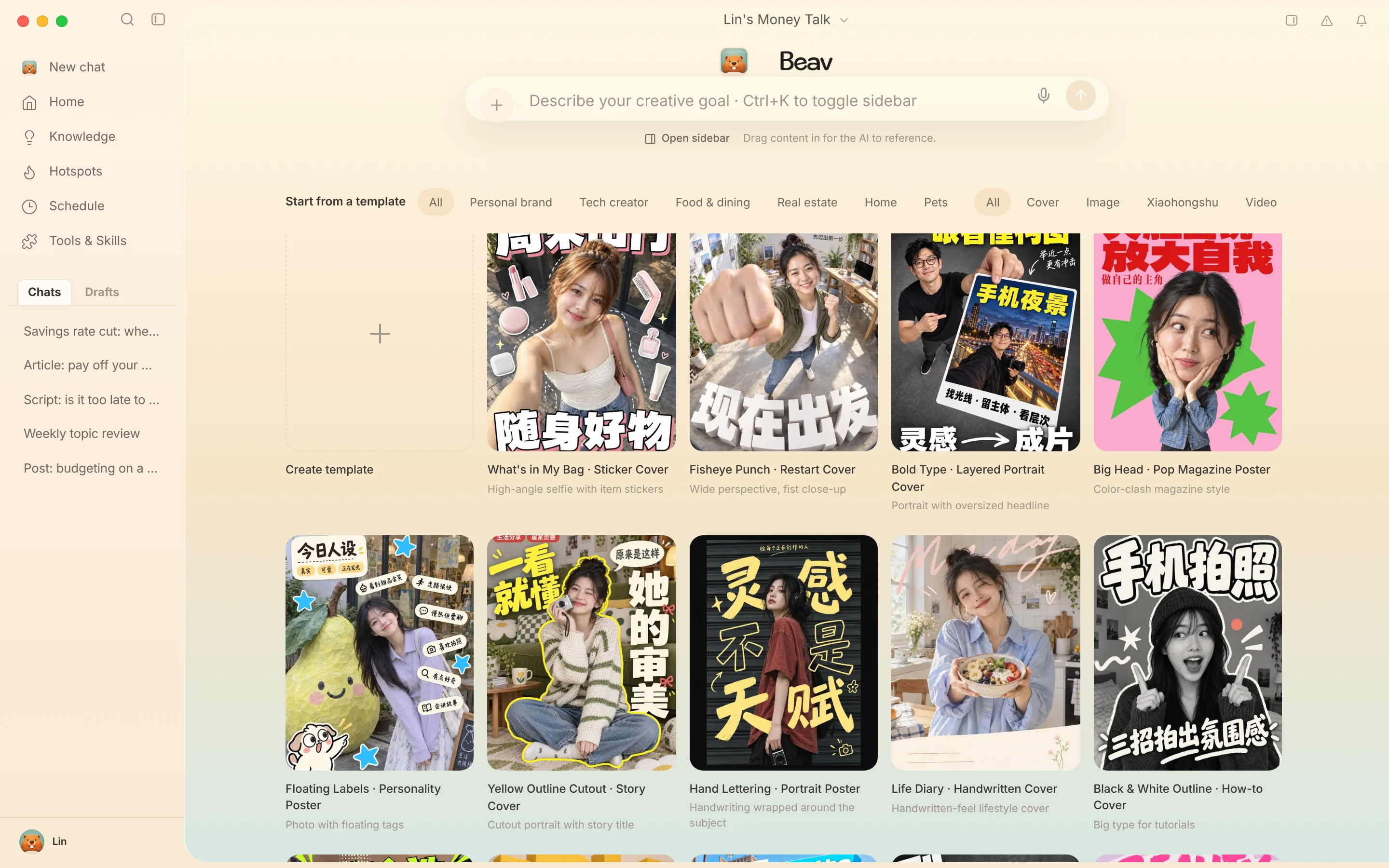
The new chat page
The new chat page has the input box at the top and the available creation templates below it. You can filter templates by industry (personal IP, tech bloggers, food and beverage, real estate, home furnishing, pets, beauty and personal care, outdoors) and type (cover, image, Xiaohongshu (RedNote), video). See Creation templates for how to use them.
Start from a platform and a scene
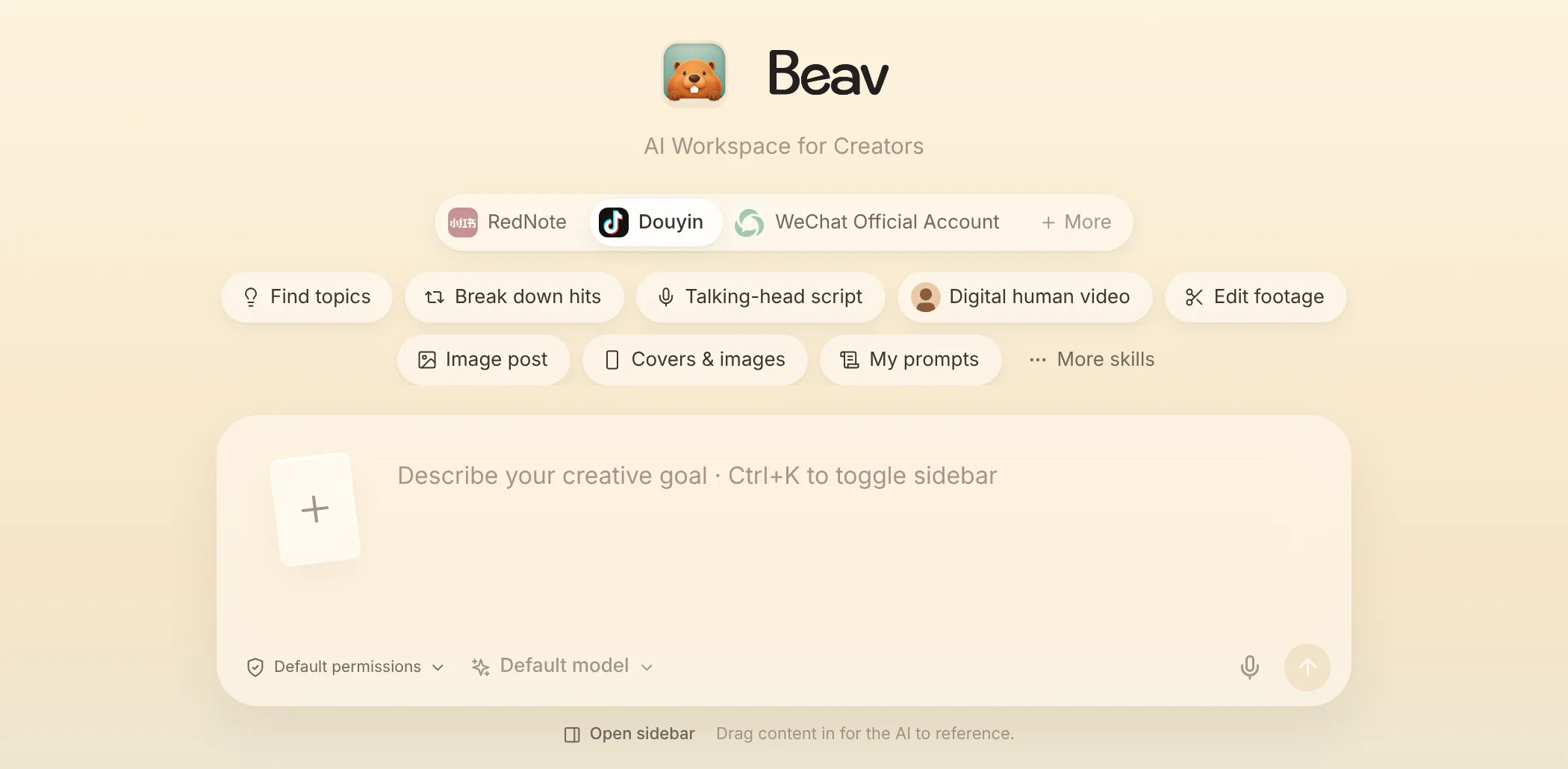
If you are not sure where to start, use the two preset rows above the composer (in the next release):
- Pick a platform: the first row shows your space's creation platforms, with the last one you used selected. Click More to pick another platform for this chat only.
- Pick a scene: the second row depends on the platform. RedNote has Image post, Douyin has Talking-head script, Digital human video and Edit footage, and WeChat Official Account has long-form writing and layout. Every platform has Find topics and Break down hits. My prompts appears when your asset library has prompts in
prompts/, and More skills opens the full skill list. - Click an example: each scene offers a few example requests. Ones with a green dot use your space's saved items, trends or plan. Clicking one fills the composer; the part in
[ ]is selected so you can type over it, andTabjumps to the next blank. You can send with blanks left and the AI will ask first.
After you pick a scene, a "scene · platform" card appears above the composer; click × to remove it. The scene's skill stays on for this chat, and the templates below filter to the matching type. The digital human scene attaches the digital human you already have in your asset library.
Give the AI material
- Drag in cards: Drag cards from Knowledge, Assets, or Manuscripts in the right workspace onto the input box. When you release, a reference card with a type label appears above the input box. Manuscript cards also have an Add to chat button at the bottom.
- Shortcut: When the input box is focused, press
⌘K(Ctrl+Kon Windows / Linux) to open or close the right sidebar. - Attachments: Paste, drag in, or choose images and files. A pasted image is saved only as an attachment to that message and does not go into the asset library automatically; save it explicitly if you want to keep it.
- @: Type
@to choose composite assets such as products and characters.
References are submitted with the message only when you click send, and you can remove them one by one before sending. Starting with 2.8.13, # no longer opens the knowledge picker and is typed as ordinary text.
Voice input
Click the microphone in the input box to start recording. Click it again or press Enter to stop and transcribe. The recognized text is inserted into the input box, and you still send it yourself. Each recording can last up to 5 minutes. Press Esc while recording to discard it. If the network fails, click Retry instead of recording again. The first time, you need to allow system microphone access.
Keep sending while the AI is running
Messages you send while the AI is replying go into the queue above the input box and are processed in order after the current turn ends.
- Steer: Hand the message to the AI at a safe point in the current turn without interrupting tools that are running.
- Edit: Move an unprocessed message back to the input box to change it. When you send it again, it goes to the end of the queue.
- Delete: Remove a message that has not started processing.
After you click stop, the unsent queue is kept and is not sent automatically, even after a restart. Stopping only halts the current run; it cannot undo writes that have already completed.
The right workspace
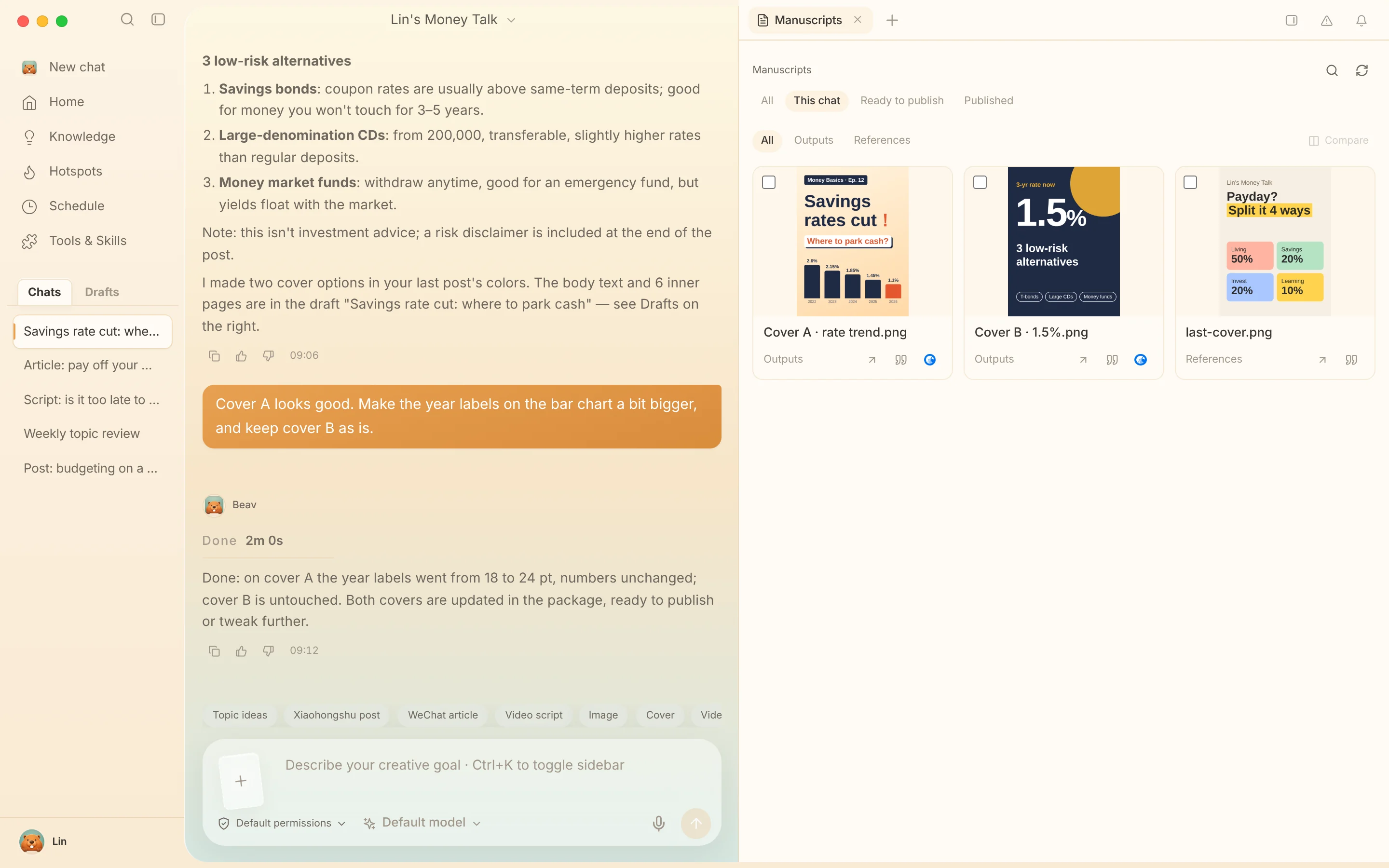
Click the sidebar button on the right of the chat title bar to expand the right workspace. It uses tabs like a browser. Use + to open a new tab with:
- Manuscripts: Manuscripts and asset packages in the current space. The filters are All, This chat, Ready to publish, and Published; Ready to publish is selected by default. See Manuscripts, asset packages, and publishing.
- Knowledge / Assets: Browse content and drag it into the chat. Linked Obsidian vaults and Eagle libraries are also listed by name.
- Video editor: Opens the full video editor in the sidebar while you keep chatting on the left. See Video editing and smart talking-head cuts.
- Browser: A built-in browser with URLs and Bing search, back and forward, 50%–200% zoom, multiple tabs, link copying, and Quote in chat. Sign-in state is stored separately per space and does not use your system browser's sign-ins. If a site refuses embedded sign-in, use Open in system browser.
Files, images, and asset packages that appear in the chat also open as tabs on the right. Drag the divider between the chat and the right sidebar to adjust the width. Tabs and the expanded state are saved per space and chat and restored after a restart.
This chat collects the current chat's attachments, generated results, asset packages, and links. You can filter by Outputs or References, or check two images to compare them side by side.
Share to phone
- Video: Click Share to phone in the video preview's control bar.
- Image: In the chat image preview, click Share to phone next to the download button.
Beav creates a temporary QR code. With your phone and computer on the same Wi-Fi, scan it to open the pickup page, where you can play or download the video, or view or download the original image (on iPhone, long-press the image to save it to Photos). The link is valid for 30 minutes, and your computer and Beav must stay on during that time. Remote files must be saved to this computer first. To share a single item from the asset library, see Share assets and drop files into Beav.
Archive chats
Clicking Archive in the chat list on the left archives the chat immediately, and an Undo option appears at the top of the page for about 5 seconds. You can restore it later in Settings → General → Archived chats. A chat that is running cannot be archived yet.
Unsent drafts
Unsent text and reference cards are saved on this computer, so you can keep editing when you return after switching pages or chats. Drafts do not sync across devices.
Platforms and scenes (2.10.0)
Checked 2026-10-23 against the 2.10.0 release candidate, bundled guide, and source. Real-account generation, cross-platform interaction, and exported results still require runtime validation.
Choose a platform and scene above the new-chat input based on the materials you have. Use Tab to fill template placeholders in order. The selected platform and scene remain with the chat. Open More in the platform bar to manage and reorder workspace platforms. Product cards and digital humans can be attached as references.
Answered, skipped, or dismissed question cards keep their handled state. Reply attachments appear below the message. Favorite reusable generated results from Generation history into the asset library.